INSTALLATION MANUAL

North American Variants

Table of Contents

Casambi User Guide42
Download and install Casambi App43
How to log into existing Casambi network44
Troubleshooting Casambi network45
Version changes46

Wiring Instructions

ℹ️

NOTE

Check the luminaire immediately upon receipt for any physical damage.

The manufacturer is not responsible for late reporting of any physical damage and replacement may be charged. Innerscene optionally provide a quick test power cord (KIT-QTPC-NA) to quickly test that all fixtures power on. Depending on local codes, this can normally be used at ground level without an electrician.

⚠️

WARNING

Install product in accordance with local and national electrical codes, using a qualified electrician. Failure to comply with the installation instructions may result in serious injury or death.

Read all safety instructions included with the luminaire prior to installation.

ℹ️

NOTE

This is an electronic device. Care must be taken during storage and handling. Store in a clean, cool and dry location. Electrostatic discharge (ESD) can harm this product. Avoid static discharge while handling the product.

This product contains a temporary internal power source for time keeping, and must be installed within two calendar weeks of receipt.

Delays in installation may result in additional reprogramming to the internal clock.

⚠️

WARNING

The manufacturer is not responsible for the structural integrity of the building to support the luminaire. Additional backing may be required.

Control System Overview

Virtual Sun fixtures include an integrated control box mounted inside the enclosure alongside the power supply unit (PSU). The PSU provides low-voltage DC power to the control box.

Primary and Secondary Fixtures

  • Primary fixture — identified by a "PRIMARY" label on the control box. Connect all external control cabling (0-10V, DALI, DMX, or Casambi) to the primary only.
  • Secondary fixtures — require no control cabling. They receive brightness and color temperature from the primary over Ethernet and follow automatically.

Ethernet Synchronization

  • Connect all fixtures in a group to a single dedicated unmanaged Ethernet switch using standard Cat5e/Cat6 cables.
  • Use one switch per independent group. The switch must not be connected to the internet or to any network serving a different fixture group.

WiFi Programming

Virtual Sun supports the SkySync hub and mini-hub for WiFi-based scheduling, circadian animations, and scene control — the same system used by Circadian Sky.

Quick Test Power Cord

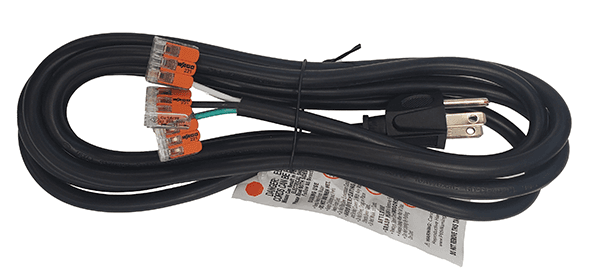
A power cord may be optionally supplied with your shipment to faciliate the testing of your light fixtures. You may wish to test the fixtures at ground level before hard wiring into ceilings. This power cord is normally packed in the Primary fixture box.

⚠️

WARNING

In some areas, homeowners can perform this test without a licensed electrician. Consult your local codes.

Components

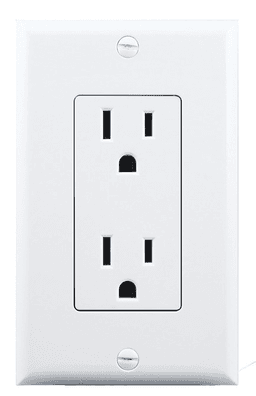
Building Power Socket

Socket

Quick Test Power Cord

Power Cord

Approximately 1m / 3’ long

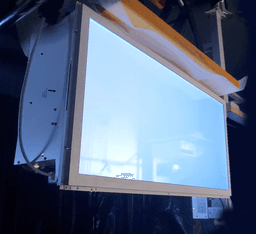
Innerscene light fixture

VS Light Fixture

Process

Step 1
Step 1

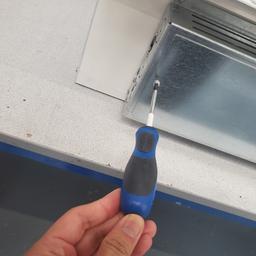
Open driver box access panel with Phillips PH2 screw driver.

Step 2
Step 2Step 2

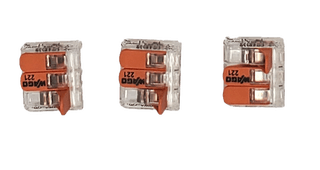
Remove 3x Wago wire clamps pre-attached to quick test power cord to expose copper conductors and set to one side.

Step 3
Wires

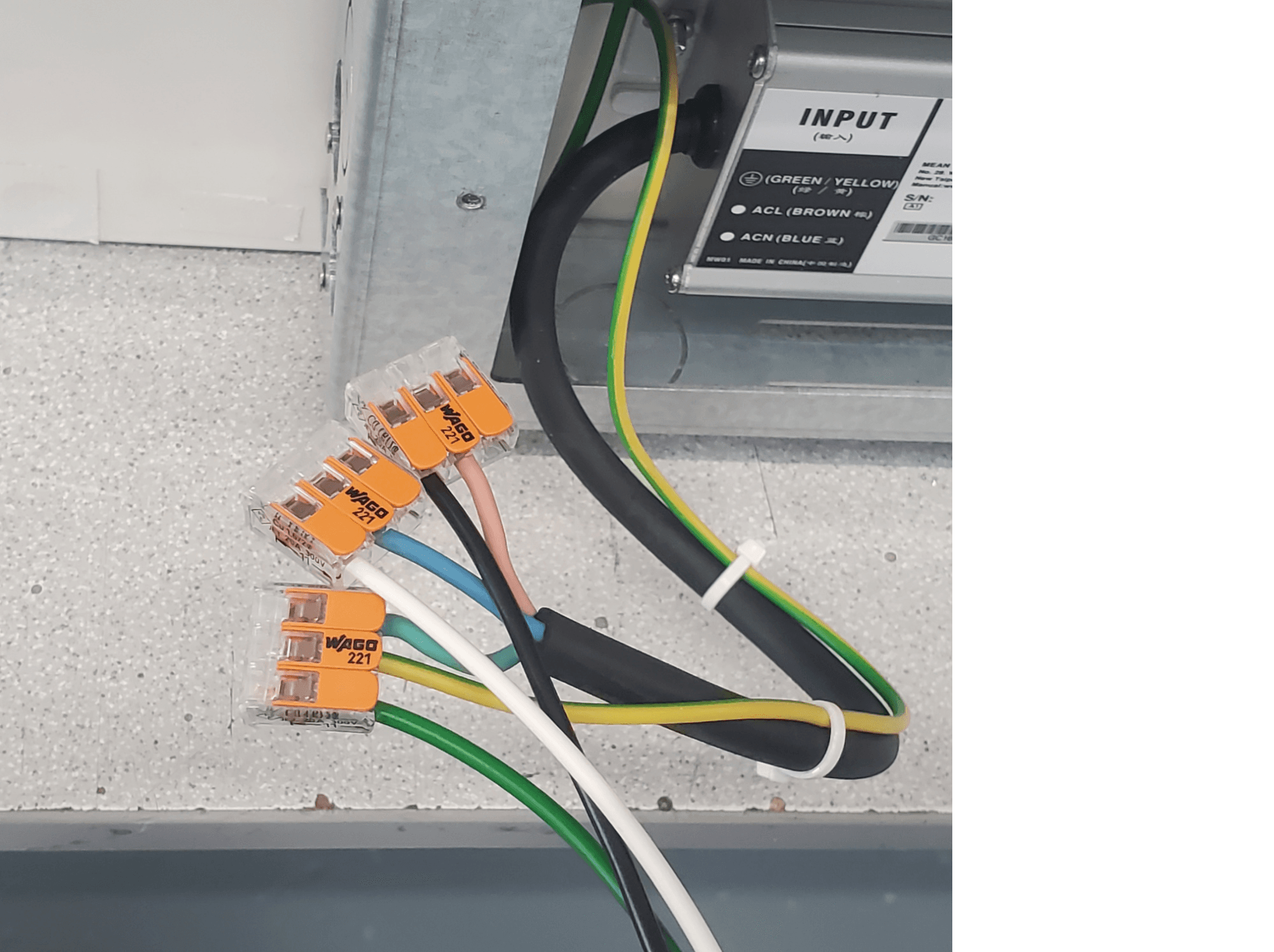
Insert pigtail wires into Wago clamp on light fixture as shown below (3-way or 5-way connectors may be provided).
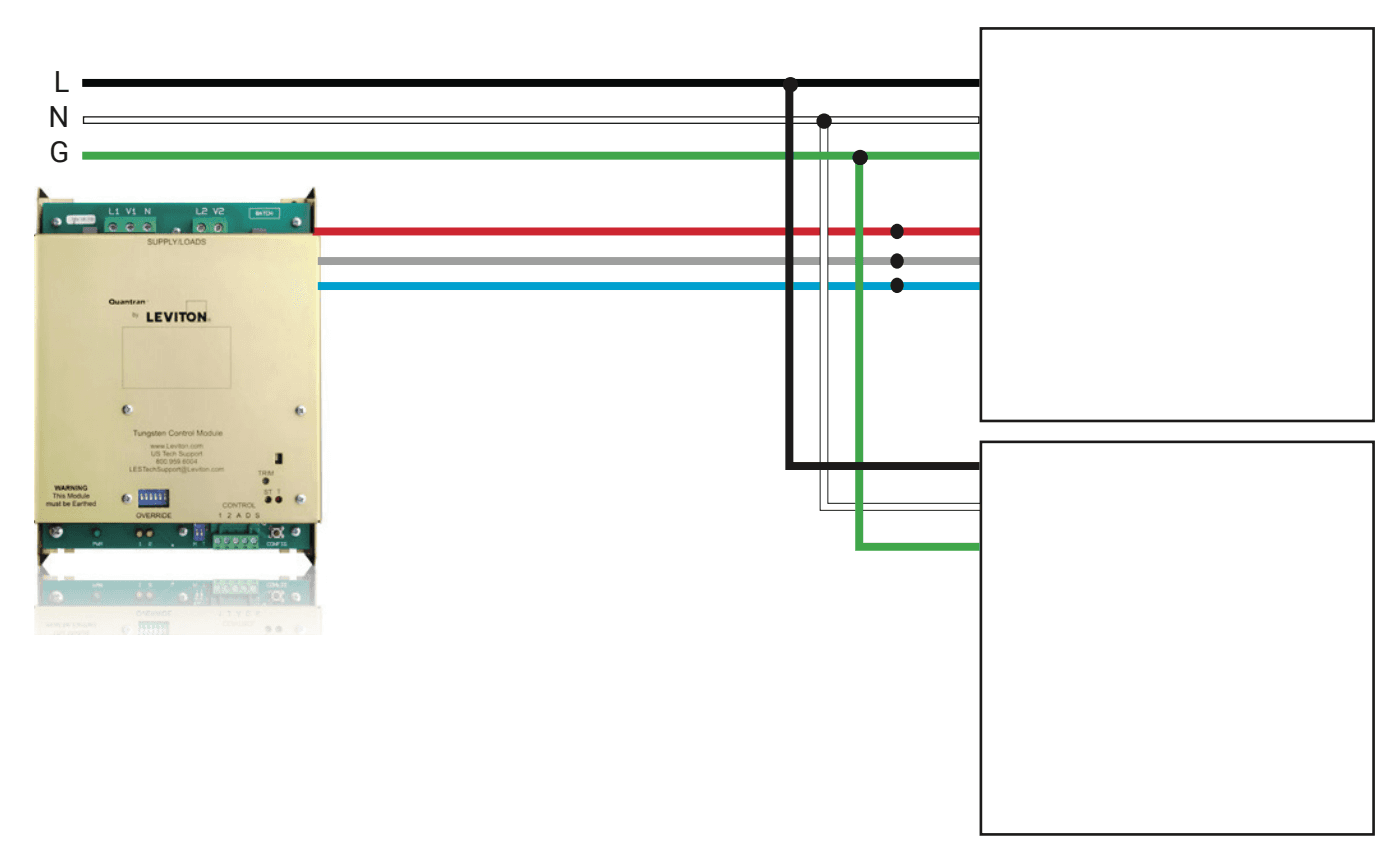
Brown to Black. Blue to White. Green/Yellow to Green. Do not connect dimming wires (Grey & Purple).

Step 4
Step 2Step 2

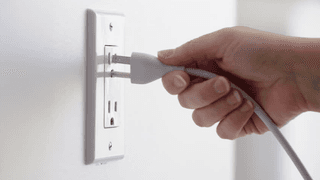
Plug the power cord into a building mains power socket to test each fixture power on properly.
Some dimming and control features may be available whilst powered from a socket.

⚠️

WARNING

Unplug from mains power socket, then re-attach wago connectors to make safe.

Spec Code: VS-XX-XX-XX-010V-XX-XX

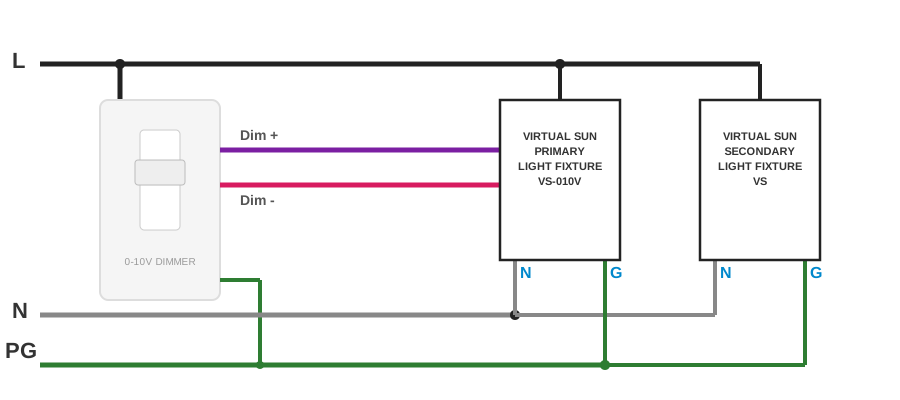
1 channel 0-10V (Dim-2-Warm or Dimming only)

Dual Channel Wiring

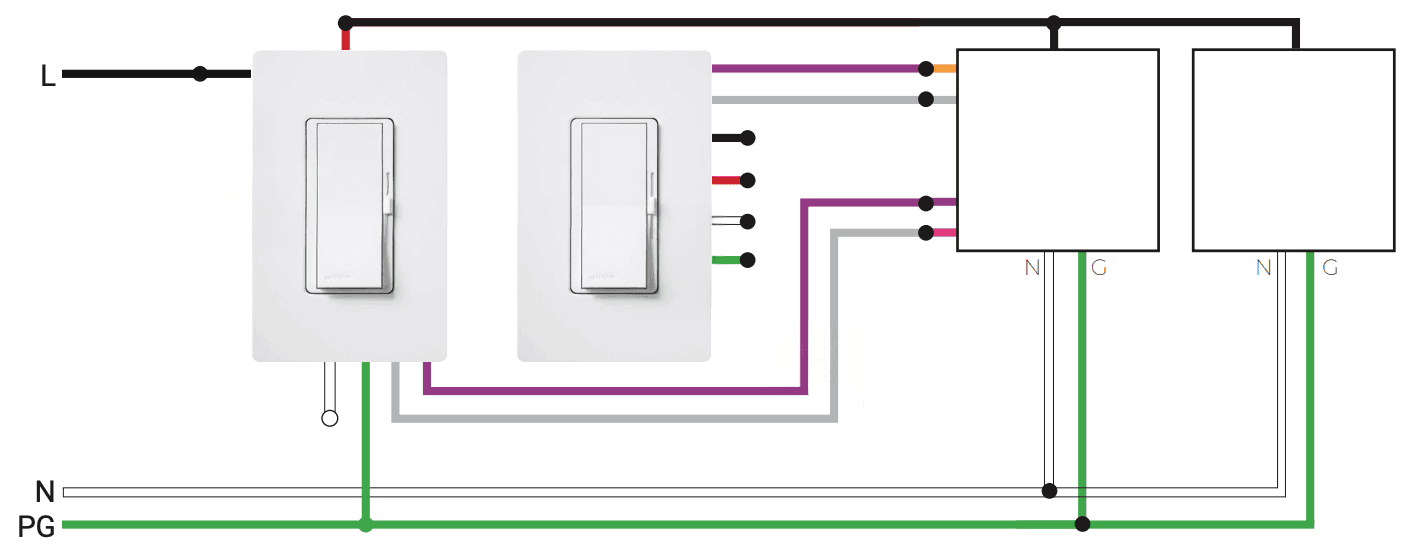
2 channels 0-10V dimmer wiring (Tunable Sky only)

Two 0-10V Wiring

Ethernet Synchronization:

  • Only the primary fixture (labeled "PRIMARY" on the control box) connects to the 0-10V dimmer. Secondary fixtures require no control cabling.
  • Secondary fixtures receive brightness and color temperature from the primary over Ethernet and follow it automatically.
  • Connect all fixtures in a group to a single dedicated unmanaged Ethernet switch. The switch must not be connected to the internet or to any switch serving a different fixture group.
  • Please specify the distance from each fixture so Innerscene can supply the appropriate length of Ethernet cables.

Example compatible dimmers for 1 channel:

  • Lutron PowPak Wired or Wireless 0-10V Dimmer and Relay, Maestro Wireless 0-10V Dimmer and Sensor (MRF2S-8SDxxxx), Diva
  • 0-10V Dimmer and Switch Range, Nova T 0-10V Dimmer (NTSTV-DV)
  • Leviton Decora 0-10VDC Wall Dimmer (DS710-10Z)

Example compatible for 2 channel (two 1 channel can also be used):

  • LuxDrive Dual Channel 0-10V Wall Mount Dimmer K020-W
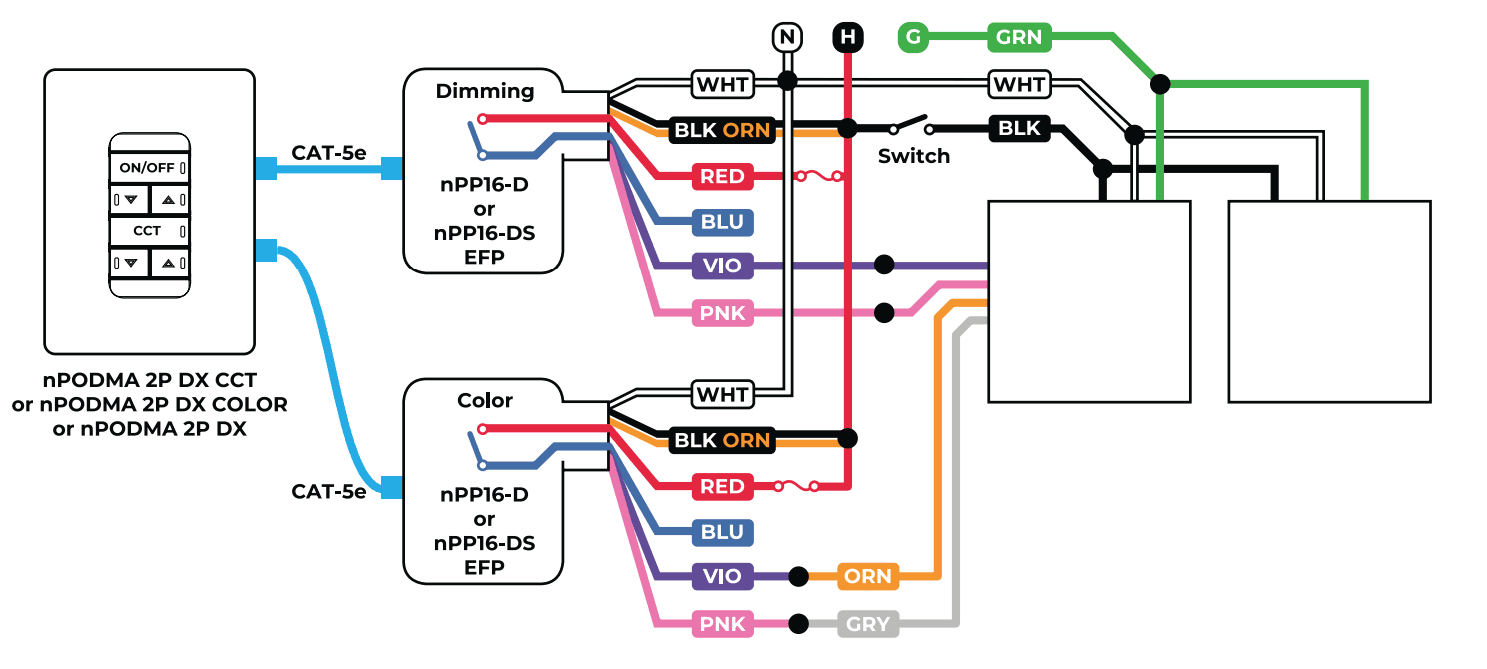
  • 2x nLight nPP16 D Dimming Power Pack + 1x nPODM 2P DX CCT Wall Switch

Incompatible dimmers: AmbientTech 0-10V dimmers

  • Some light control system may require separate power switch. Some may require two separate dimmers.
  • Some dimmers may only have three 0-10V wires instead of four. DIM- and COLOR- are common at the fixture level.
  • For Trim adjustments please refer to 0-10V/1-10V Trim adjustment instructions.
  • Secondary fixtures sync to the primary via Ethernet. For WiFi-based scheduling and scene programming, use the SkySync hub or mini-hub.

Spec Code: VS-XX-XX-XX-CSB-XX-XX

Casambi Bluetooth Wireless Control - Primary Fixture

Casambi Controls

Ethernet Synchronization:

  • Only the primary fixture (labeled "PRIMARY" on the control box) connects to the Casambi module. Secondary fixtures require no control cabling.
  • Secondary fixtures receive brightness and color temperature from the primary over Ethernet and follow it automatically.
  • Connect all fixtures in a group to a single dedicated unmanaged Ethernet switch. The switch must not be connected to the internet or to any switch serving a different fixture group.
  • Please specify the distance from each fixture so Innerscene can supply the appropriate length of Ethernet cables.

Example compatible dimmers:

  • Casambi Xpress White
  • Casambi Xpress Black
  • Magtech Industries ATOM Series In-Wall Switch with Casambi
  • For full list of current compatible dimmer switches search "Casambi Ecosystem Switches"
  • Secondary fixtures sync to the primary via Ethernet. For WiFi-based scheduling and scene programming, use the SkySync hub or mini-hub.

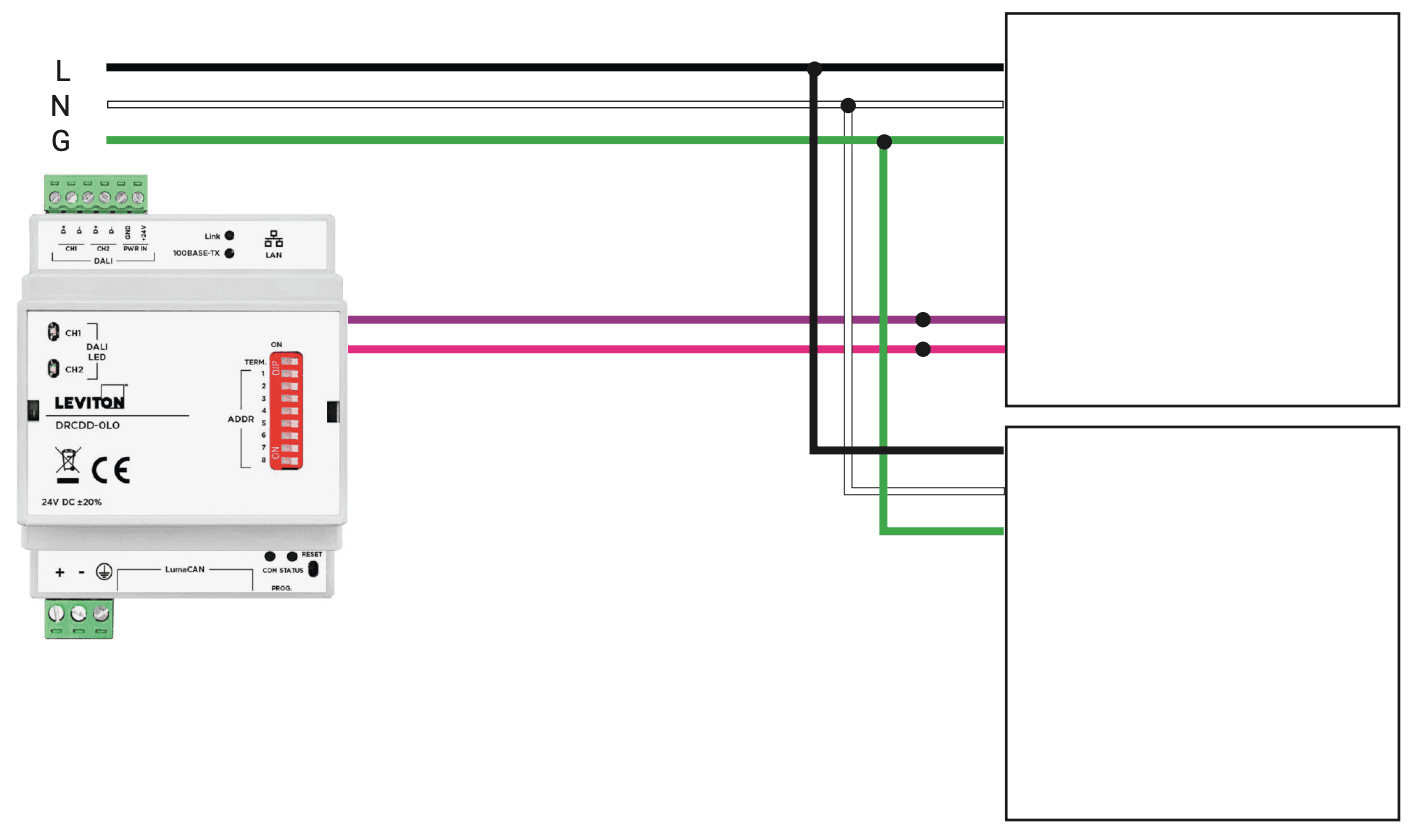
Spec Code: VS-XX-XX-XX-DT-XX-XX

DALI-2 DT8 System Wiring - Primary Fixture

DALI Wiring

Ethernet Synchronization:

  • Only the primary fixture (labeled "PRIMARY" on the control box) connects to the DALI-2 bus. Secondary fixtures require no control cabling.
  • Secondary fixtures receive brightness and color temperature from the primary over Ethernet and follow it automatically.
  • Connect all fixtures in a group to a single dedicated unmanaged Ethernet switch. The switch must not be connected to the internet or to any switch serving a different fixture group.
  • Please specify the distance from each fixture so Innerscene can supply the appropriate length of Ethernet cables.
  • Secondary fixtures sync to the primary via Ethernet. For WiFi-based scheduling and scene programming, use the SkySync hub or mini-hub.

Spec Code: VS-XX-XX-XX-DMX-XX-XX

DMX Wiring - Primary Fixture

DMX Wiring

Ethernet Synchronization:

  • Only the primary fixture (labeled "PRIMARY" on the control box) connects to the DMX controller. Secondary fixtures require no control cabling.
  • Secondary fixtures receive brightness and color temperature from the primary over Ethernet and follow it automatically.
  • Connect all fixtures in a group to a single dedicated unmanaged Ethernet switch. The switch must not be connected to the internet or to any switch serving a different fixture group.
  • Please specify the distance from each fixture so Innerscene can supply the appropriate length of Ethernet cables.
  • The DMX Control Interface is not shown for clarity. A single DMX controller connects to the primary fixture only; secondary fixtures sync to the primary via Ethernet.
  • Innerscene fixtures only support DMX IN, not DMX OUT. Looping out DMX to other fixtures is not recommended. Use a star configuration, not daisy-chain. Termination should always be set to ON.
  • DMX address is set via the WiFi programming interface on the primary fixture.

Clearance

See below for recommended clearance between the fixture or fixtures and surrounding structure or insulation.

Clearance

Innerscene A7 light fixtures have internal smart thermal protection.

When any fixture within a group become too hot it will automatically reduce the brightness of the group. When the temperature becomes excessively high, power will be cut-off from the fixture until it sufficiently cool down.

If this persist, please lower the ceiling temperature or obstruction to allow the ceiling void to cool down and consult the factory.

A7V2 Clearance

Before thermal throttling 100% brightness

A7V2 Clearance

After thermal throttling Reduced brightness

Installation Instructions

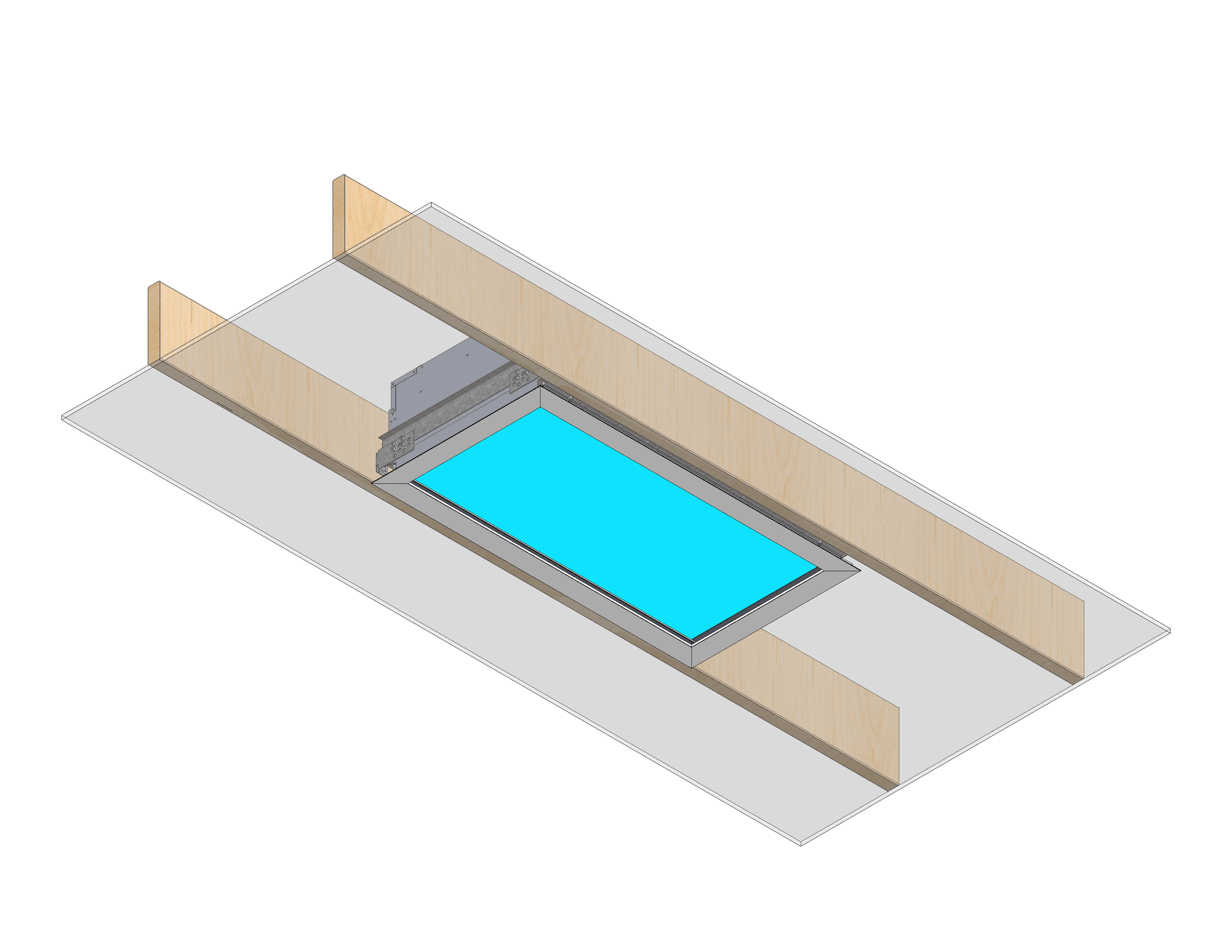
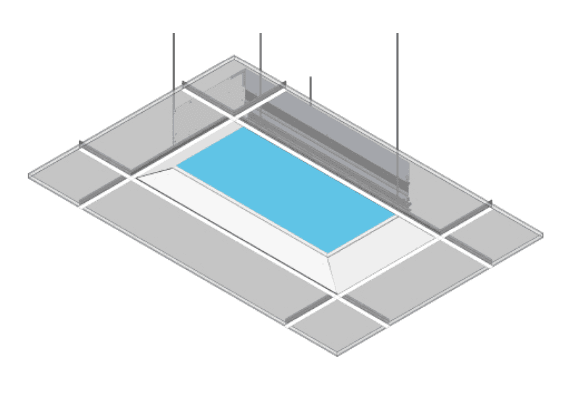
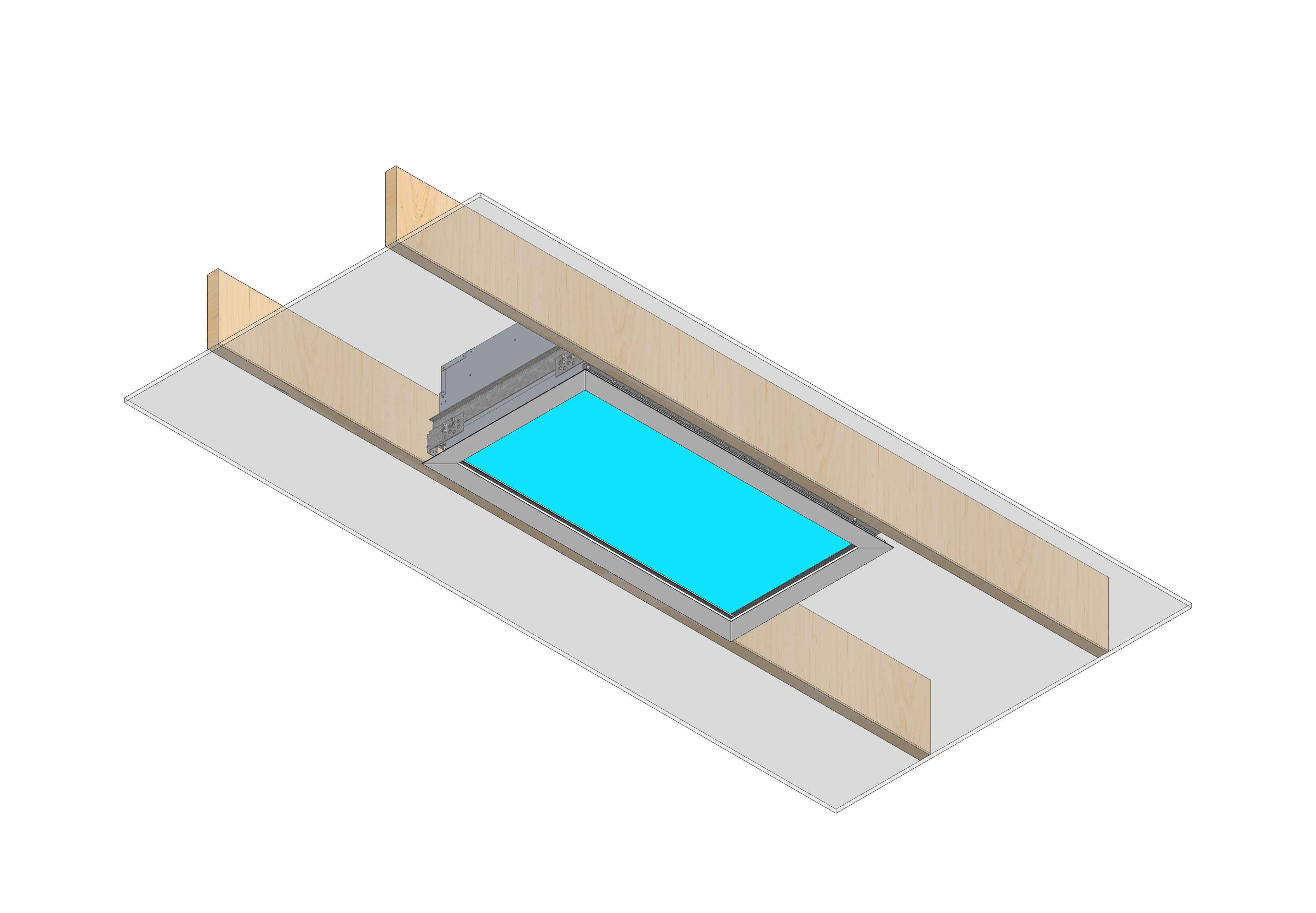
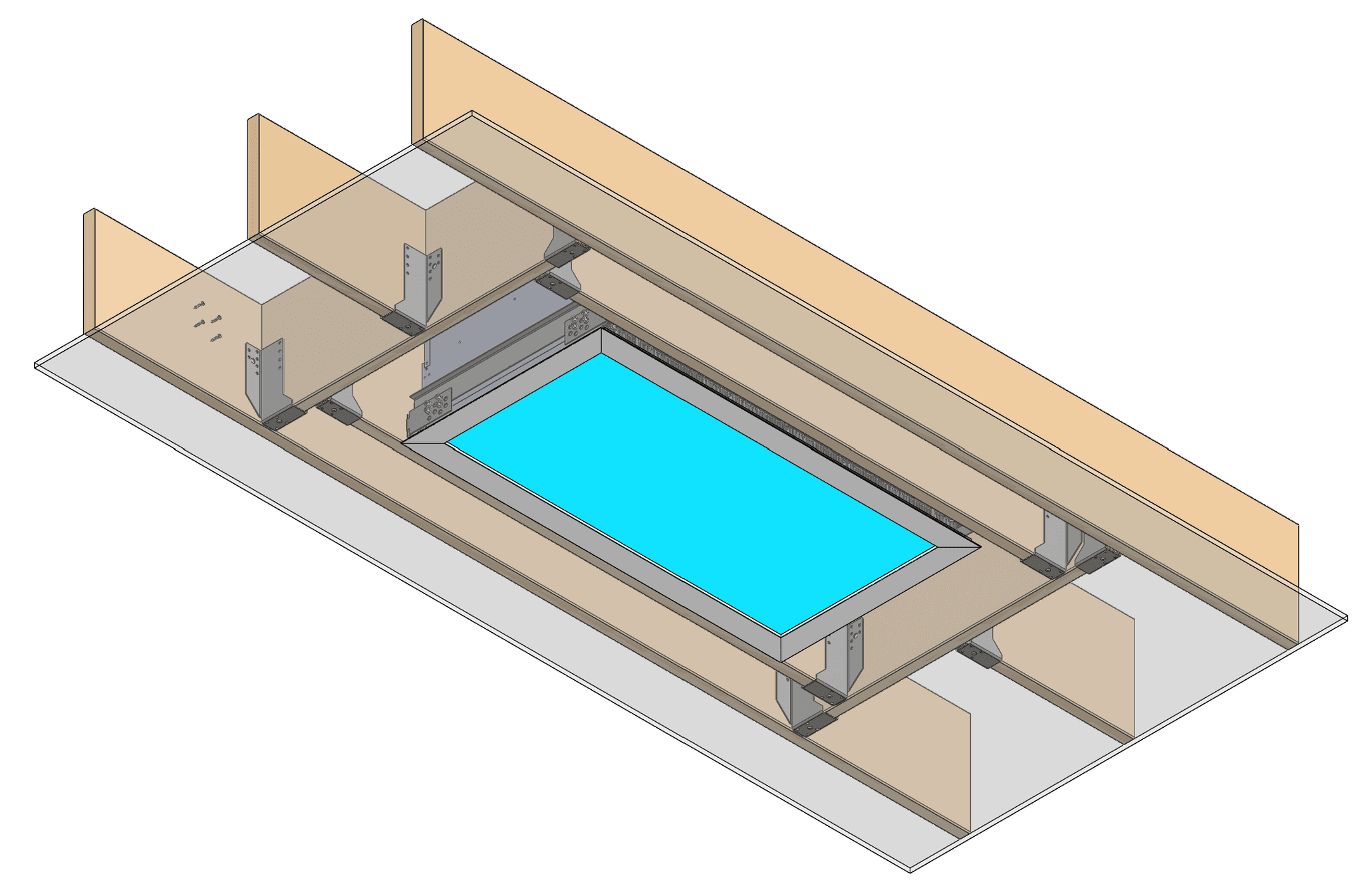
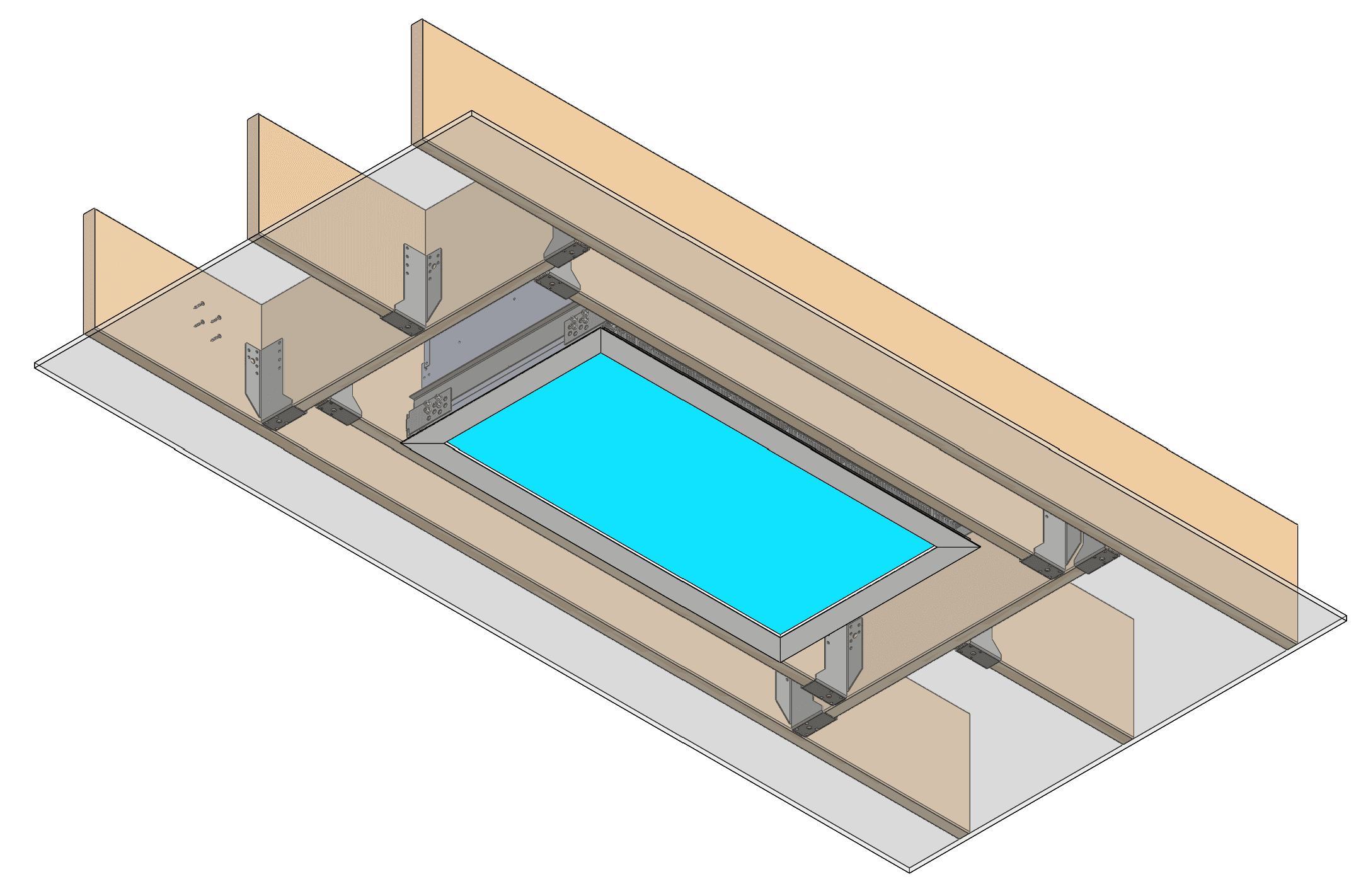
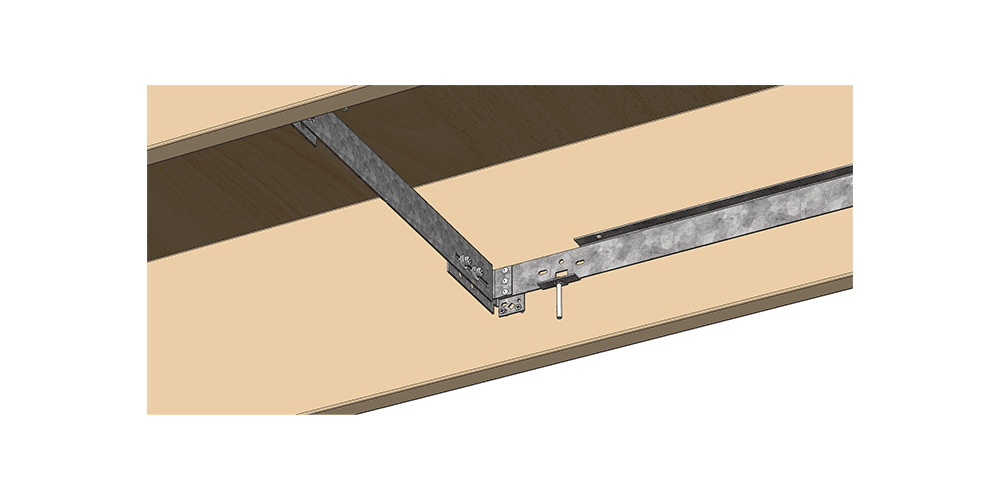
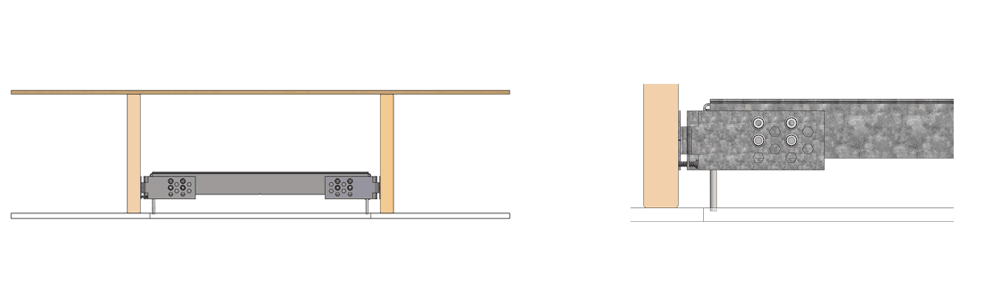
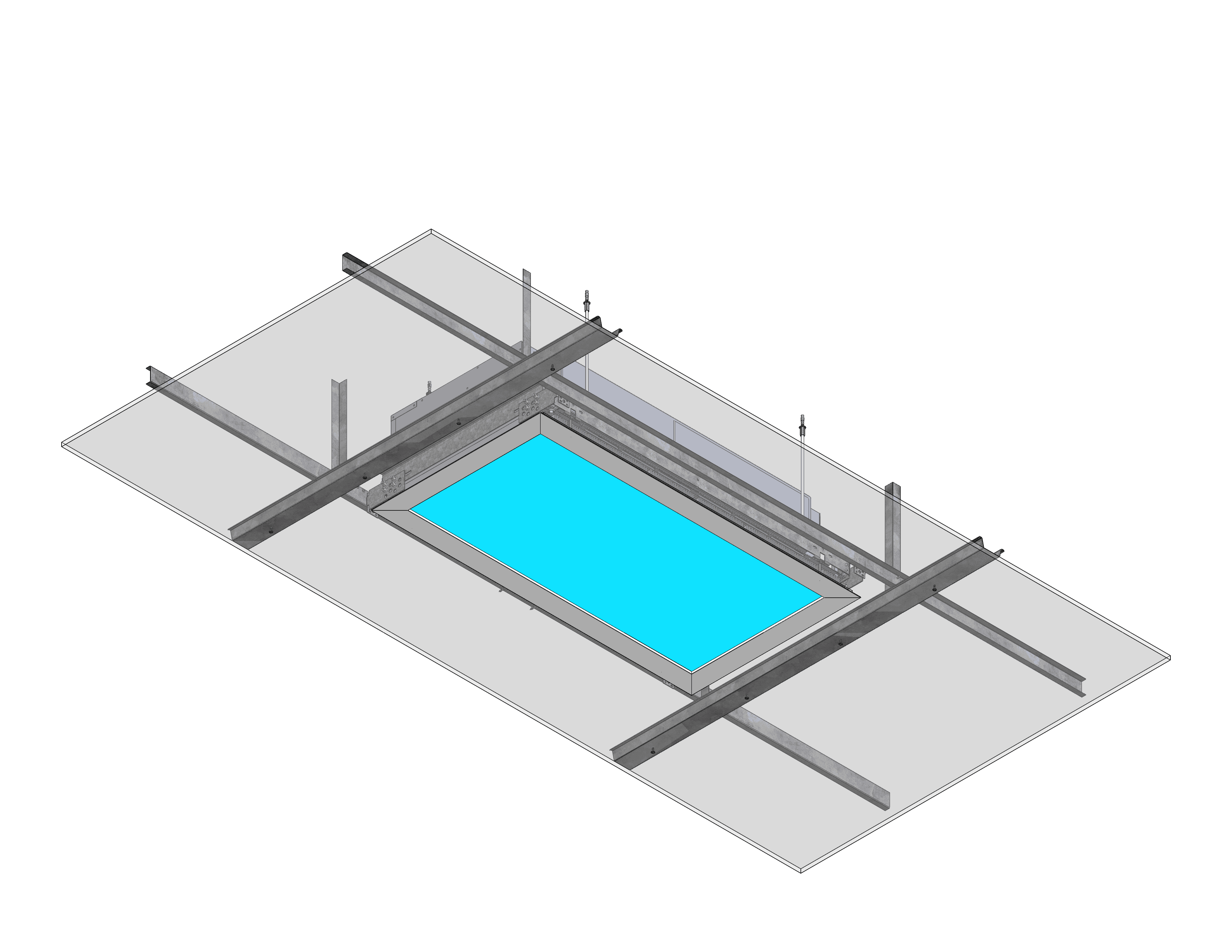
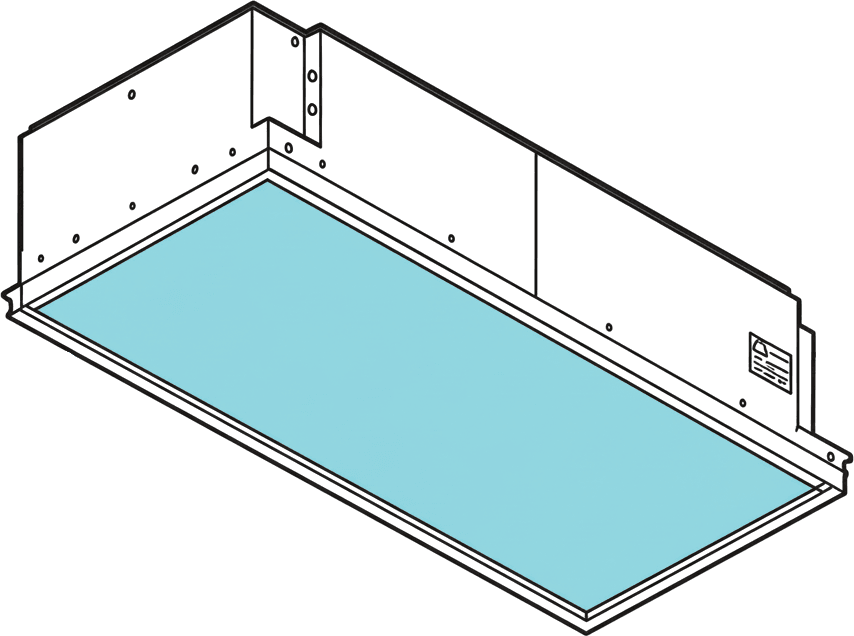
Model A7V2 can be installed in a variety of ceiling types. As standard, we recommend opting for our New Construction (NC) Housing. This will help facilitate installation into ceilings or roofs with wood joists, grid ceilings or metal furring ceilings.

Joist 4

Ceiling Joist System

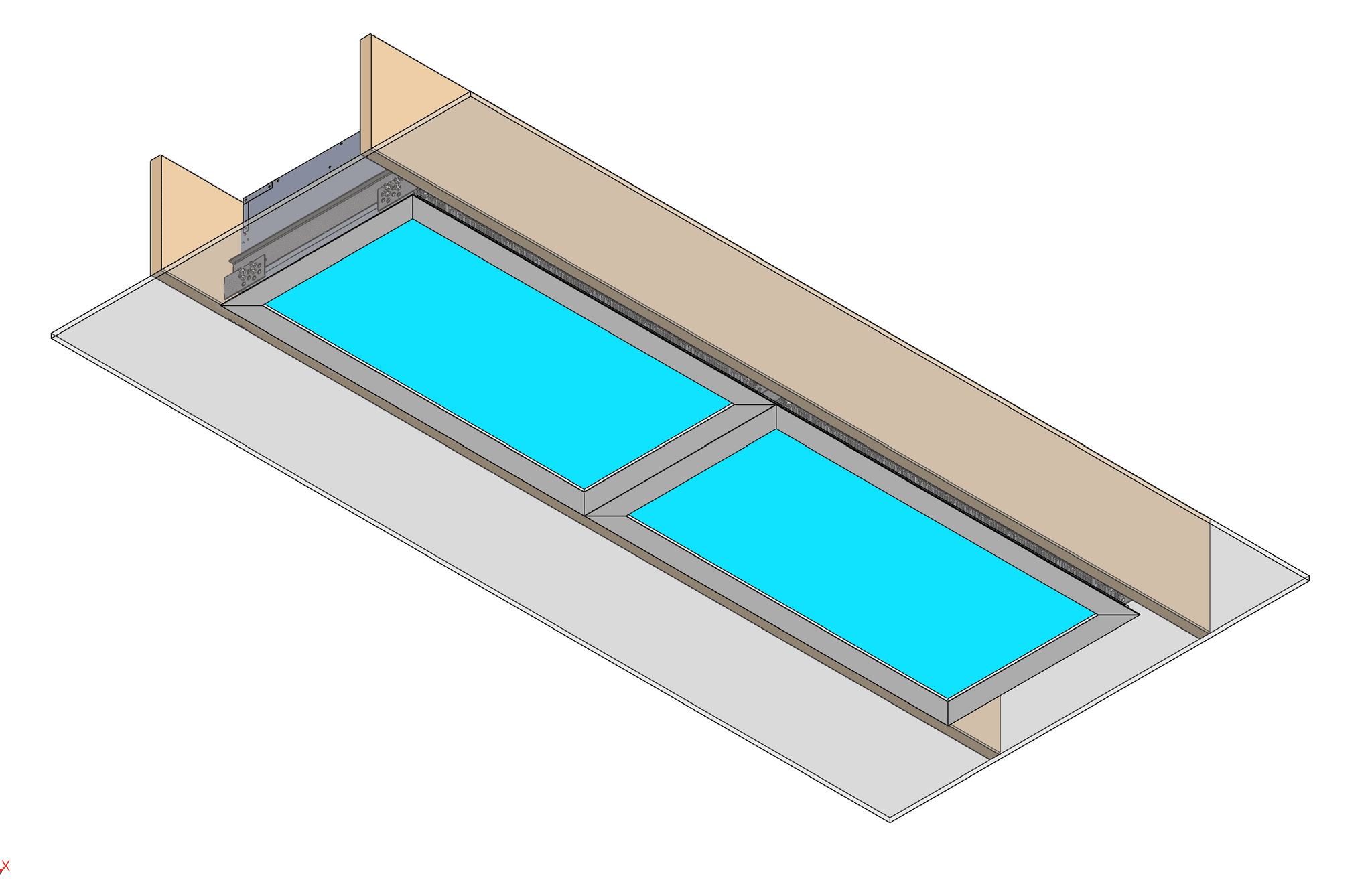
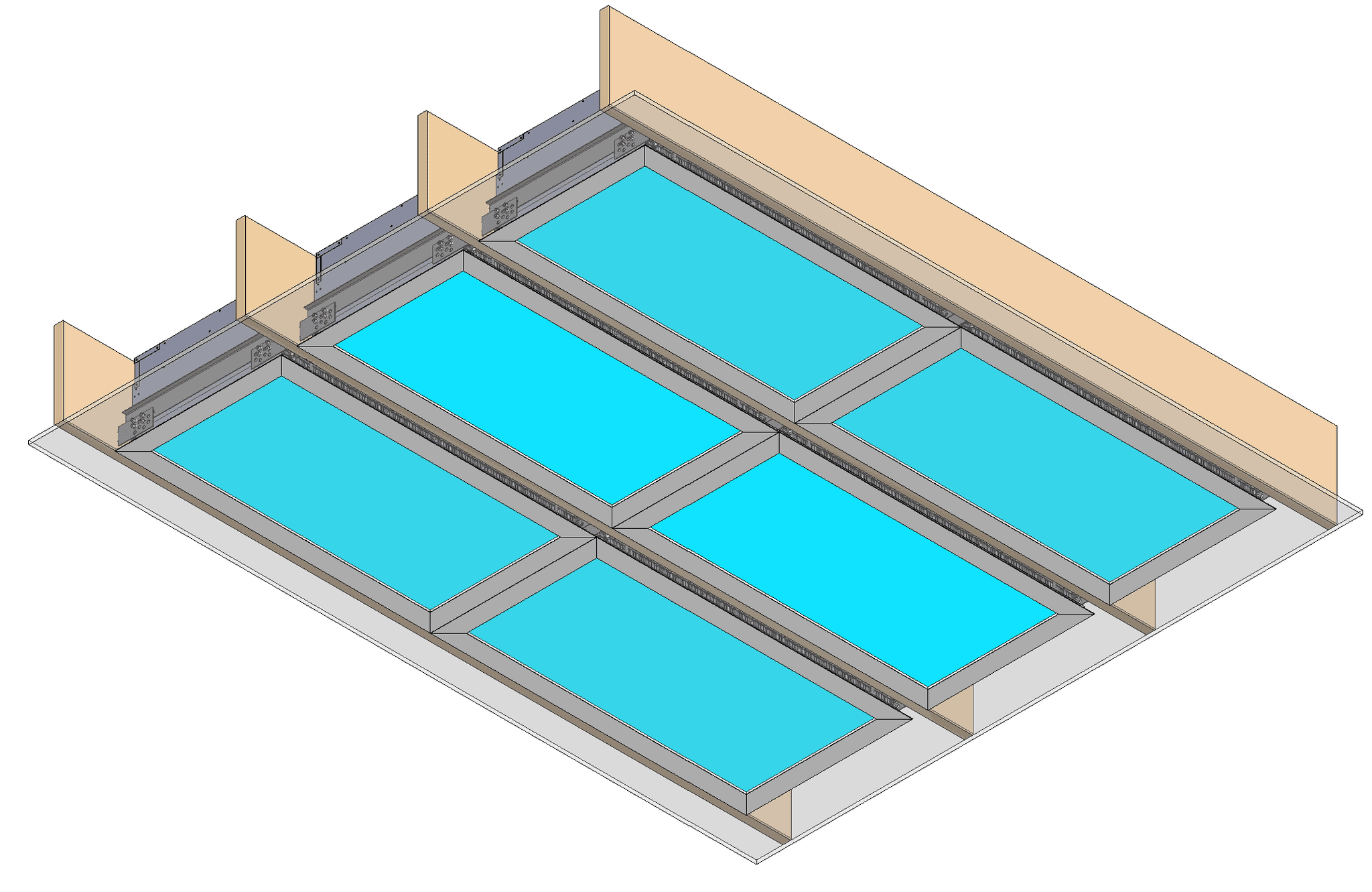
Array Installation

Furring Channel System

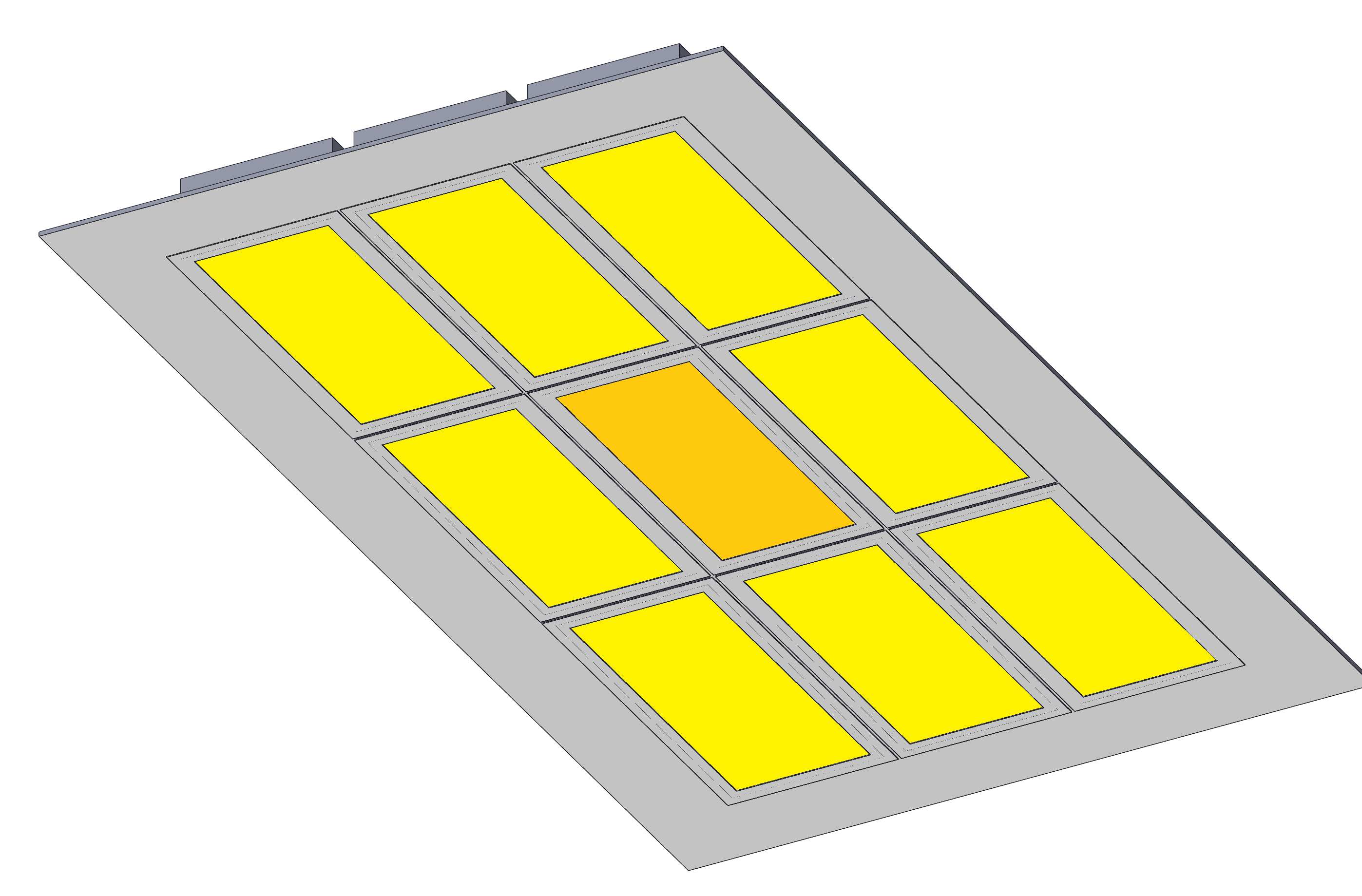
Array Ceiling

Ceiling Grid System with backing plate

Ceiling Grid System

Ceiling Grid System with 4” bevelled regress kit

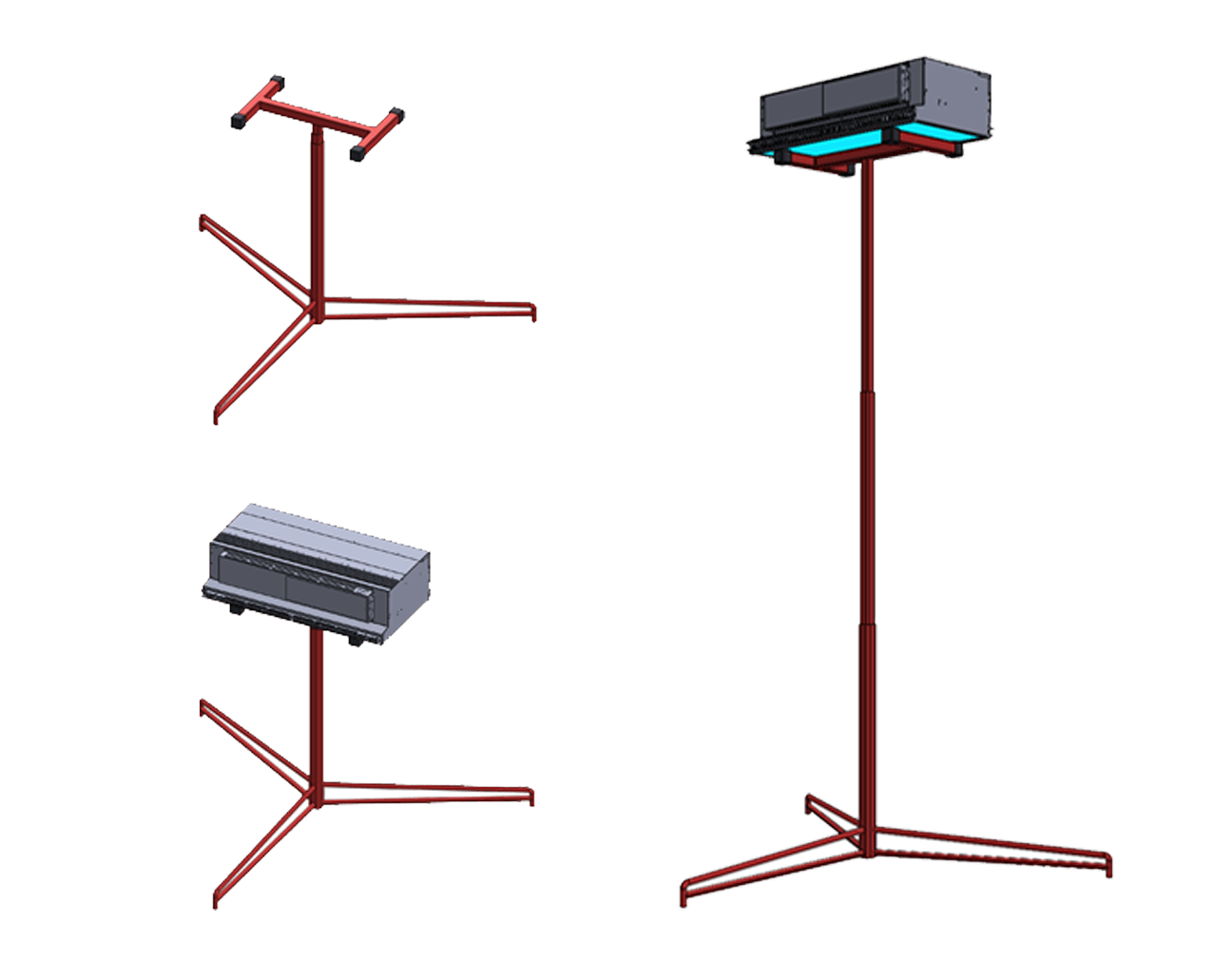
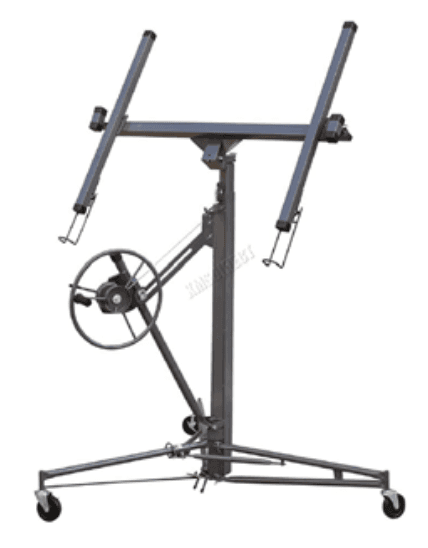
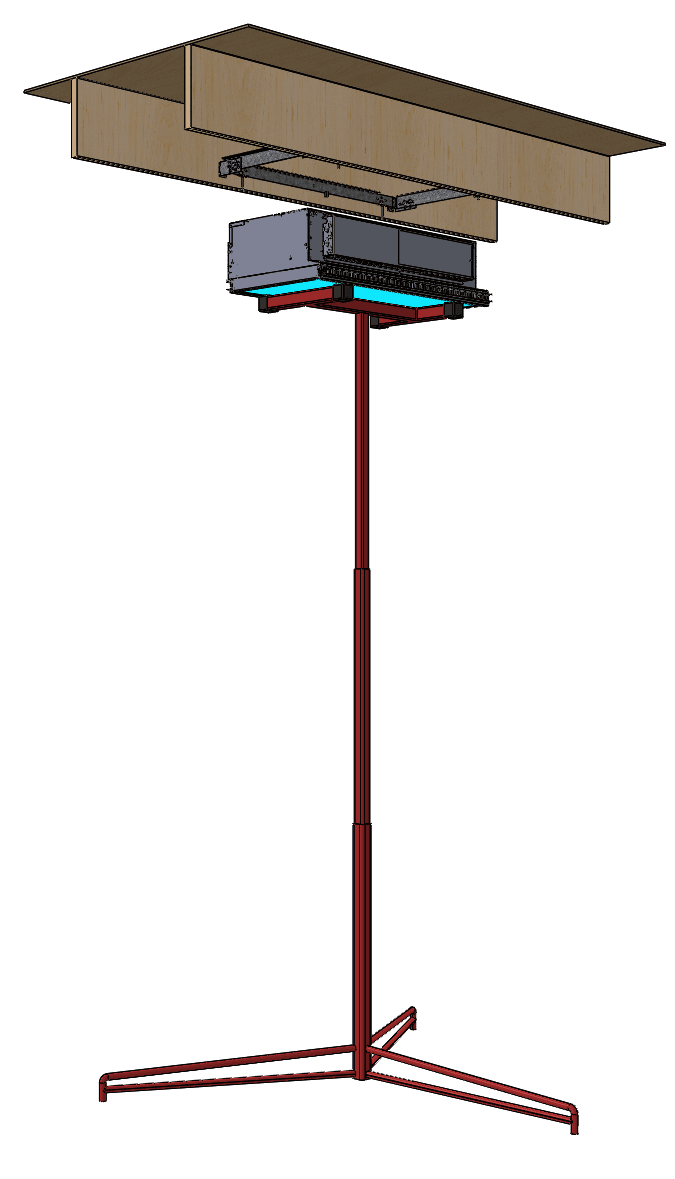
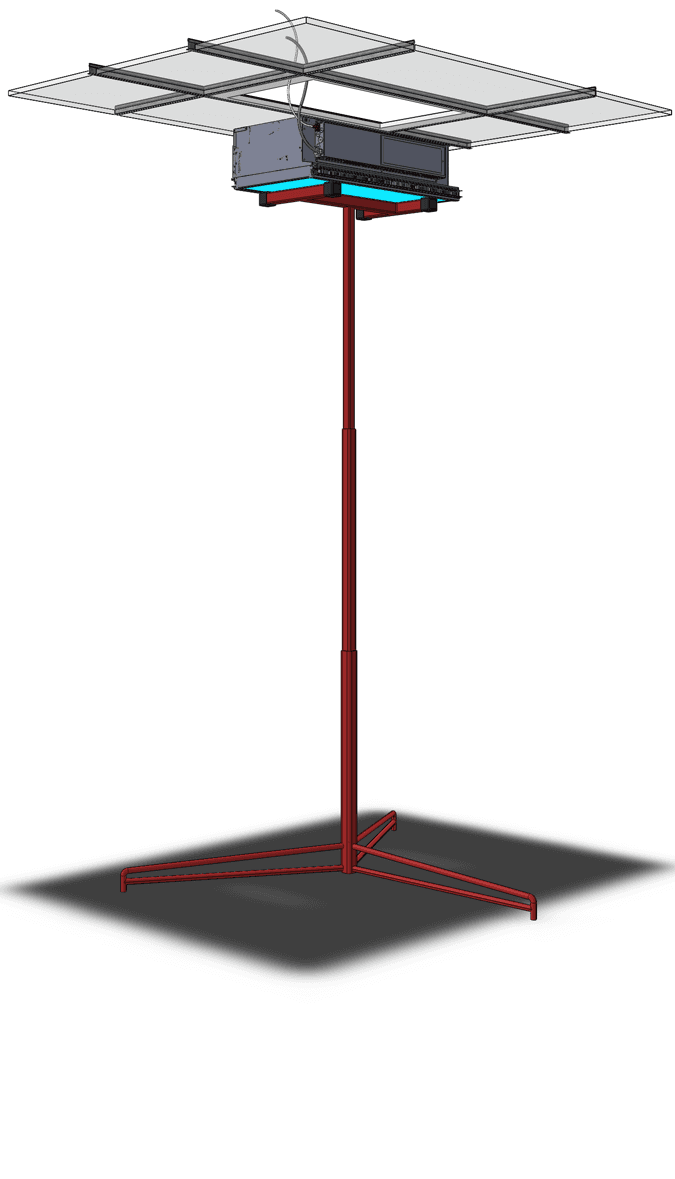
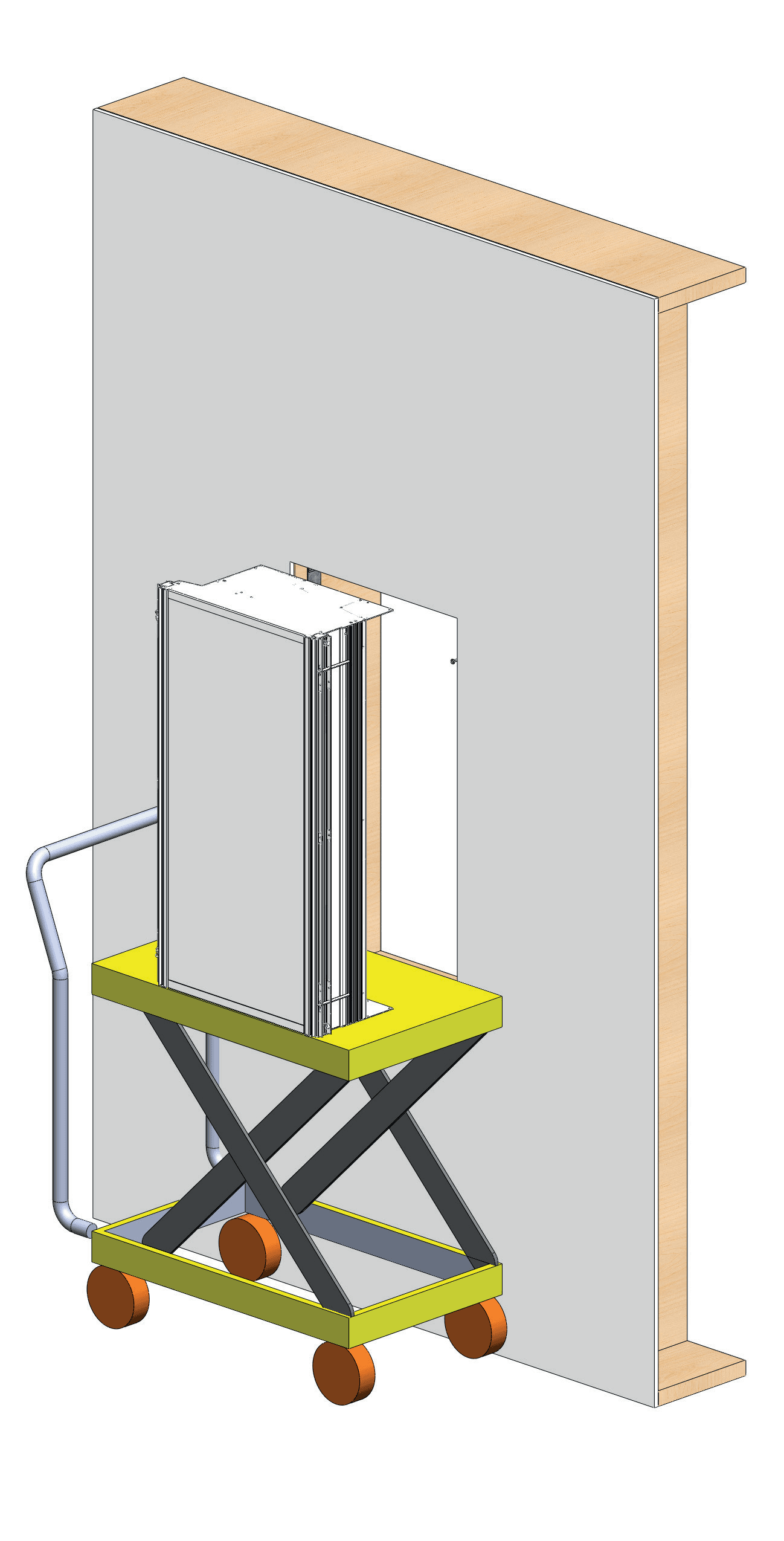
Carefully place lighting fixture on a Drywall hoist

Installation Step 1

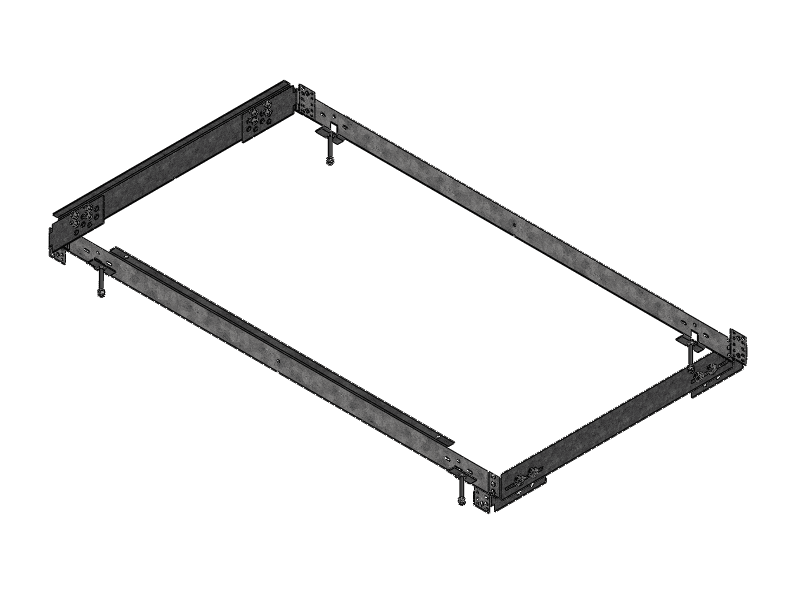
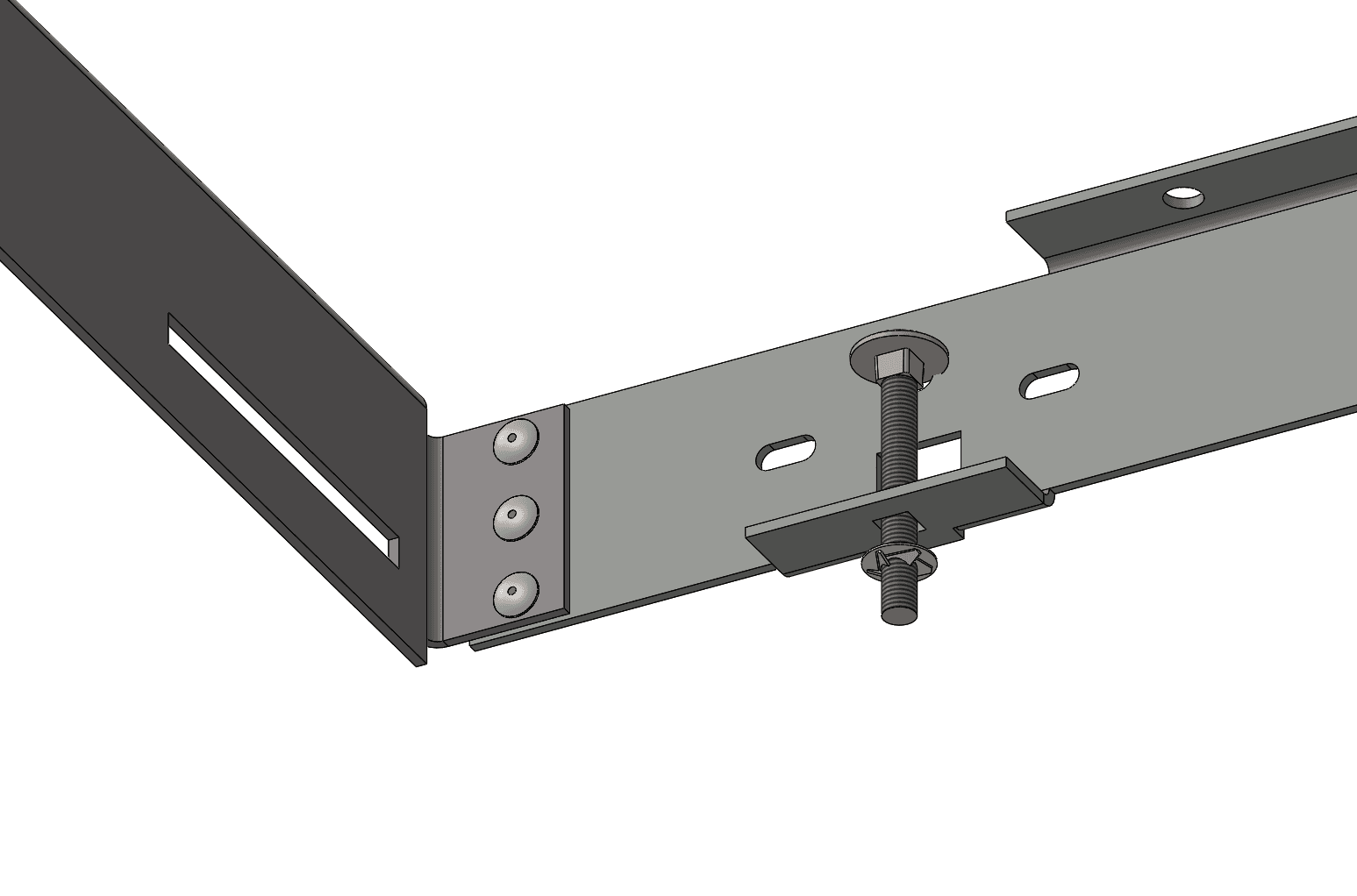
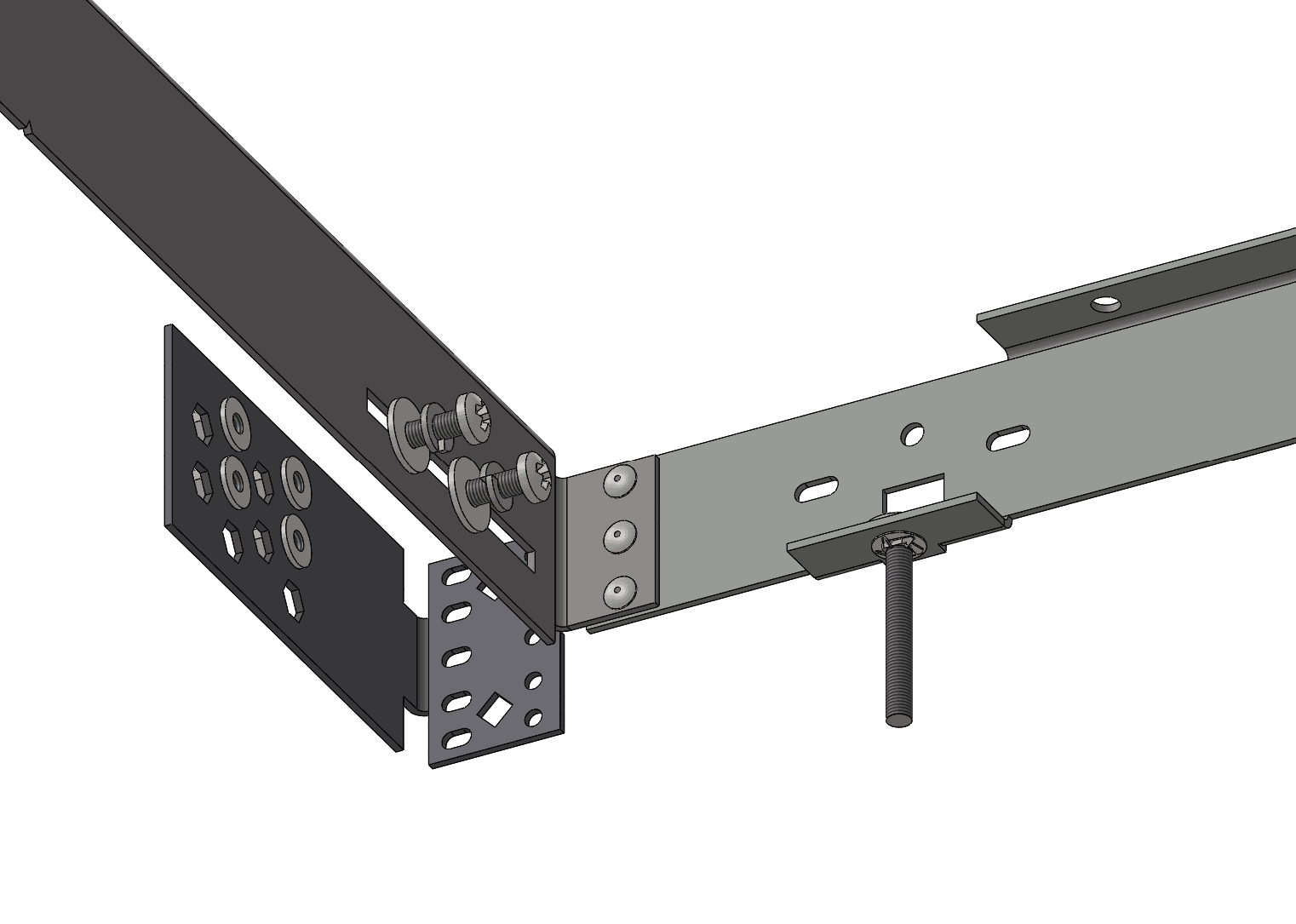
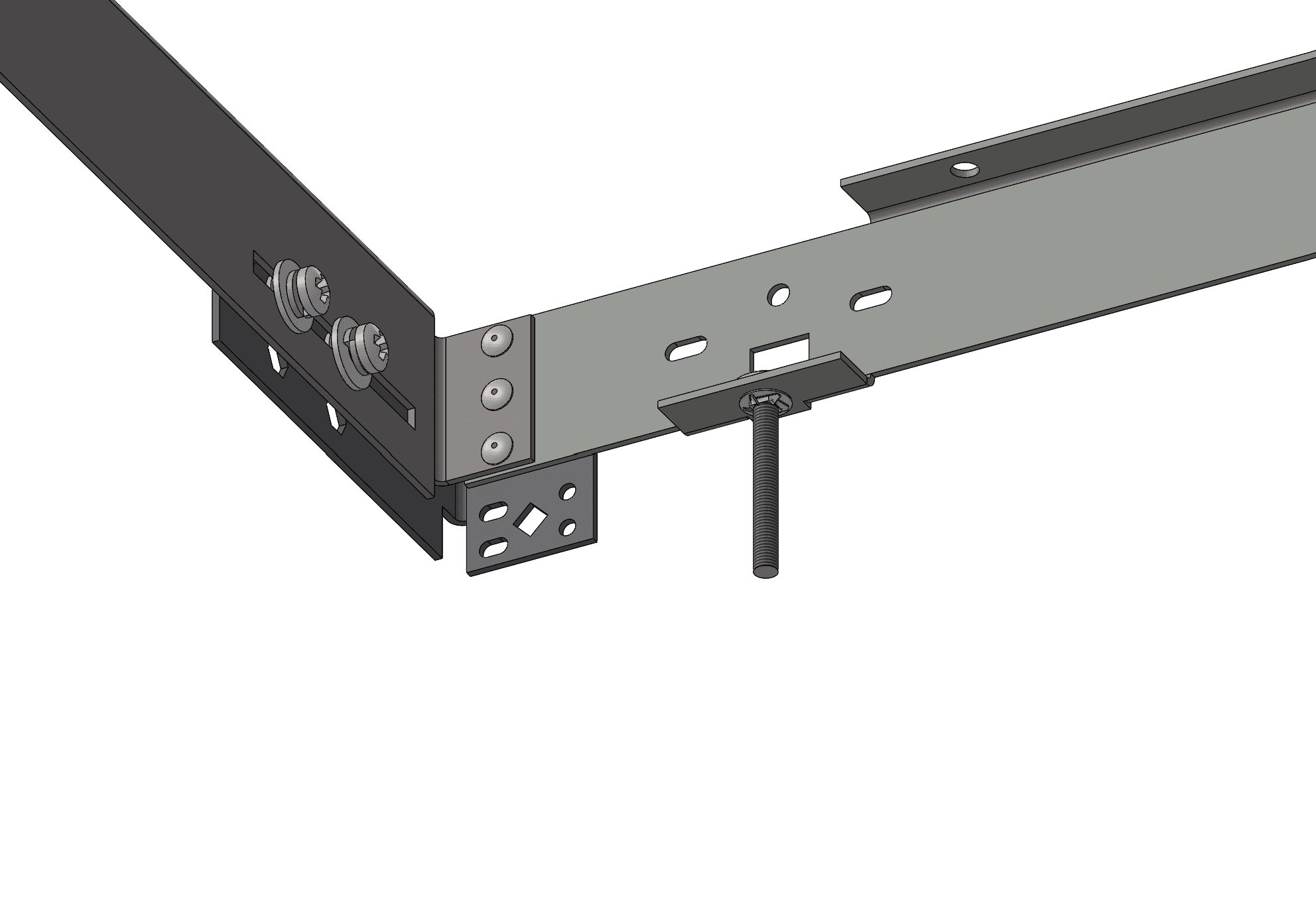
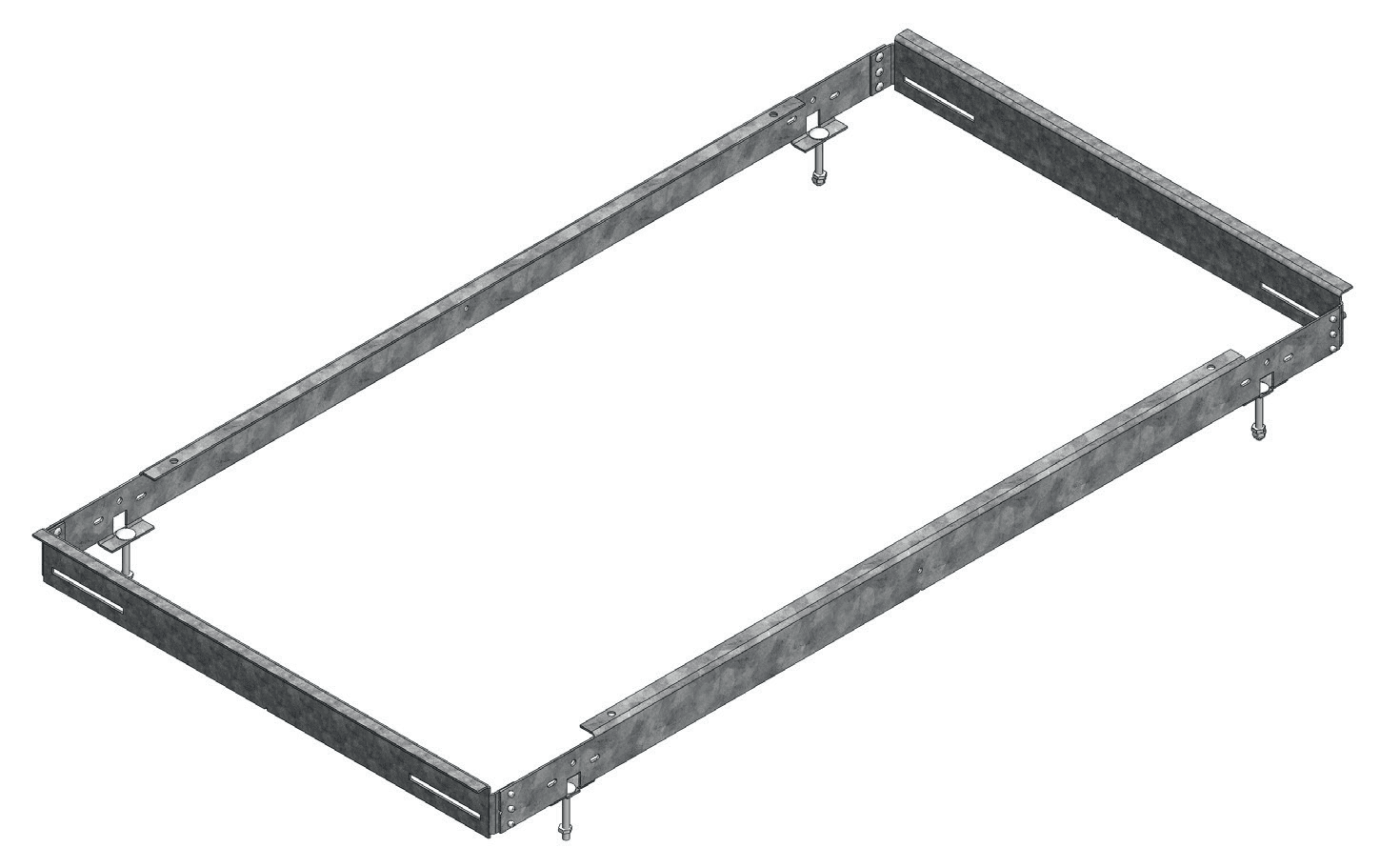
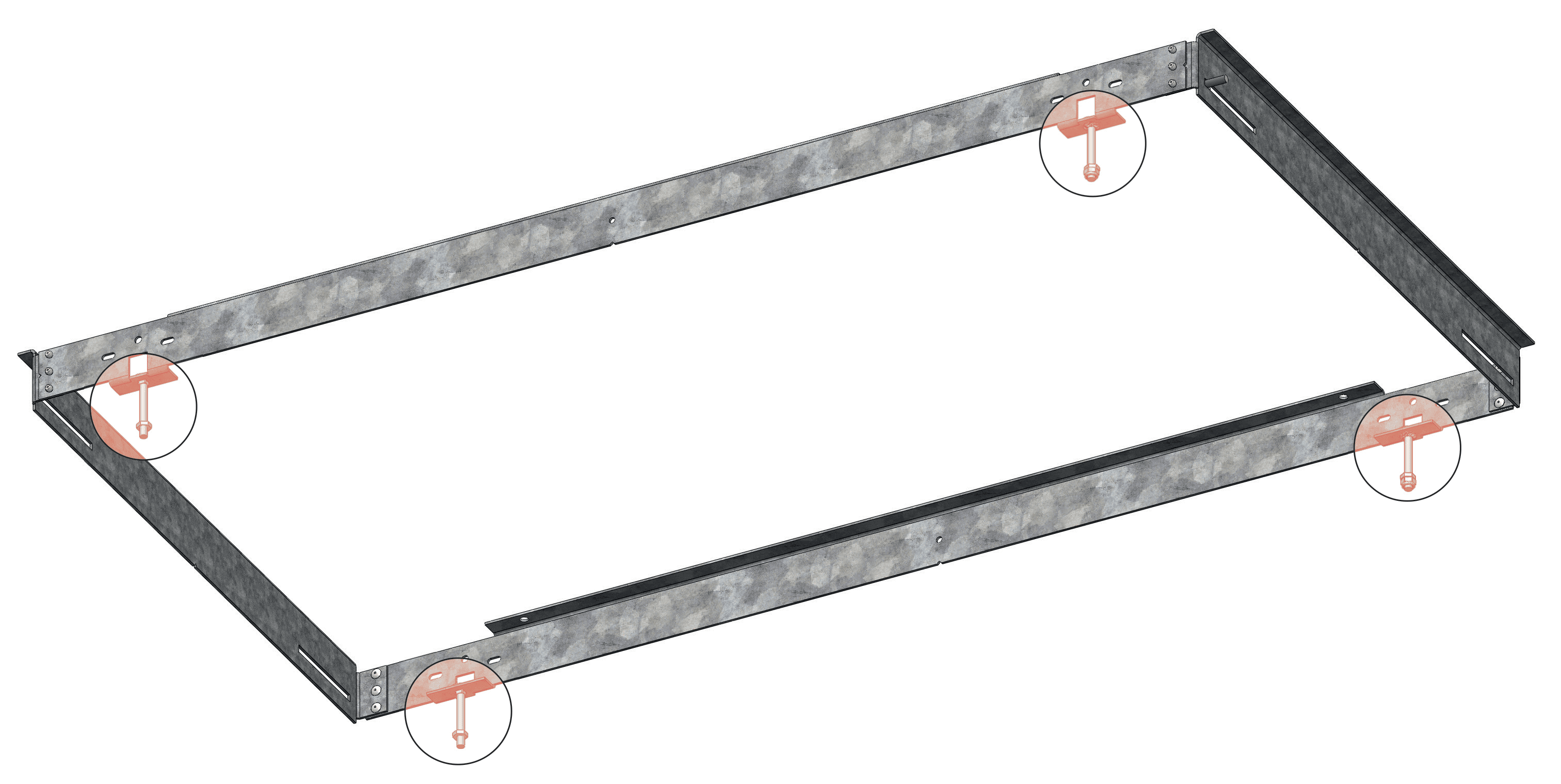
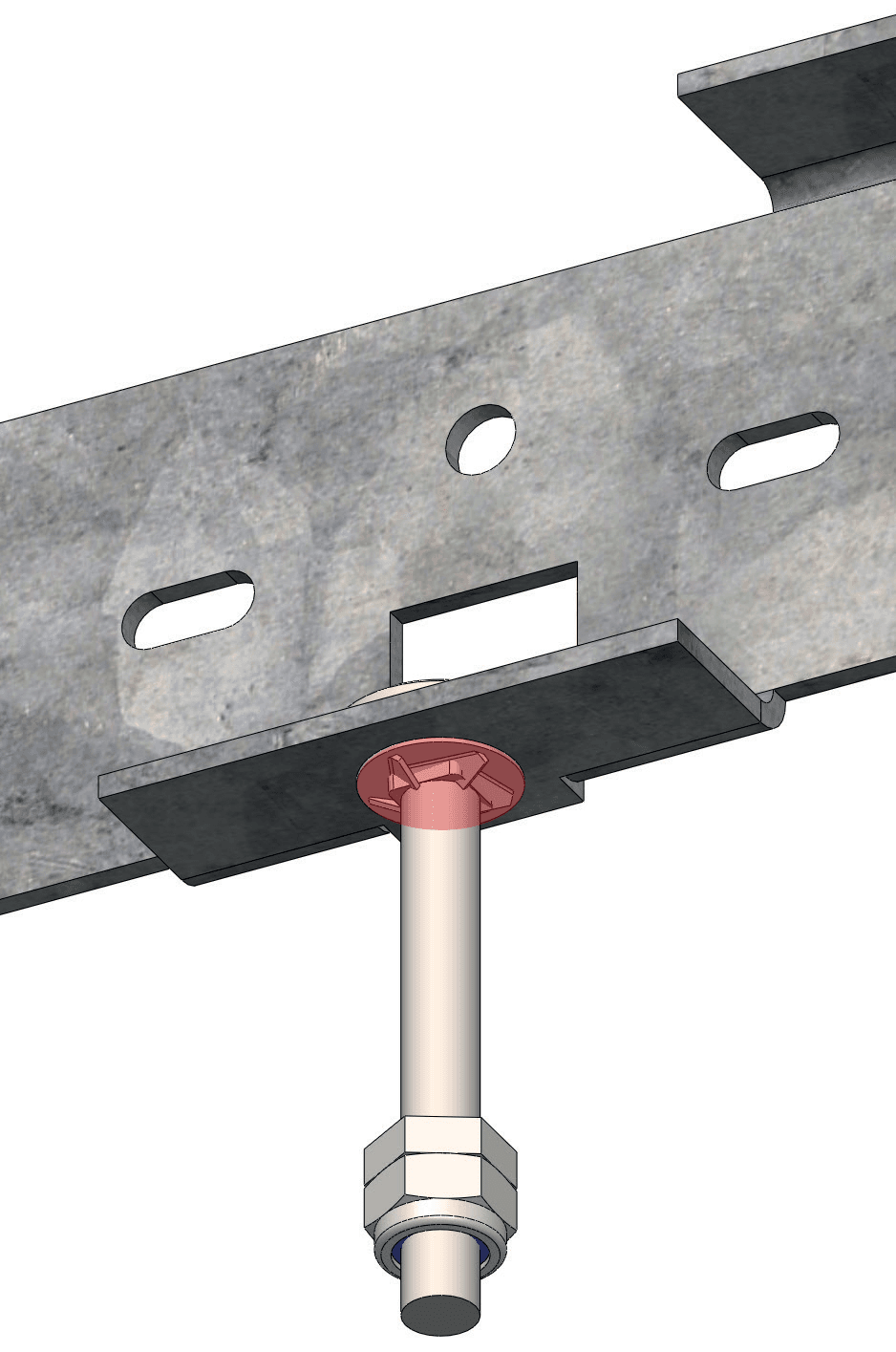
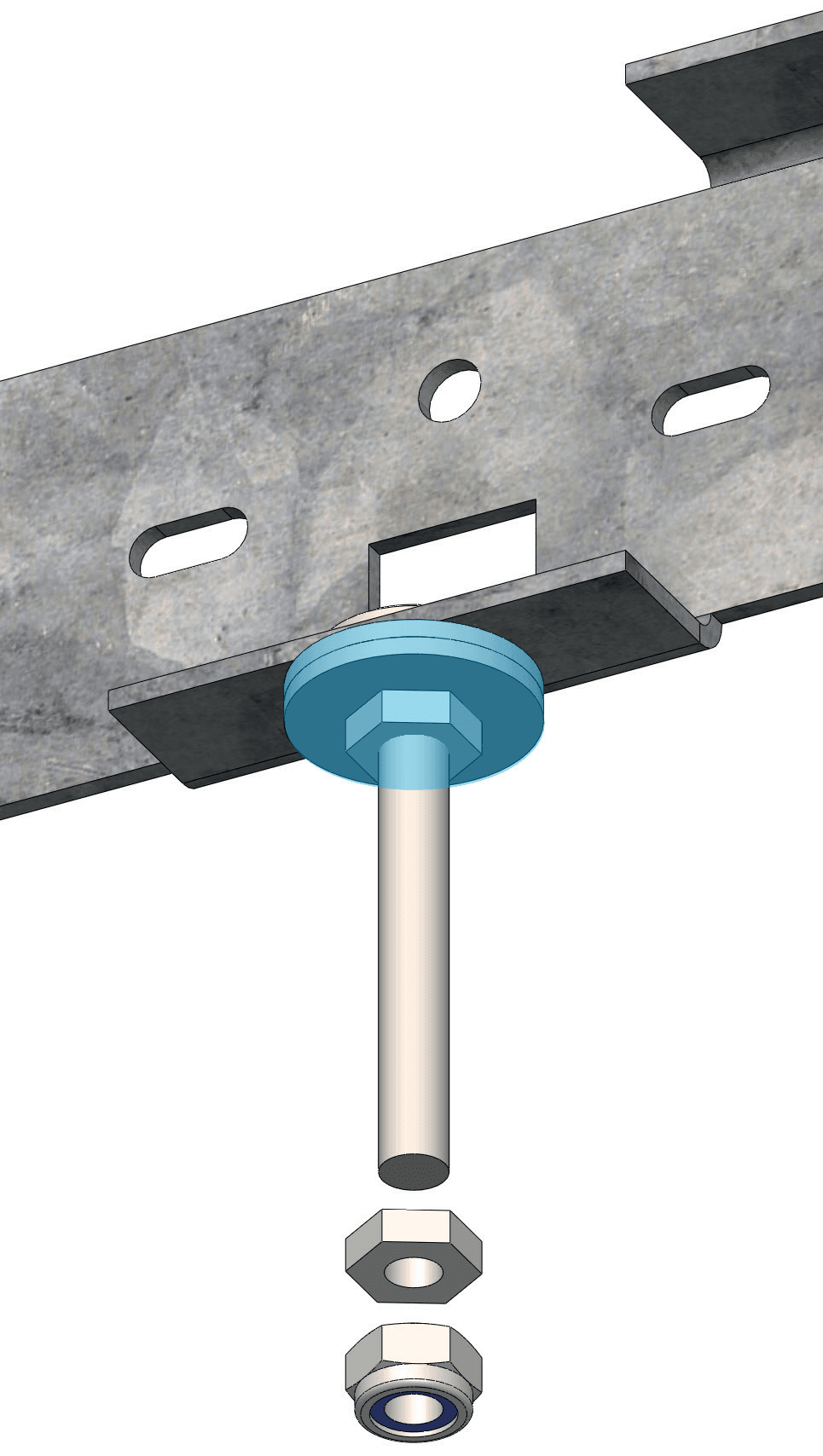
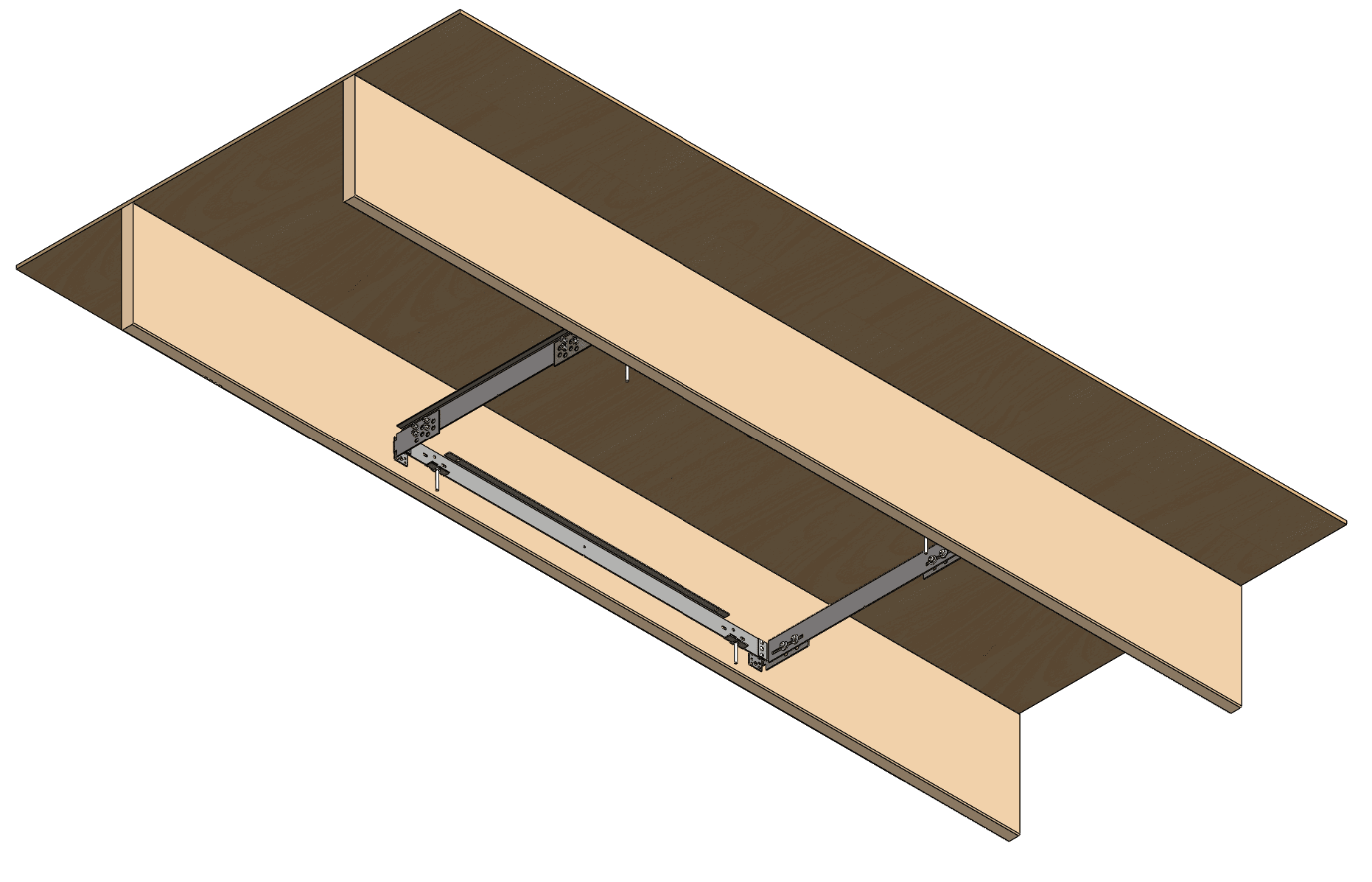
Prepare the New Construction (NC) Housing at ground level. Secure the four coach bolts with the retaining washers (Step #1).
Then loosely screwing in the four hanger clips (Step #2).

Construction Housing

New Construction (NC) Housing

Construction Housing 2
Construction Housing 3
Construction Housing 4

New Construction (NC) Housing with Timber Joists

ℹ️

NOTE

Universal mounting option suitable for remodellling or retrofit on wood joists with typical spacings of 24” or 600mm.
The NC housing would also be suitable for use in 2’ x 4’ or 1200x600mm grid ceilings.

Joist 4 2

Suitable Joists

  • 2” x 14” + any drywall
  • 2” x 12” + any drywall
  • 2” x 10” + double 5/8” drywall
  • 12” x 2” (50mm x 300mm or 46mm x 295mm or 48mm x 305mm actual)
  • 300mm I-Joist + any plasterboards
  • 253mm Posi-Joist + 12.5mm plasterboard
  • 240mm I-Joist + 2x15mm plasterboards

Ceiling with lower total depth (joist + drywall/plasterboard) will need to be lowered to accommodate the total depth 11” or 270mm. Alternatively, a raft could be constructed to accomodate the light fixture.

Recommended equipment for ceilings below 15 feet or 4.5m

(For taller ceilings, temporary support structures or lifts may be required)

Panel Hoist

Drywall panel hoist

Screws

Joist hanger nails or screws

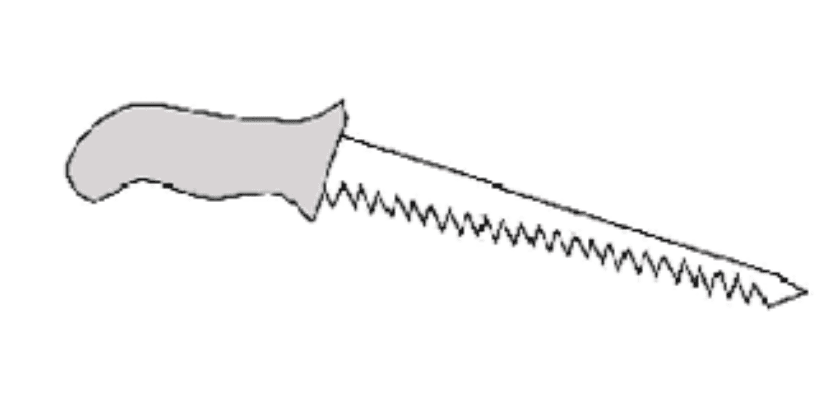
Drywall Saw

Drywall saw

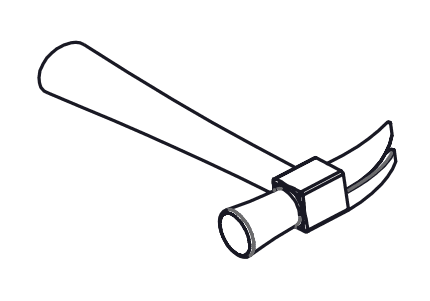
Hammer

Hammer

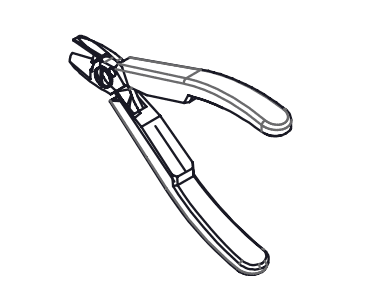
Wire Stripper

Wire Stripper / Cutter

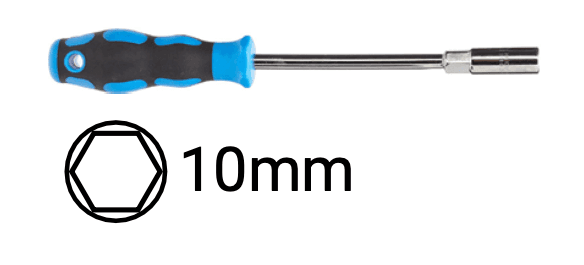
Hex Nut Snipper

Hex Nut Spinner

New Construction (NC) Housing with Timber Joists

Alternative Configurations

Joist 1

16” or 450mm Joist Ceilings

Joist 3

Line

Joist 2

Array

Identify installation location.

Between existing 24” OC joists (600mm centre-to-centre spacing). Some ceiling with narrower joist spacings such as 16” or 450mm may have to be modified with headers to accomodate the fixture. Consult local building codes on structural modifications.

Joist 4

24” OC joists (600mm centre-to-centre spacing) ceilings.

Joist 1

16” OC joists (450mm centre-to-centre spacing) ceilings.

New Construction (NC) Housing with Timber Joists

Secure NC Housing to joist ceiling using either joist-rated wood nails or screws or bolts.

Install Housing
Install Housing 2
Install Housing 3
Install Housing 4

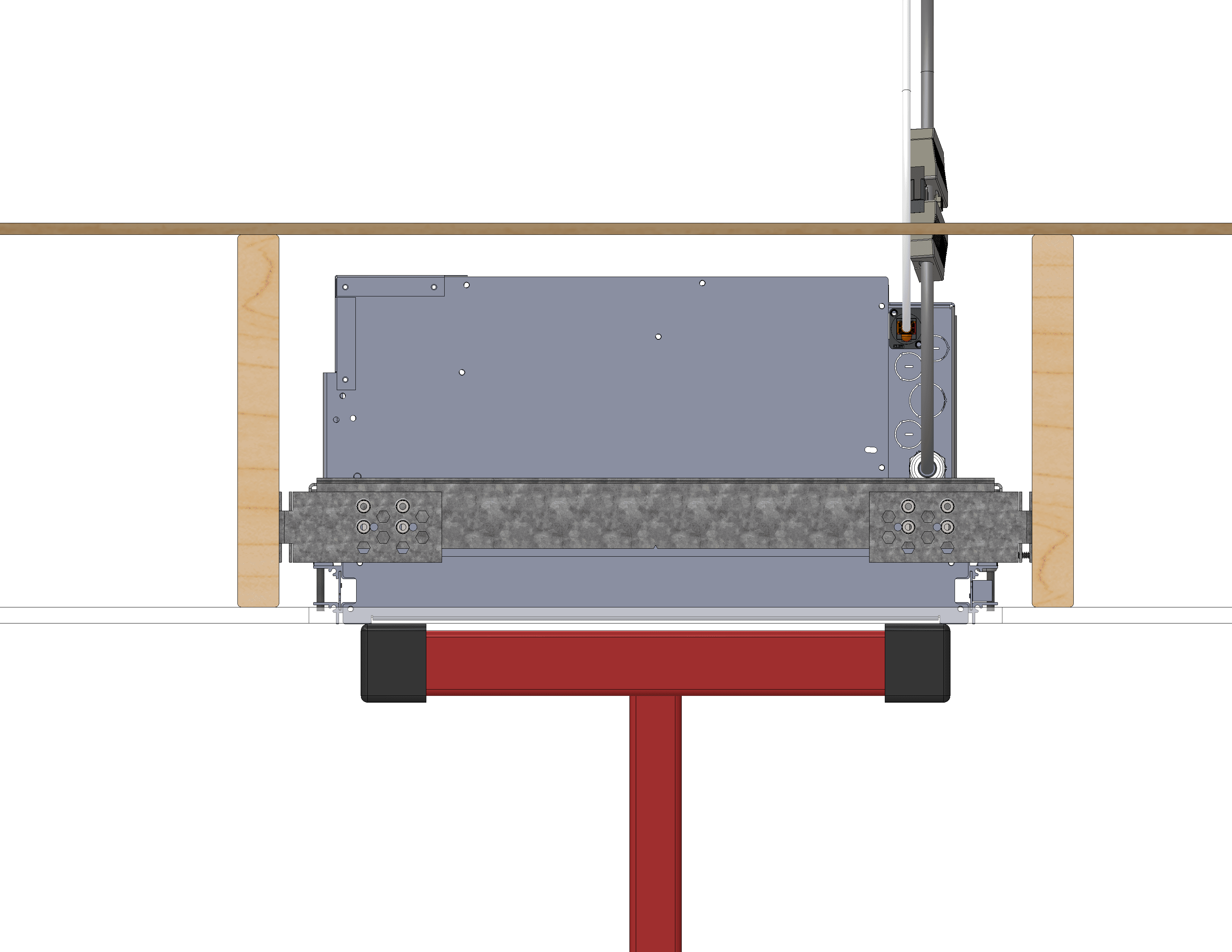
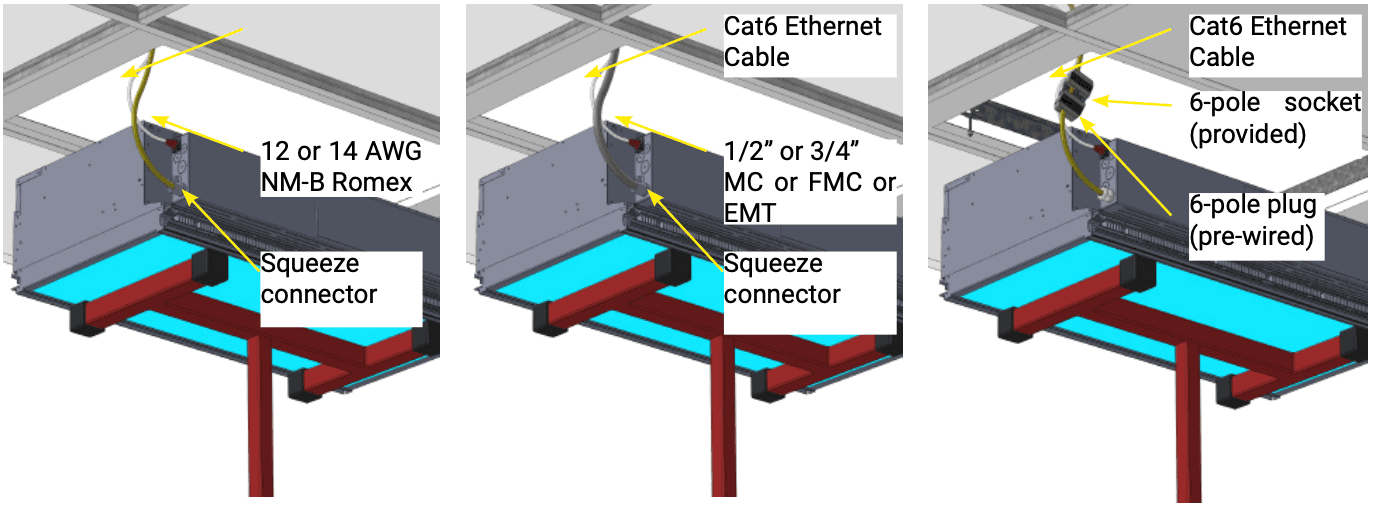
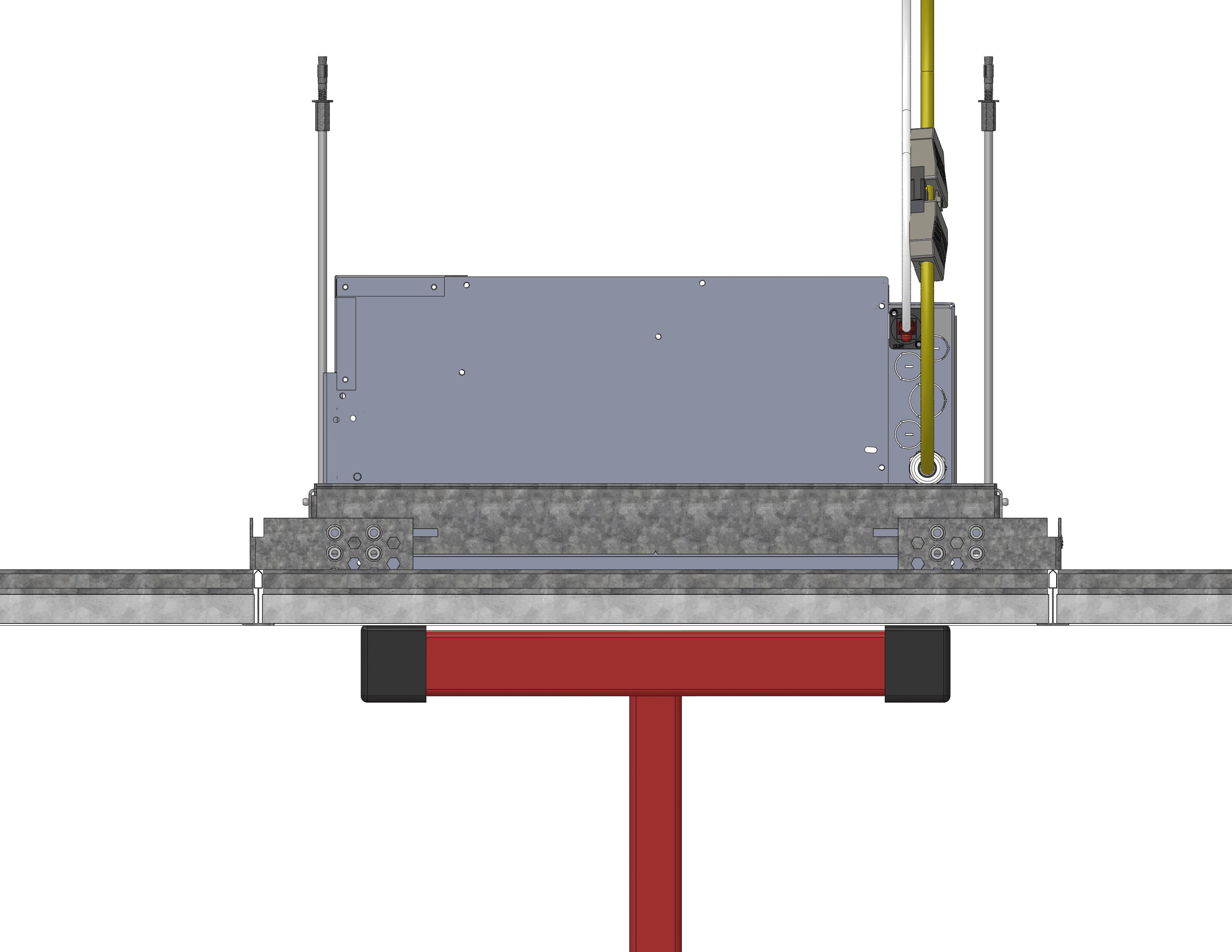
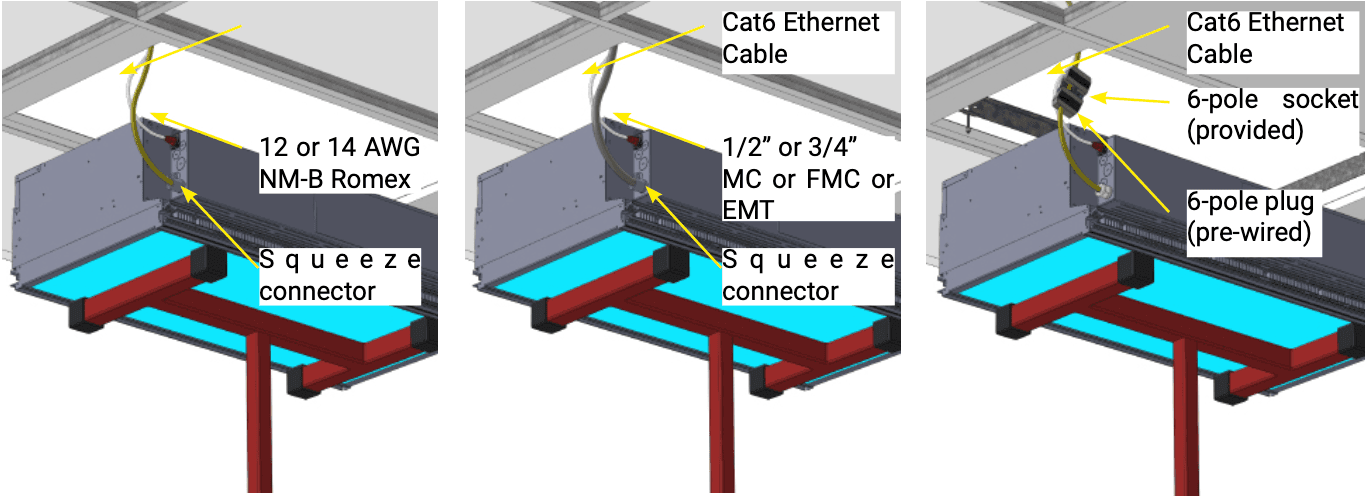
Make electrical and data connections before raising into the ceiling void.

Installation Hoist Joists
Installation Hoist Joists 3

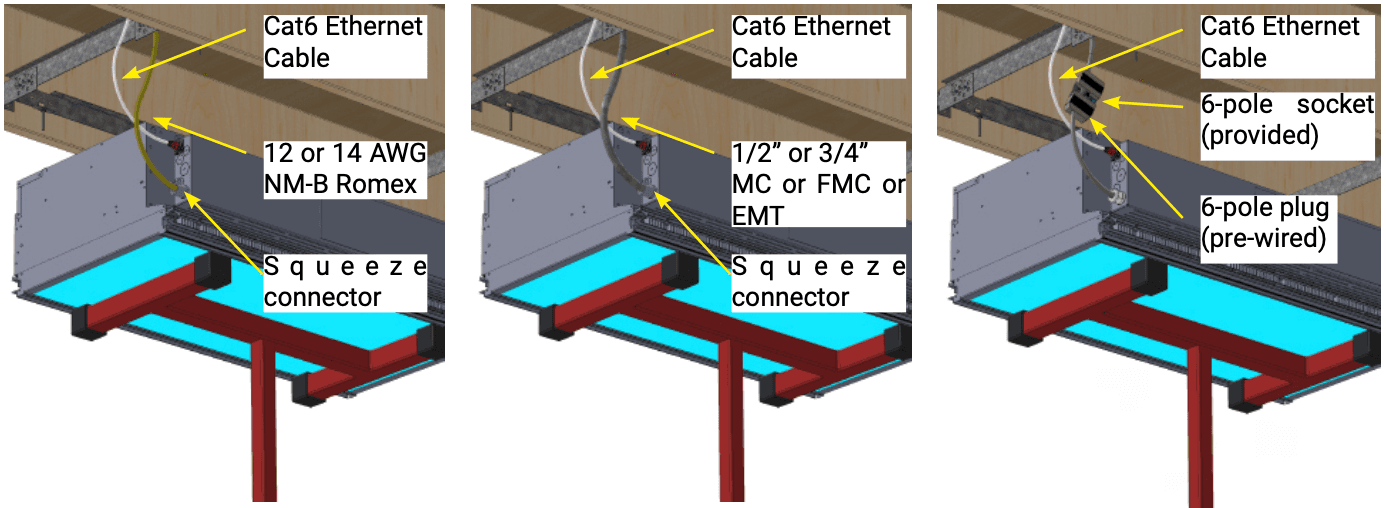
North American model: 12/2 or 12/4 or
14/2 or 14/4 WG NM-B Romex with 1/2” or 3/4” KO. Cat6 Ethernet cable

North American model: 12/2 or 12/4 or
14/4 or 14/4 WG MC or FMC or EMT with 1/2” or 3/4” KO. Cat6 Ethernet cable

International model: 3-core 2.5mm2 LSZH
or CPR-rated, cable OD 6.5-8.6mm, 6-pole socket. Cat6 Ethernet cable

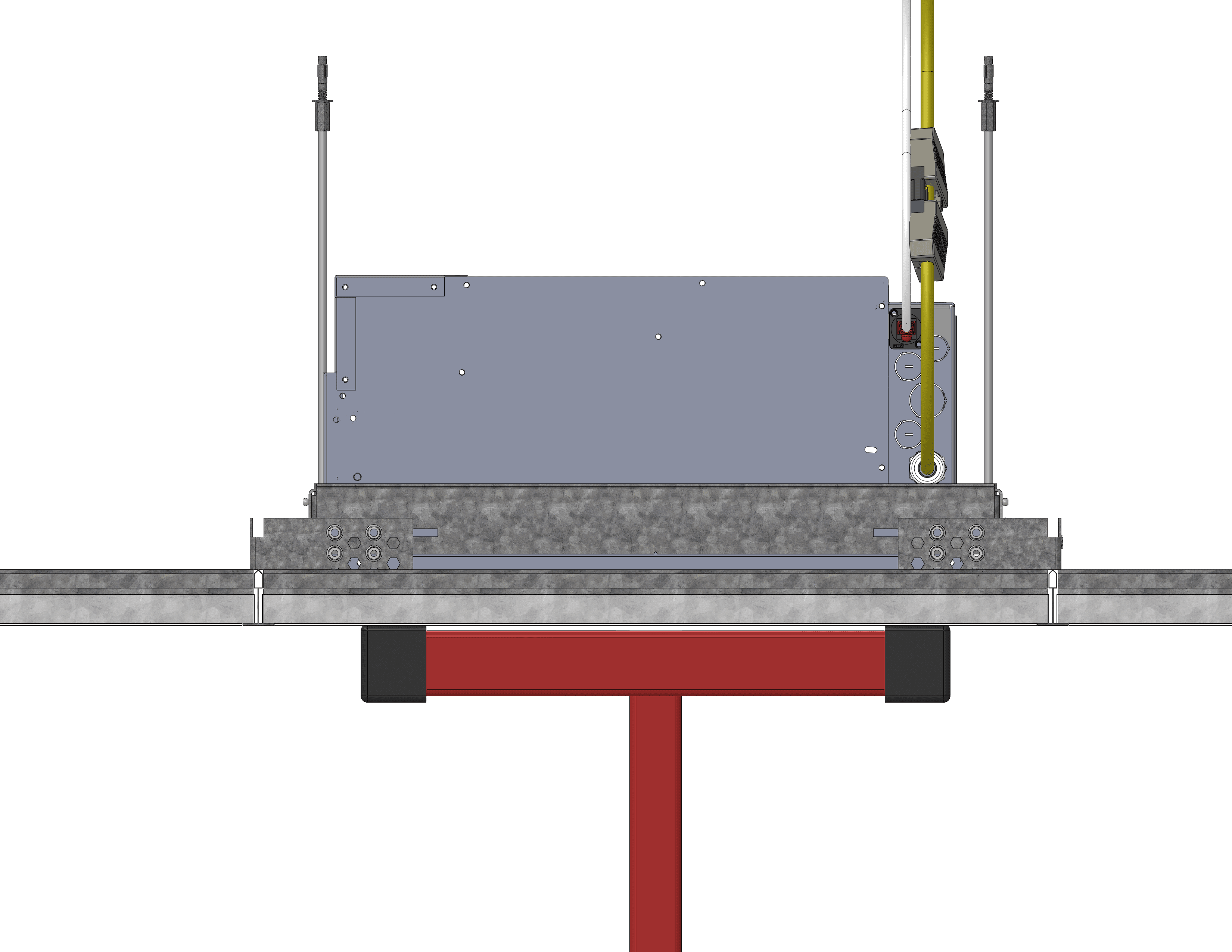
Raise fixture until the bottom of the fixture is level with the finished ceiling surface

Fully Raised Joist
Fully Raised Joist 2

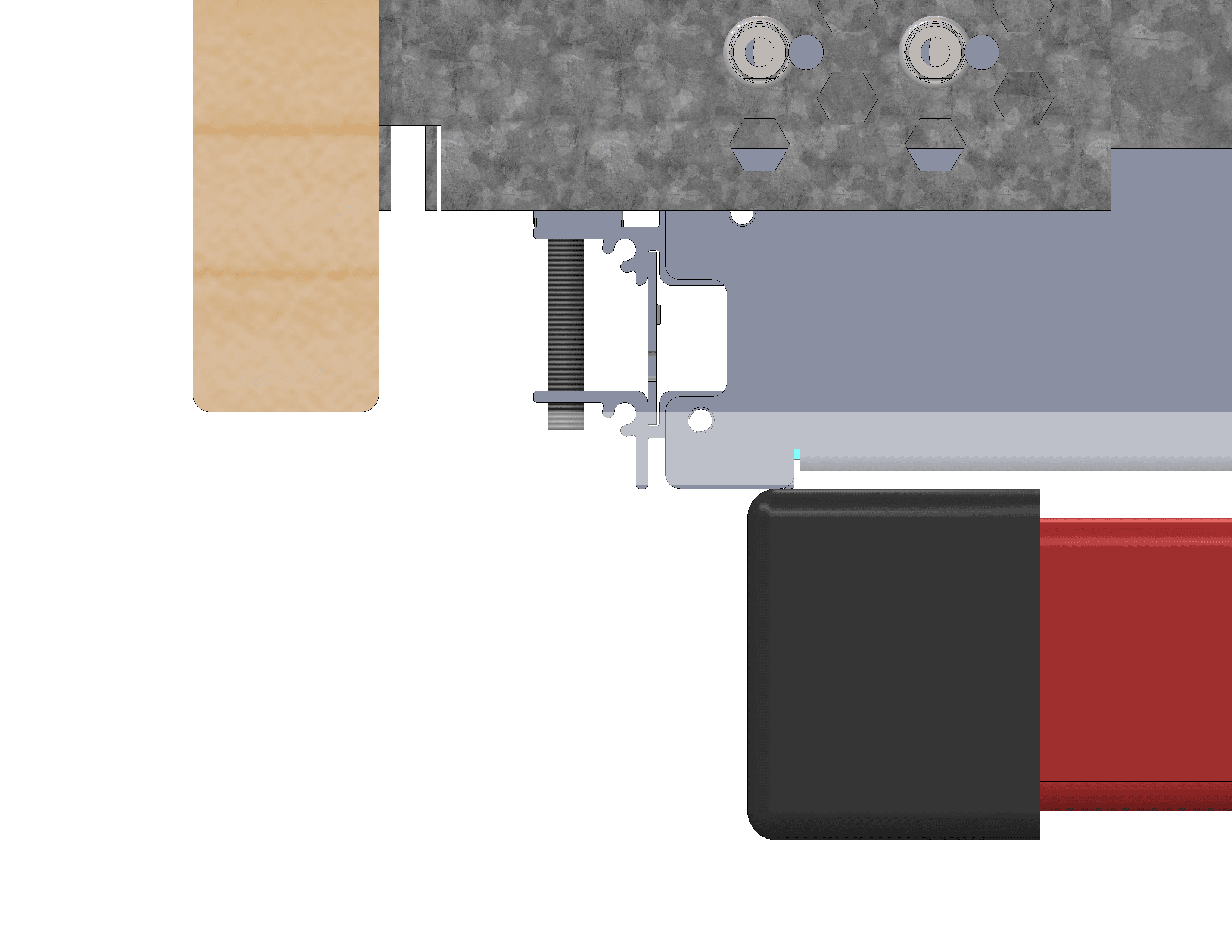
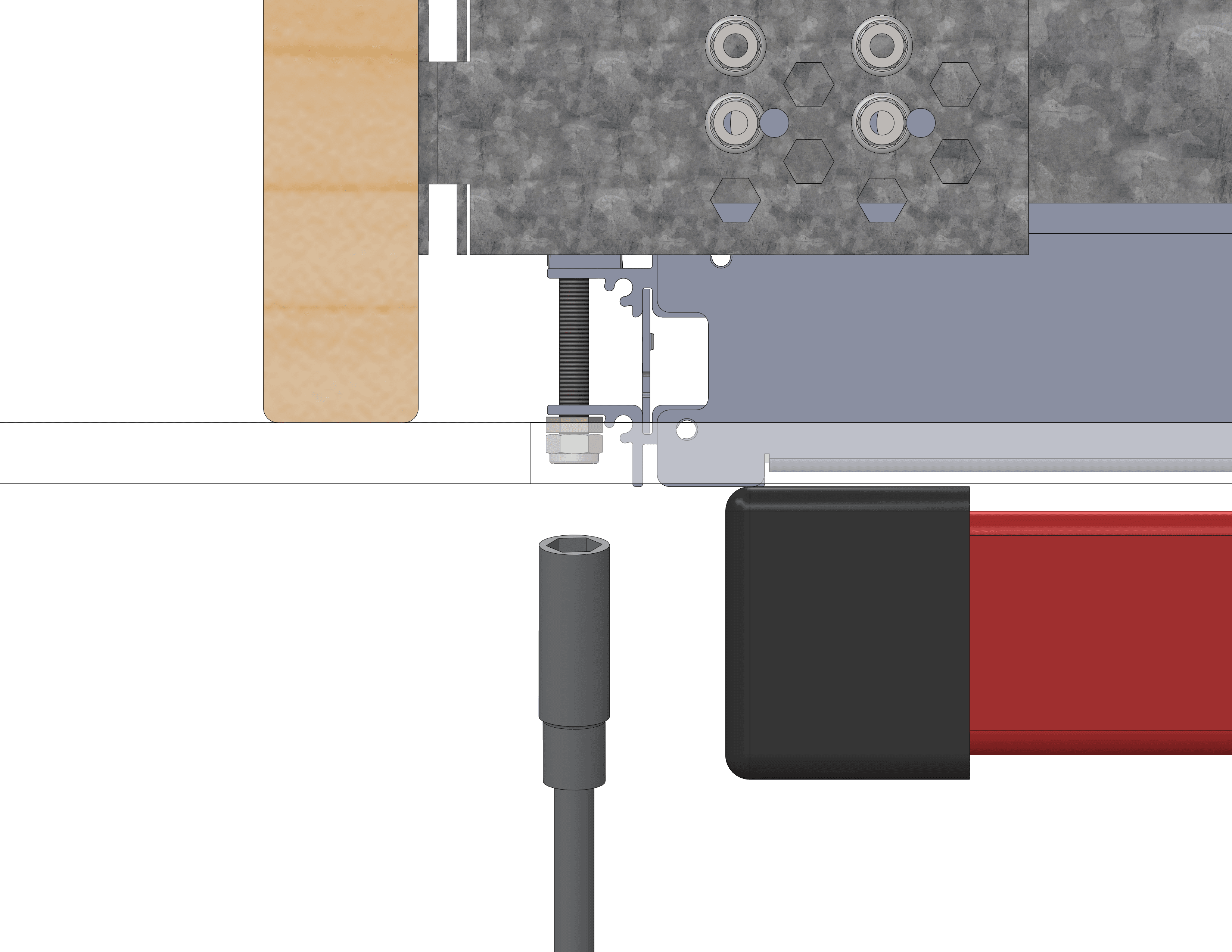
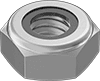
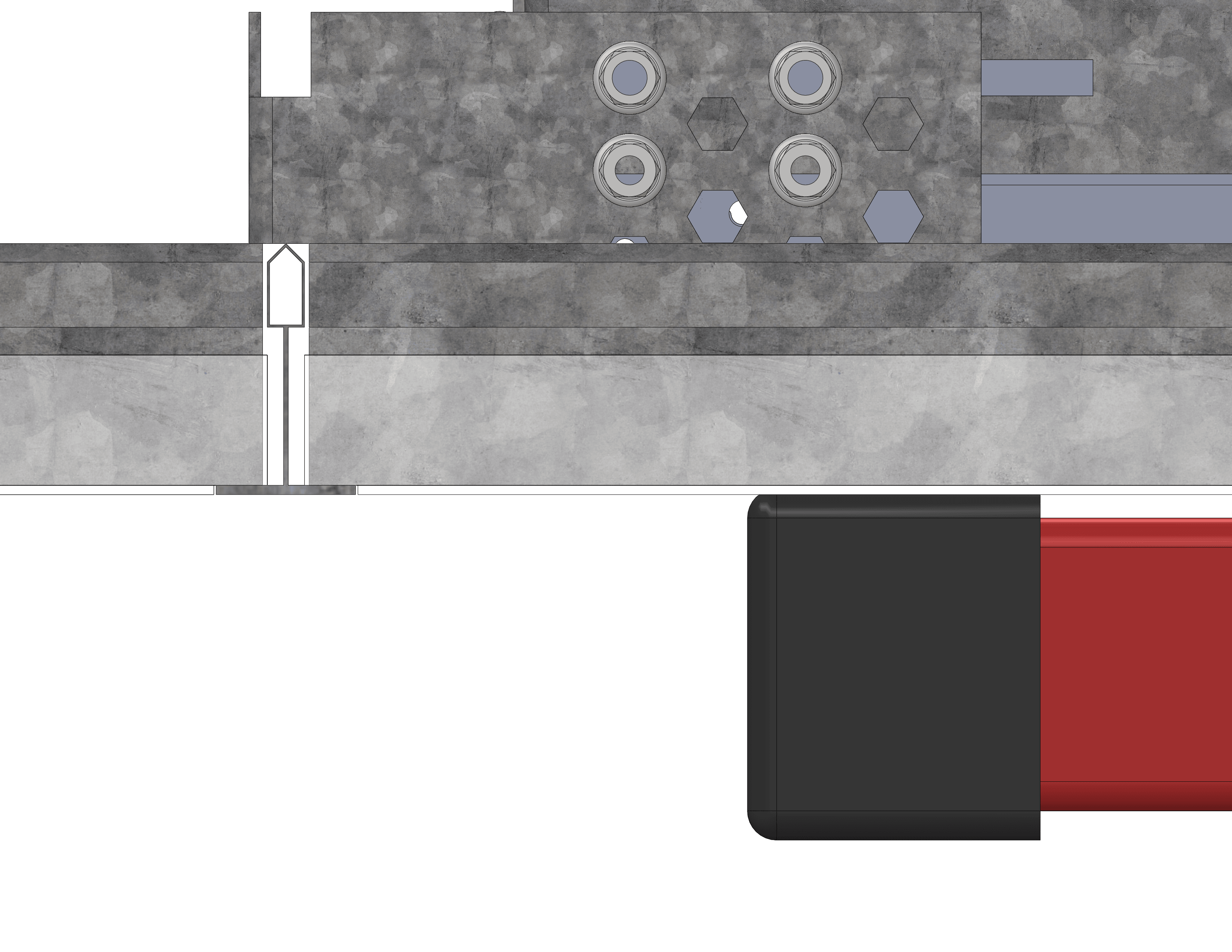
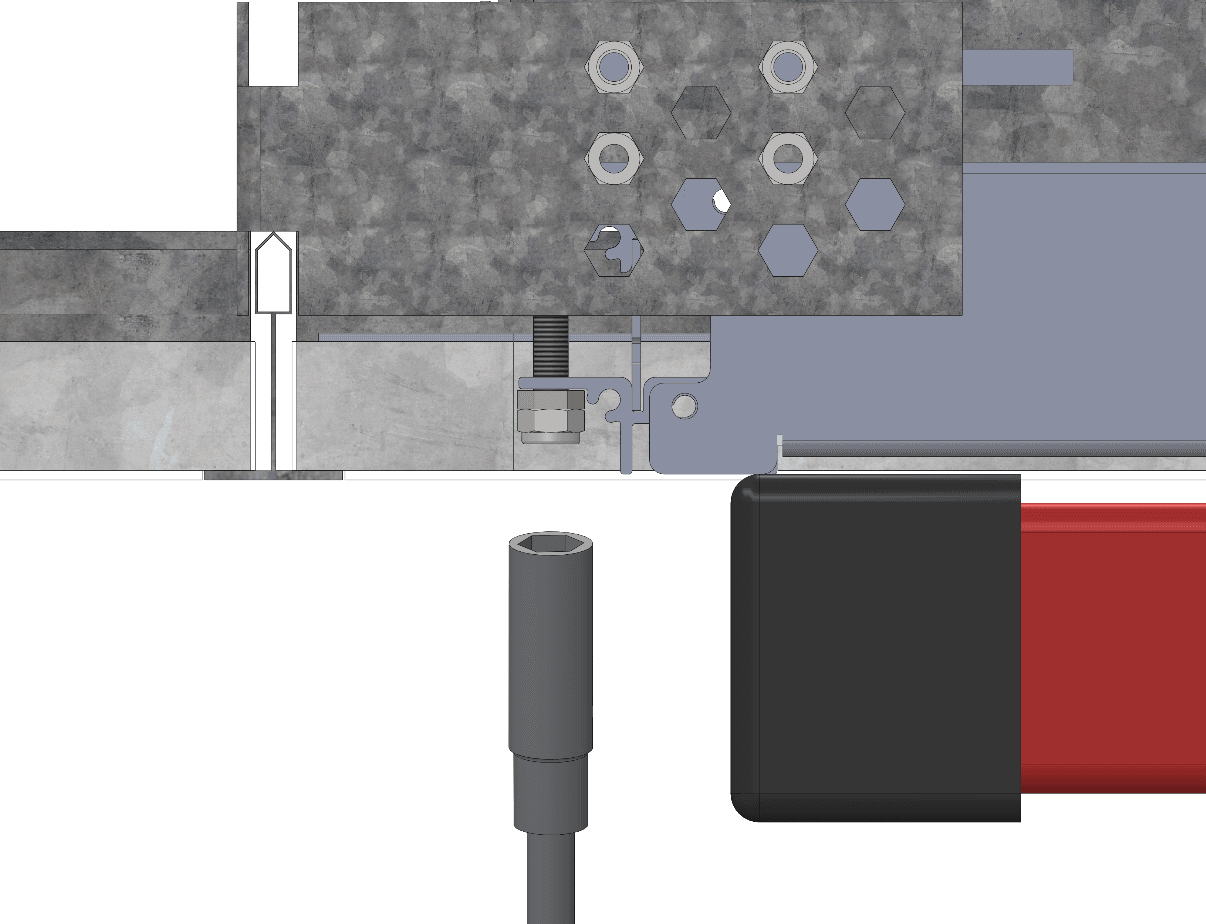
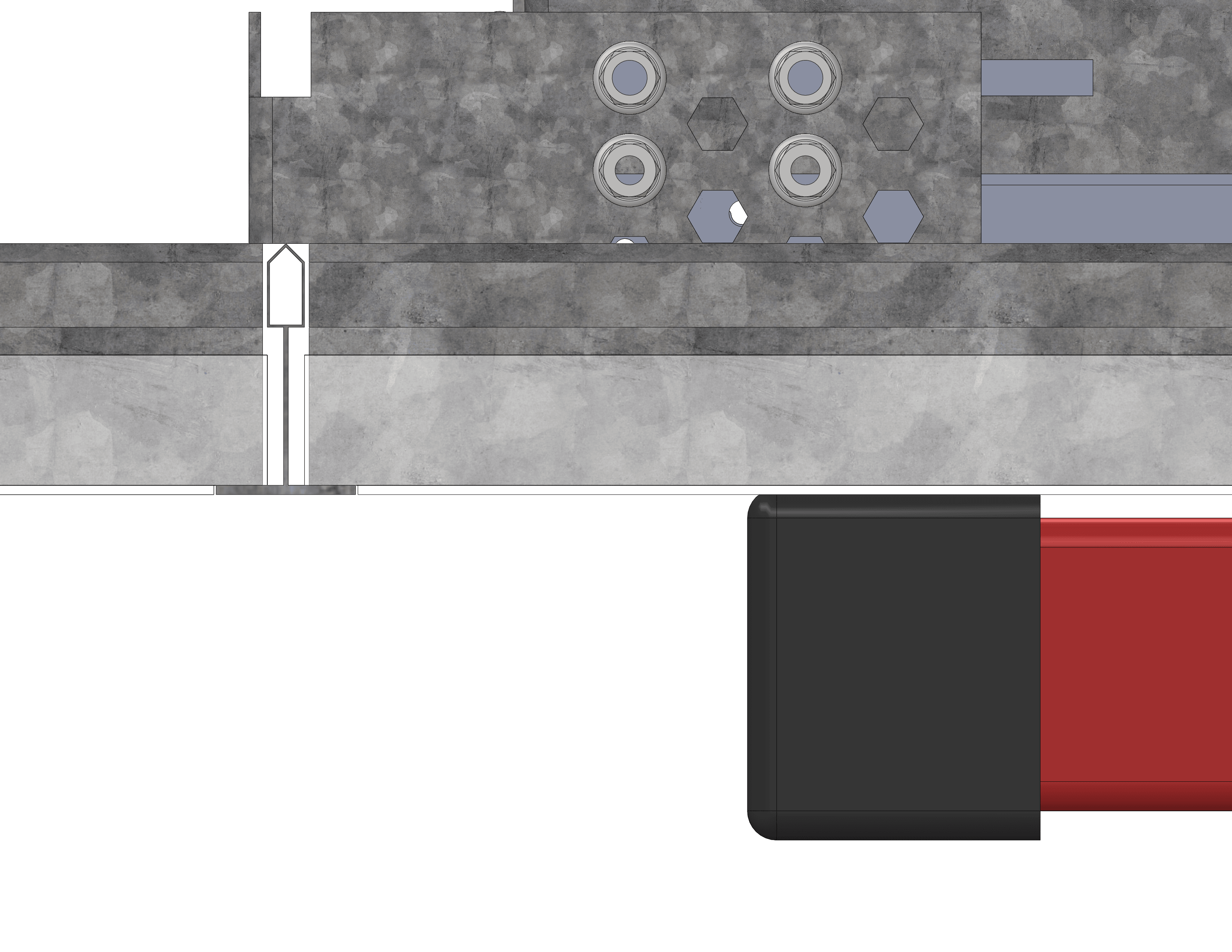
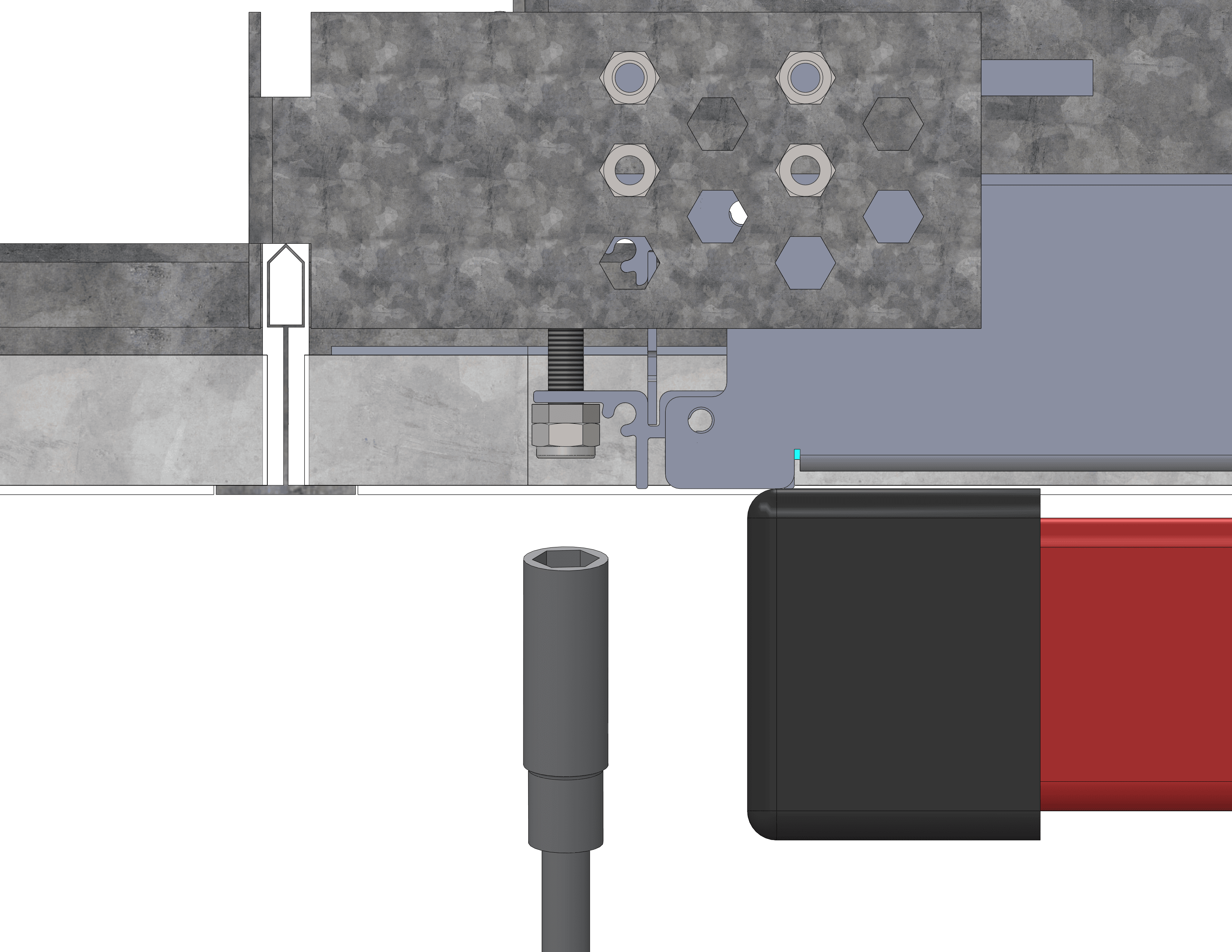
Use M6 thin hex nuts (provided) to adjust the level of
the fixture to the NC (New Construction) Housing.

Gradually lower the drywall hoist to load the fixture on the hex nuts.

Use the optional 10mm hex nut spinner (nut driver /
Alternative Configurations 16” or 450mm
Joist Ceilings Identify installation location. nut driver / nut screwdriver)

Fully Raised Joist Hex Nut

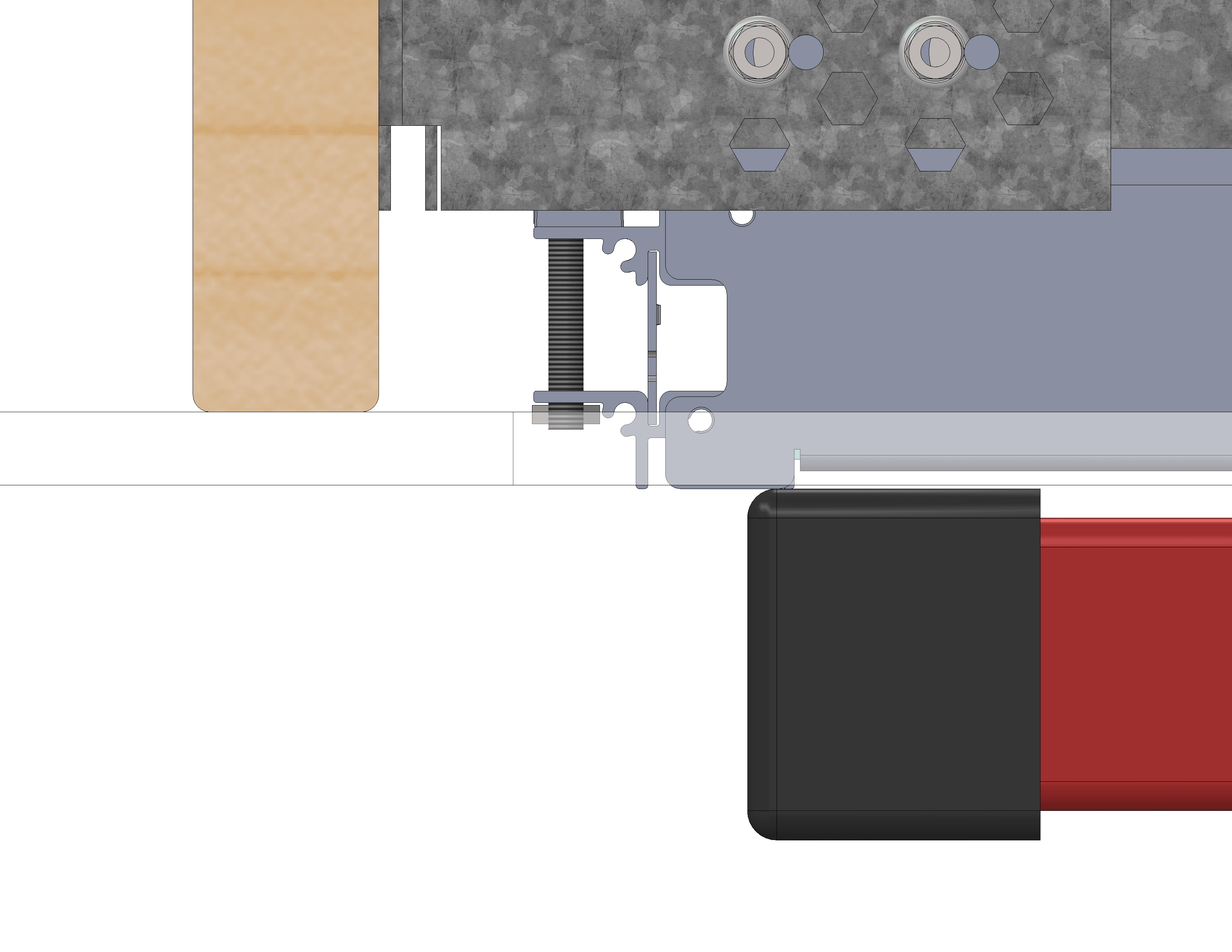
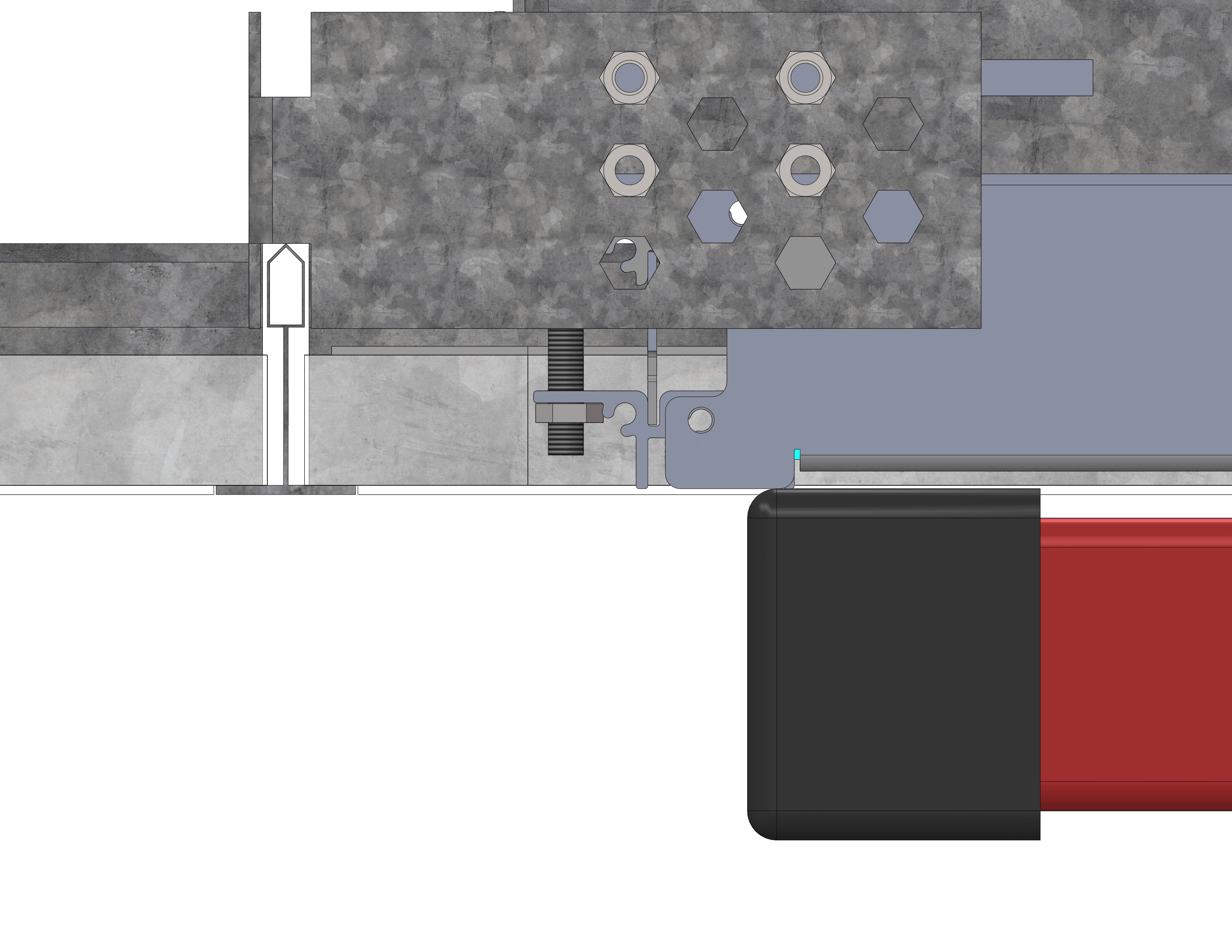
Use M6 nylon hex lock nuts (provided) to secure the fixture
to the NC Housing. Ensure the fixture is secured on the ceiling before
removing the drywall hoist.


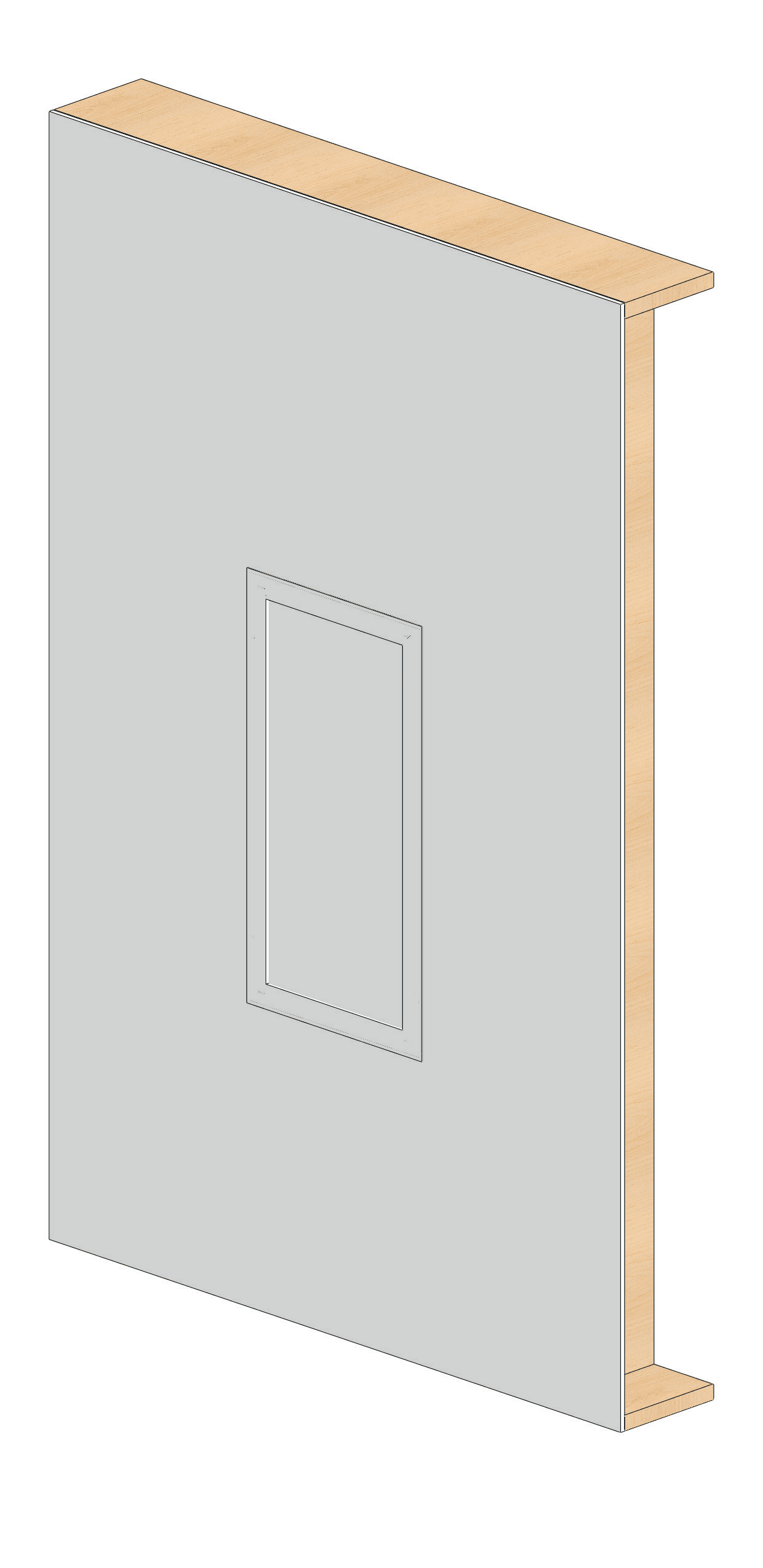
Install drywall with correct cut-out 20”-15/16 by 38”-5/8 532mm by 981mm

Fully Raised Joist Lock Nut

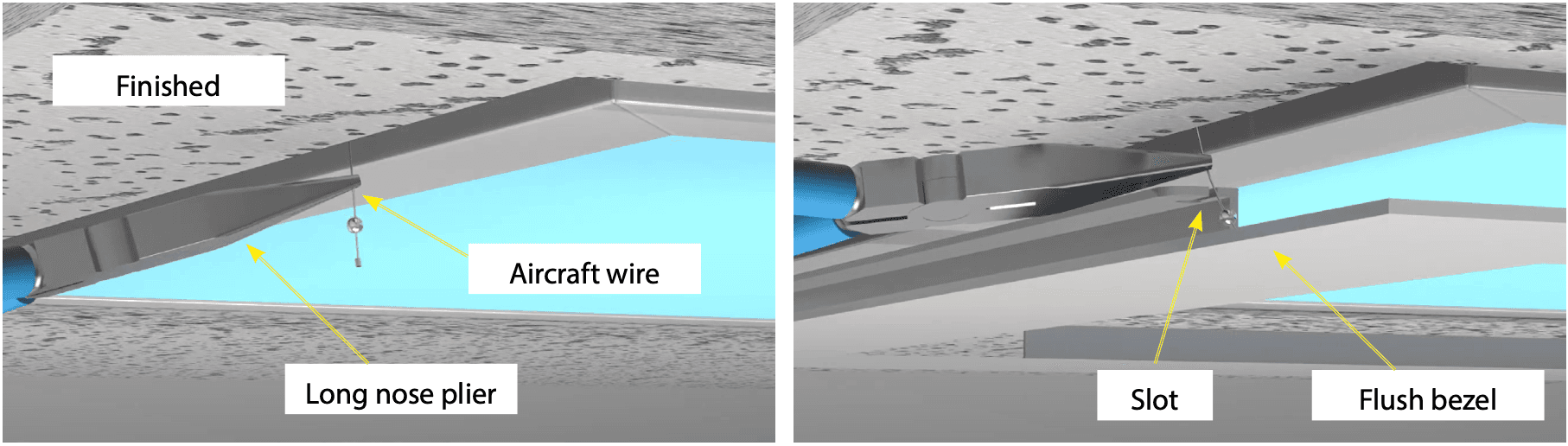
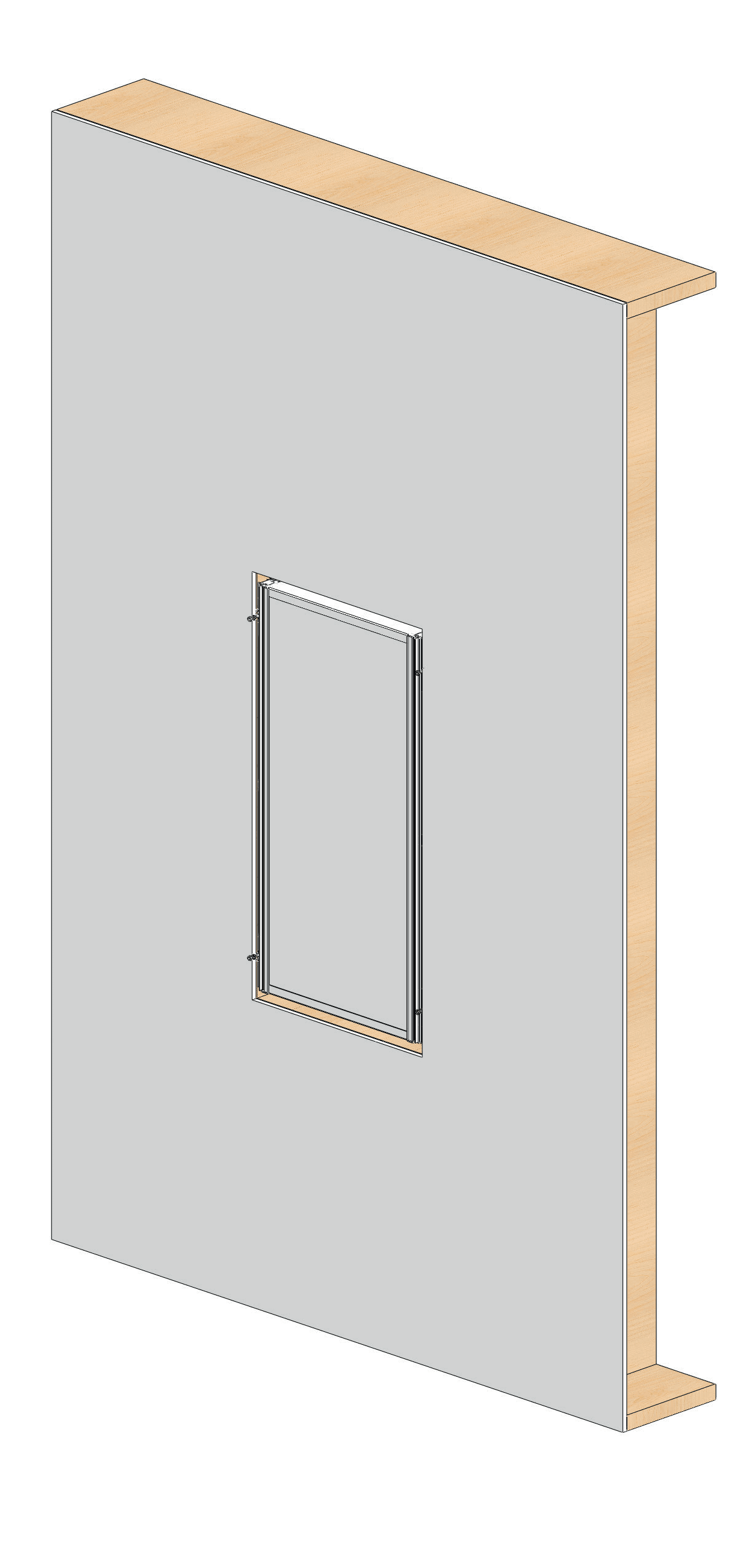
Once the ceiling has been finished. Using a long nose (needle nose) plier. Grab one of the four aircraft wires hanging from the fixture and pull it down and slot into the slots on the Bezel Trim. The wires are spring loaded and will pull up the trim.

Aircraft Plier

Repeat on all four aircraft wires to complete

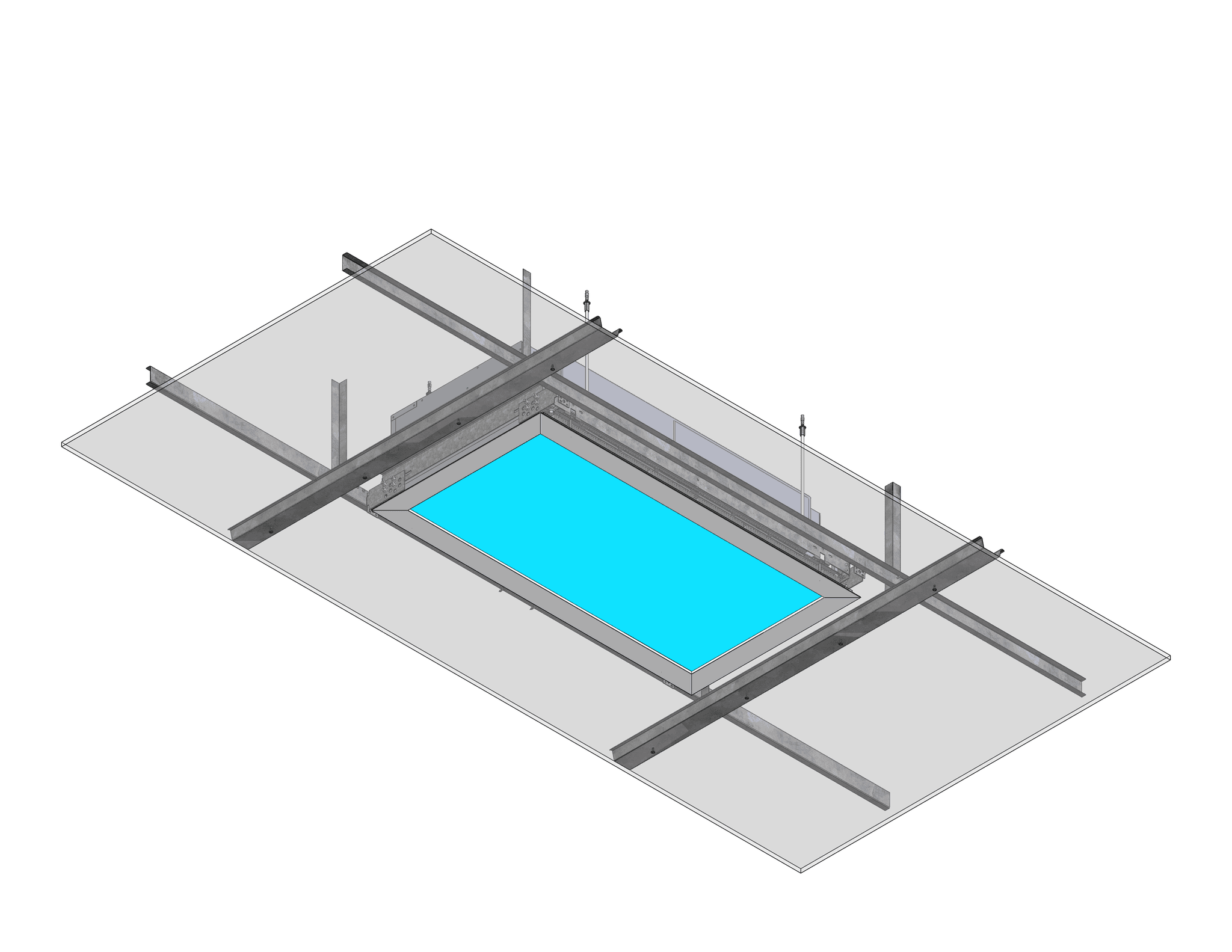
Universal mounting option suitable for remodelling/retrofit or new construction using metal ceiling lined

Array Installation Remodel

Suitable constructions

  • Steel hat channels or Metal furring channels
  • Recommended total depth at least 11” or 270mm.
  • Depending on local building codes, additional threaded rods may be required to support the fixture.

Recommended equipment for ceilings below 15 feet or 4.5m

(For taller ceilings, temporary support structures or lifts may be required)

Panel Hoist

Drywall panel hoist
11feet or 15feet

Metal Furring

Metal furring or self drilling
screws and power drill

Drywall Saw

Drywall saw

Hammer

Hammer

Achnor

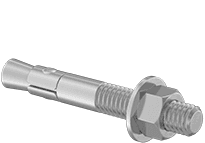
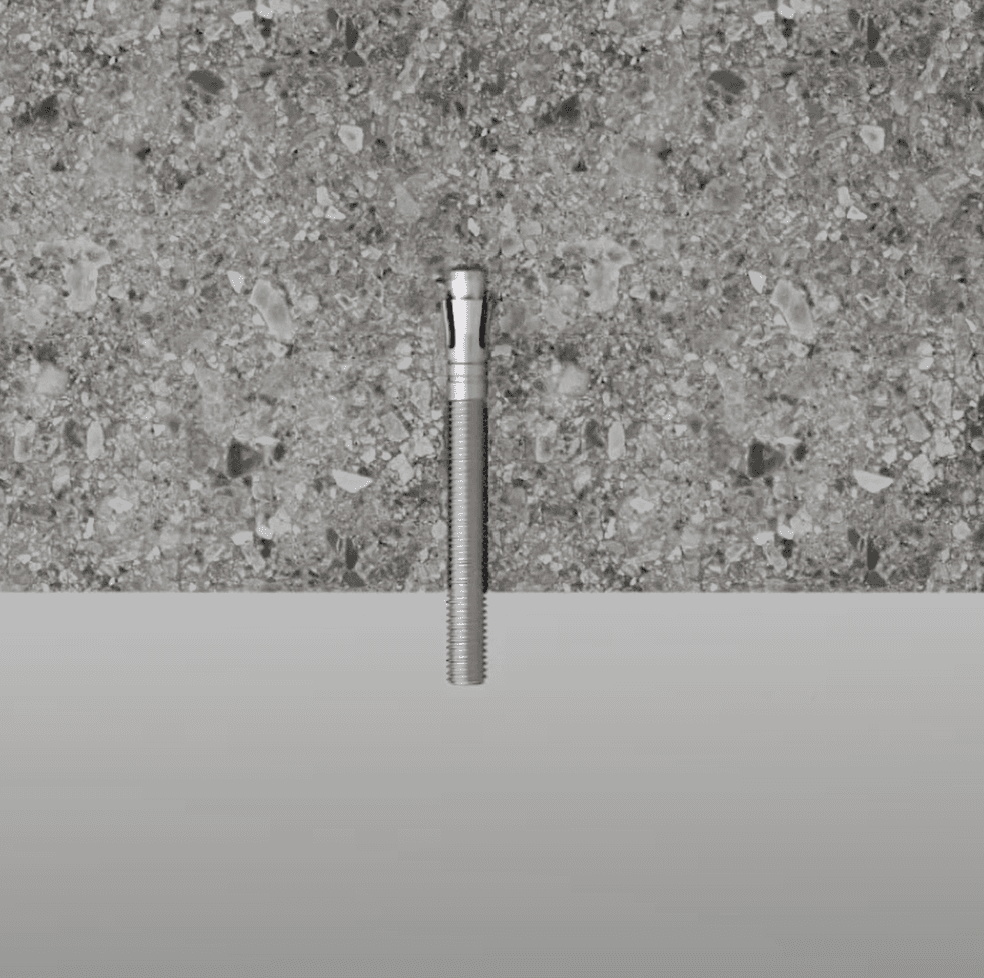
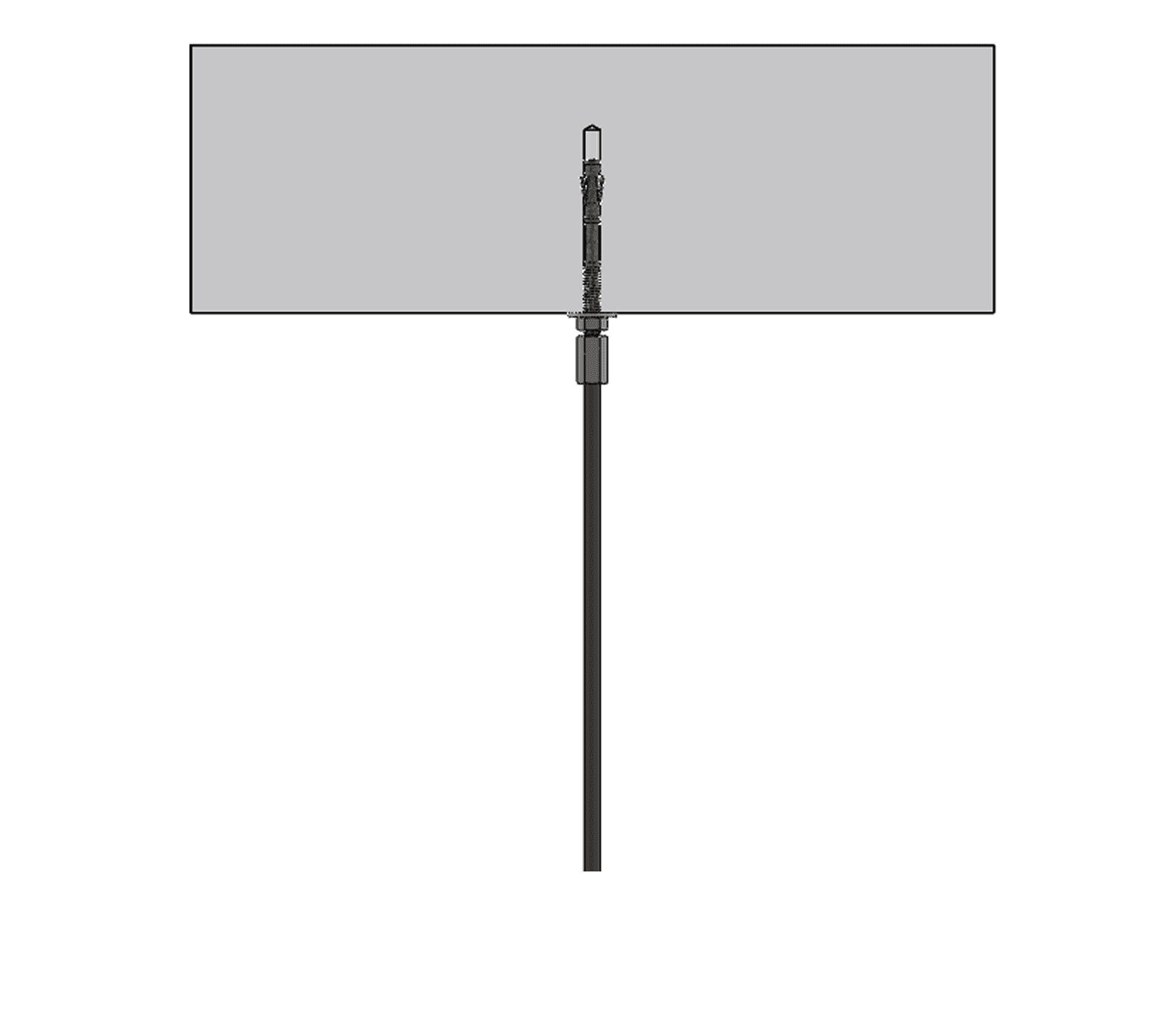
M6 Masonry anchors or
threaded rods 1/4”-20 steel stud
anchors 95475A550

Wire Stripper

Wire Stripper / Cutter

Hex Nut Snipper

Hex Nut Spinner

Thin Nut

8x M6 or 1/4”-20 thin nuts
e.g. McPrimary-Carr 91078A029
Thin Nut 2

4x M6 or 1/4”-20 nylon locknuts
e.g. McPrimary-Carr 90566A029
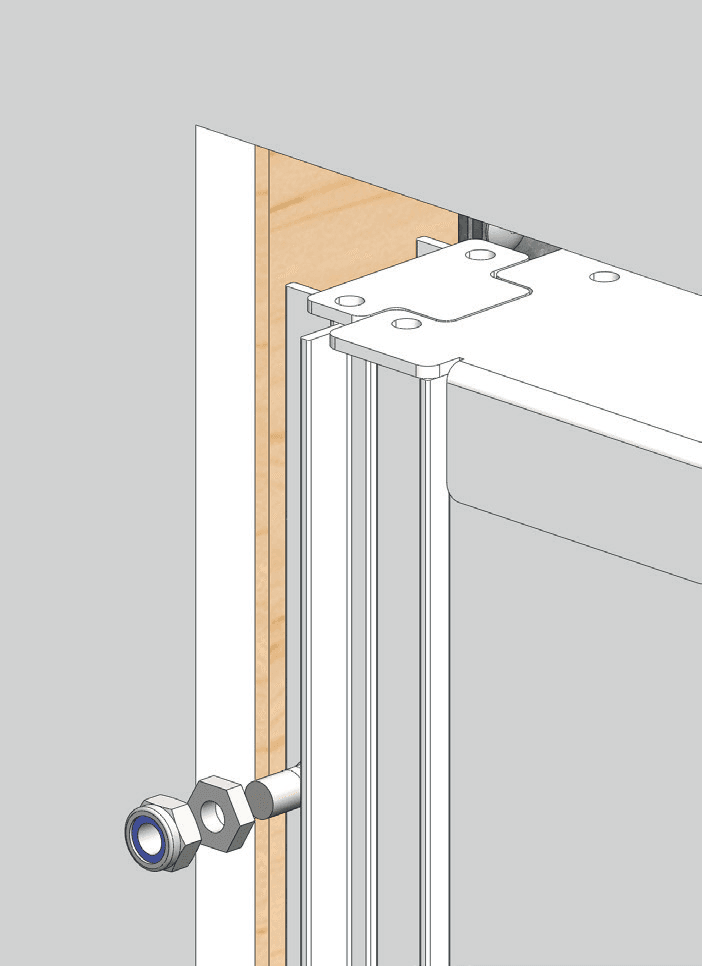
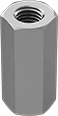
Steel Coupling

4x M6 or 1/4”-20 coupler spinner
e.g. McPrimary-Carr 90566A029

Threaded Rod

4x M6 or 1/4”-20
e.g. McPrimary-Carr

Construction Housing
Transparent VS

Fixing Locations on Hard
Ceiling with NC Housing

Transparent VS

Fixing Locations on Hard
Ceiling without NC Housing

Wall
Mansory Anchor
Anchor
Unistrut Anchor

Align NC Housing so bottom of M6 coach bolts are between 1/32" and 3/8" from bottom of finished ceiling face.
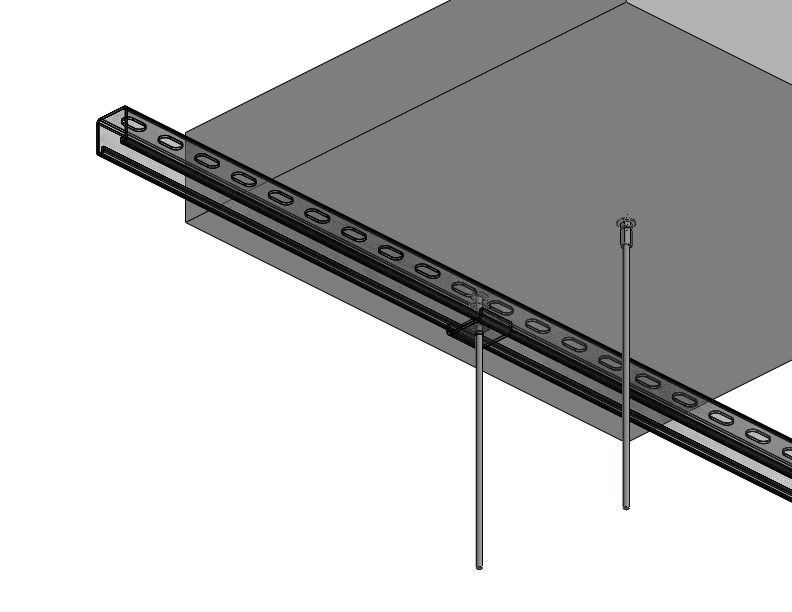
Hang NC Housing from 1/4” Threaded Rods, then secure NC Housing to Hat Channels (MF Metal Furring) using either Self- Drilling or Metal-Furring screws.
Tighten M6 pan head screws to secure hanger bars.

Array Installation 6
Align Housing

Make electrical and data connections before raising into the ceiling void.

Installation Hoist Joists 2
Installation Hoist Joists 4

North American model: 12/2 or 12/4
or 14/2 or 14/4 WG NM-B Romex with 1/2” or 3/4” KO. Cat6 Ethernet cable

North American model: 12/2 or 12/4
or 14/4 or 14/4 WG MC or FMC or EMT with 1/2” or 3/4” KO. Cat6 Ethernet cable

International model: 3-core 2.5mm2
LSZH or CPR-rated, cable OD 6.5-8.6mm, 6-pole socket. Cat6 Ethernet cable

Raise fixture until the bottom of the fixture is level with the finished ceiling surface

Fully Raised Joist 4
Fully Raised Joist Finished Ceiling

Use M6 thin hex nuts (provided) to adjust the level of
the fixture to the NC (New Construction) Housing.

Gradually lower the drywall hoist to load the fixture on the hex nuts.

Use the optional 10mm hex nut spinner (nut driver / nut driver / nut screwdriver)

Fully Raised Joist Finished Ceiling 2

Use M6 nylon hex lock nuts (provided) to secure the fixture to the NC Housing.
Ensure the fixture is secured on the ceiling before removing the drywall hoist.

Fully Raised Joist Finished Ceiling 3

Once the ceiling has been finished. Using a long nose (needle nose) plier. Grab one of the four aircraft wires hanging from the fixture and pull it down and slot into the slots on the Bezel Trim. The wires are spring loaded and will pull up the trim.

Aircraft Plier

Repeat on all four aircraft wires to complete

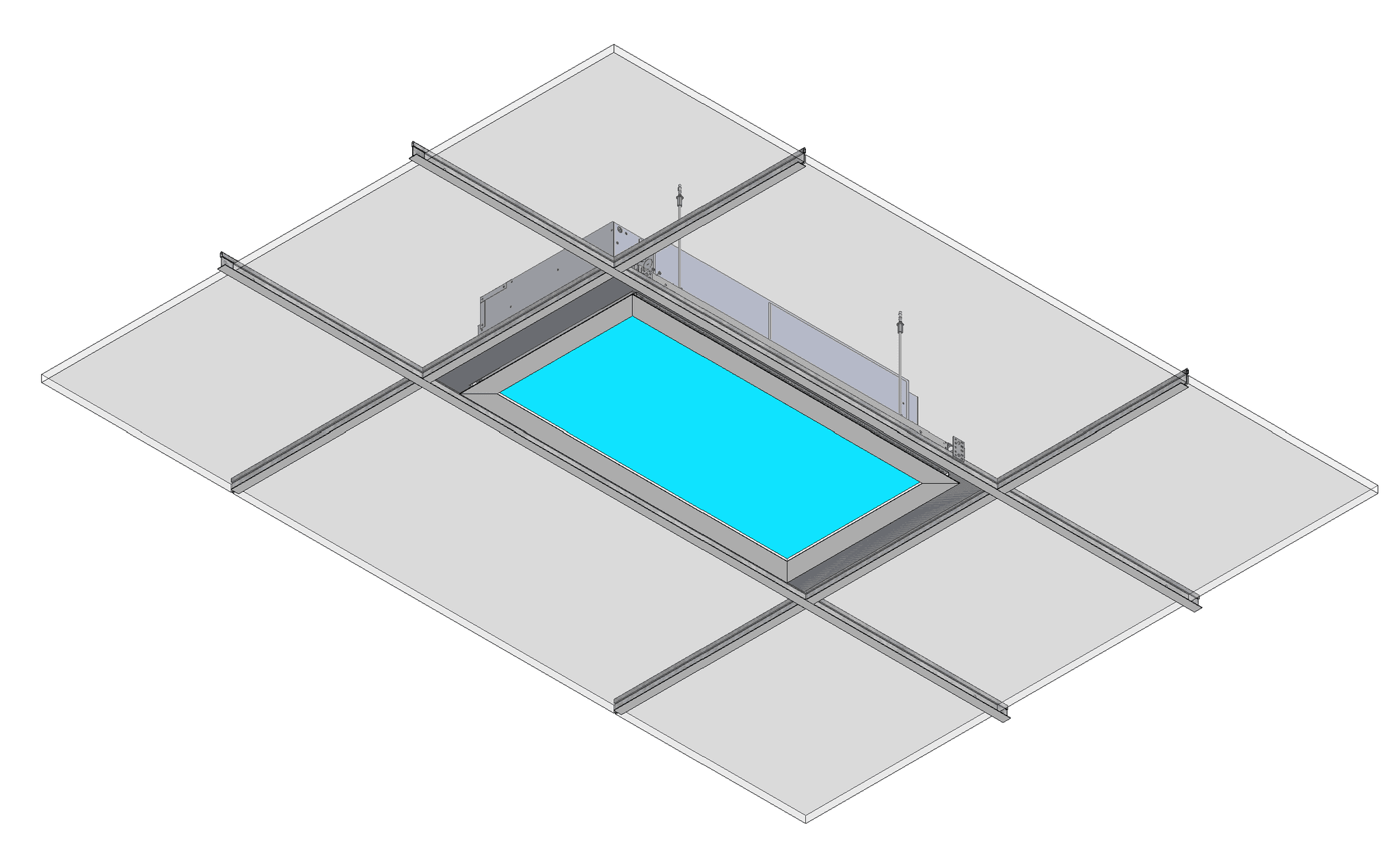
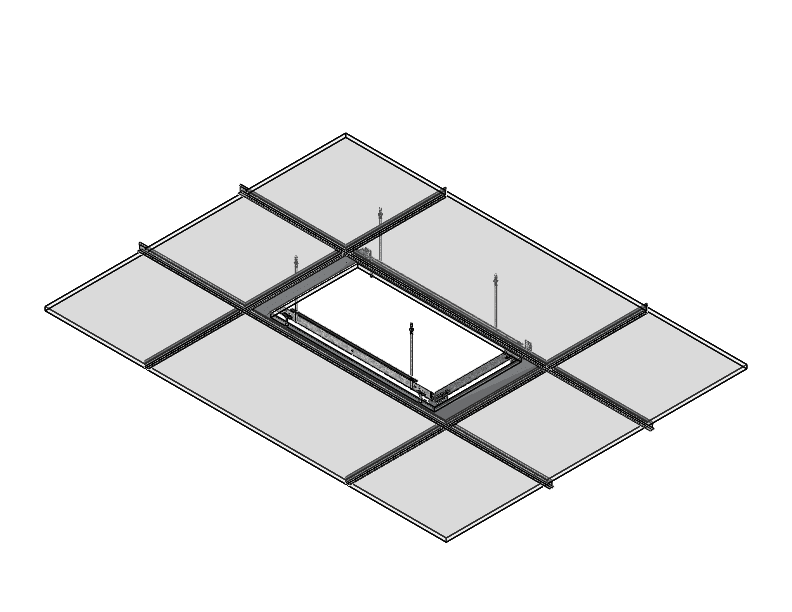
Universal mounting option suitable for remodellling/retrofit or new construction using grid ceilings with mineral tiles

Array Installation Remodel 2

Suitable constructions

  • Steel hat channels or Metal furring channels
  • Recommended total depth at least 11” or 270mm.
  • Depending on local building codes, additional threaded rods may be required to support the fixture.

Recommended equipment for ceilings below 15 feet or 4.5m

(For taller ceilings, temporary support structures or lifts may be required)

Panel Hoist

Drywall panel hoist
11feet or 15feet

Metal Furring

Metal furring or self drilling
screws and power drill

Drywall Saw

Drywall saw

Hammer

Hammer

Achnor

M6 Masonry anchors or
threaded rods 1/4”-20 steel stud
anchors 95475A550

Wire Stripper

Wire Stripper / Cutter

Hex Nut Snipper

Hex Nut Spinner

Thin Nut

8x M6 or 1/4”-20 thin nuts
e.g. McPrimary-Carr 91078A029

Thin Nut 2

4x M6 or 1/4”-20 nylon locknuts
e.g. McPrimary-Carr 90566A029

Steel Coupling

4x M6 or 1/4”-20 coupler spinner
e.g. McPrimary-Carr 90566A029

Threaded Rod

4x M6 or 1/4”-20
e.g. McPrimary-Carr

Contact Adhesive

4x M6 or 1/4”-20
e.g. McPrimary-Carr

Install anchors at set locations or supporting channels

Construction Housing
Transparent VS

Fixing Locations on Hard
Ceiling with NC Housing

Transparent VS

Fixing Locations on Hard
Ceiling without NC Housing

Wall
Mansory Anchor
Anchor
Unistrut Anchor

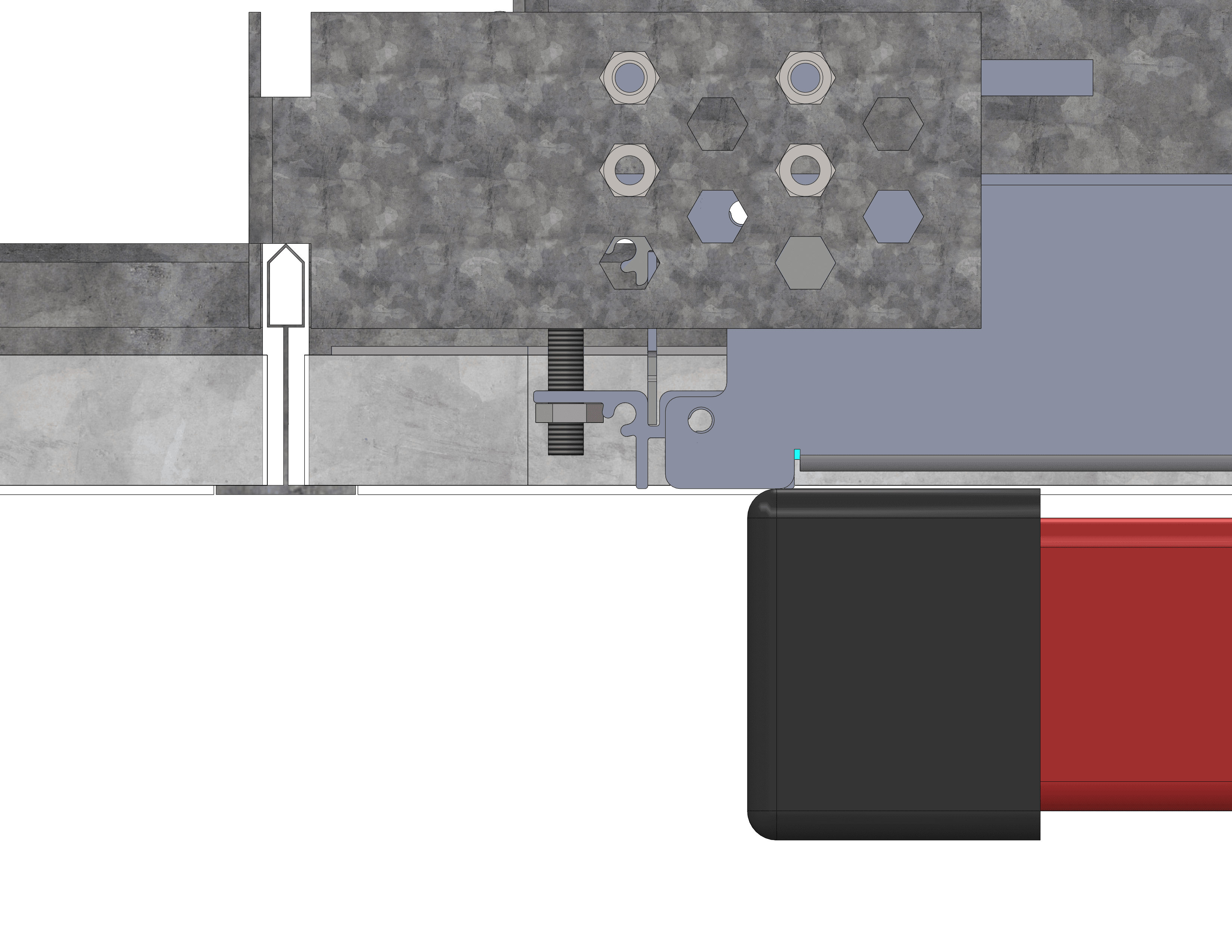
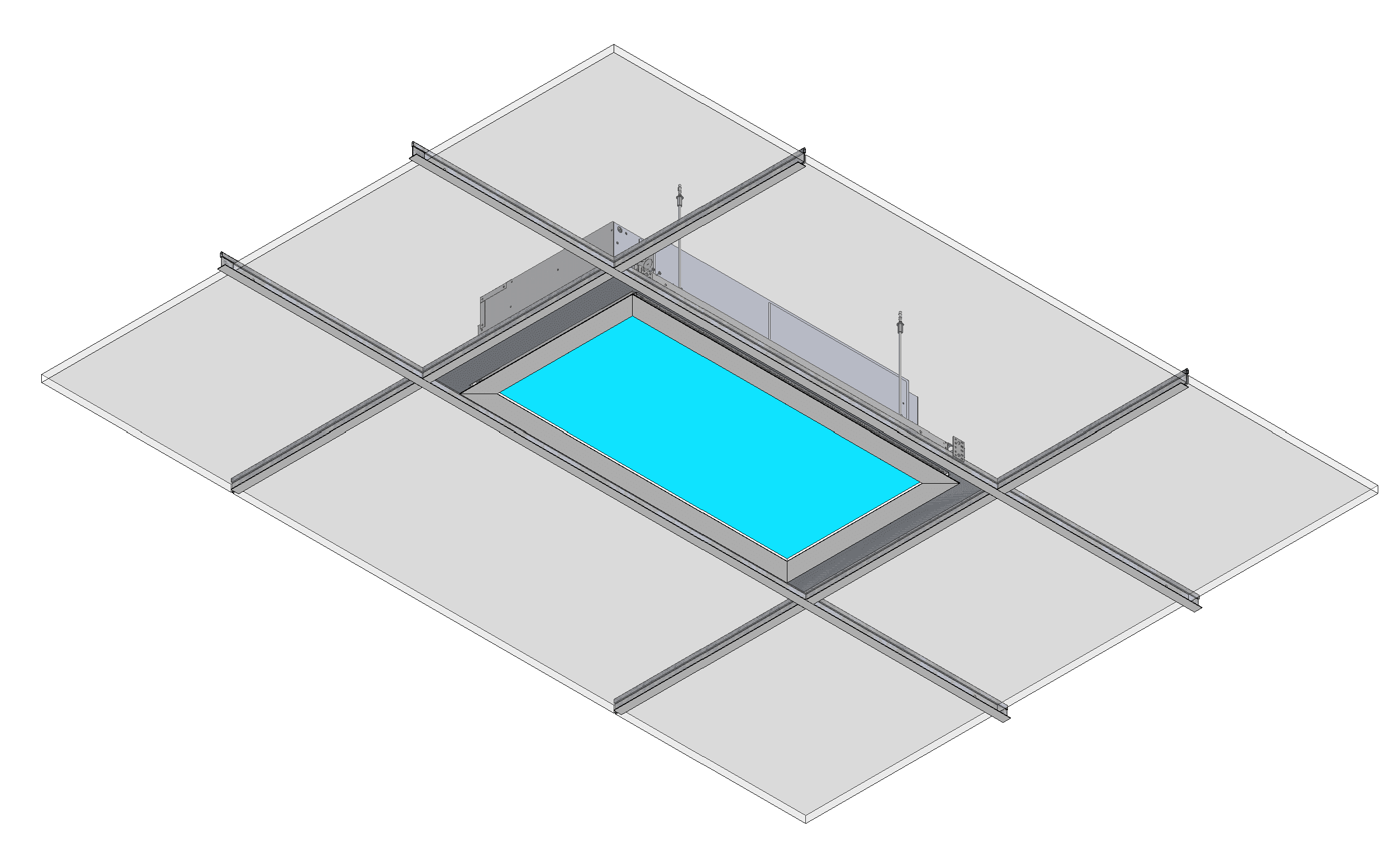
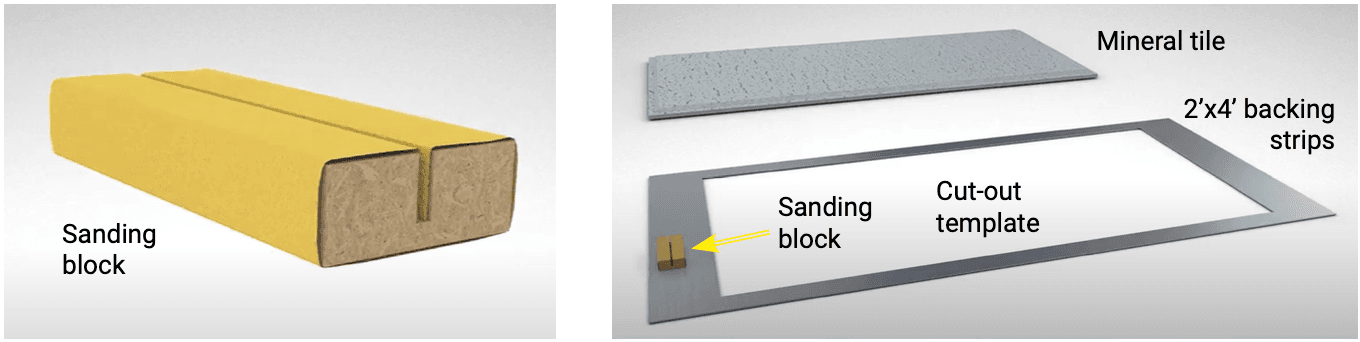
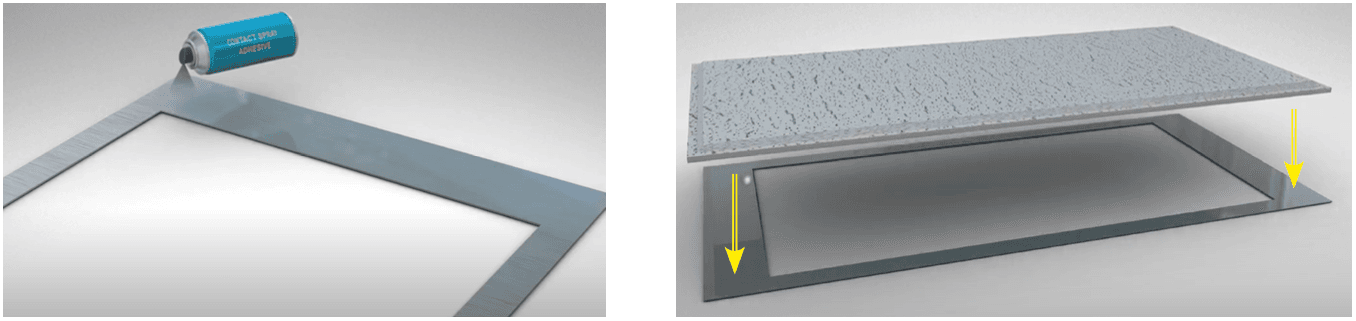
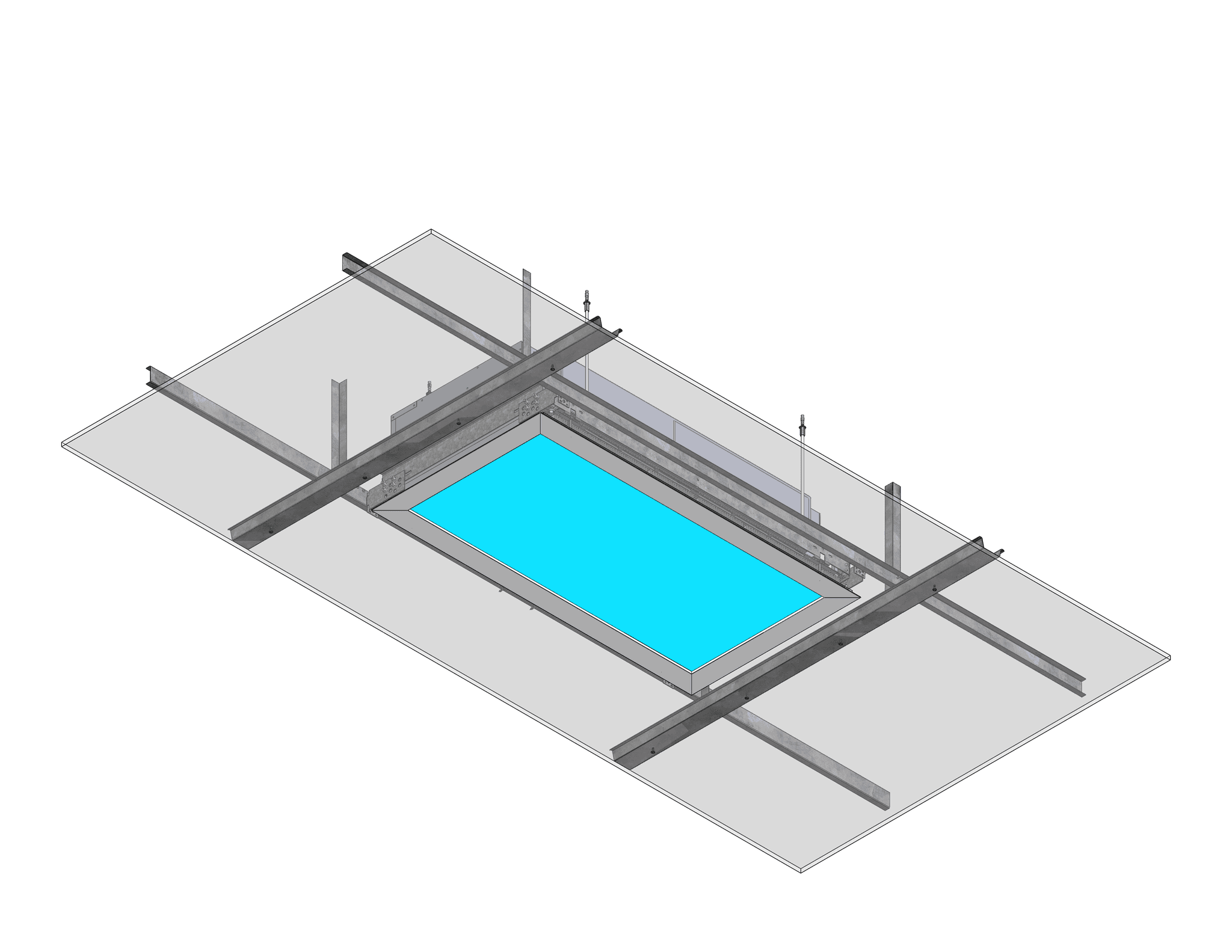
For mineral tile grid ceilings, or ceilings with relatively weak or thin constructions, an optional backing strip may be supplied by Innerscene to support the ceiling panel or tile material to allow for field cutting. This is highly recommended when using 2’ x 4’ mineral tiles. One backing strip set is required per fixture.

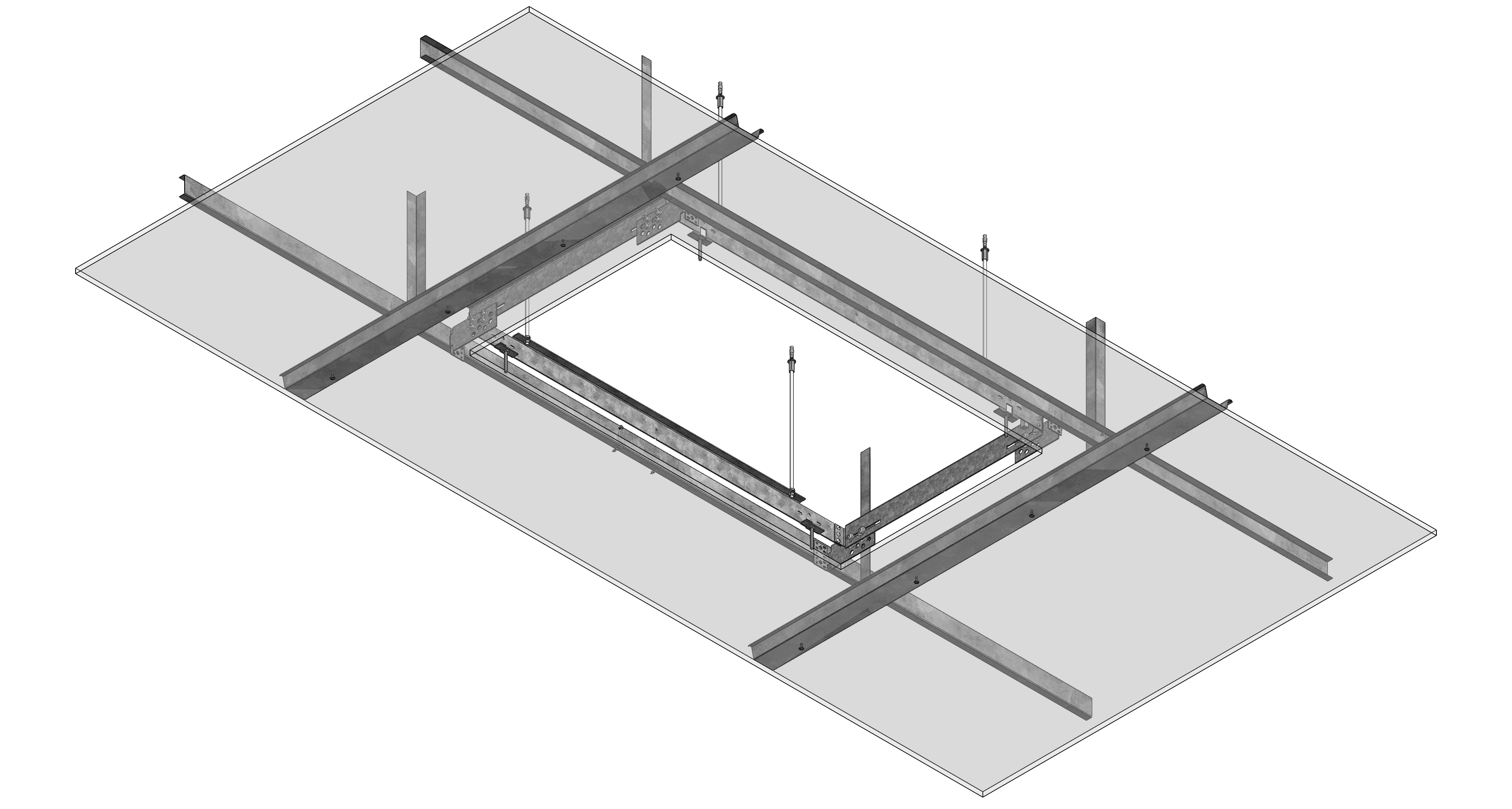
If one side of the strip isn’t already roughened, use a coarse sanding block or wire wool or abrasive sander. Apply a rough texture along an entire one side of the aluminum backing strips. Align the strips to form a cut-out with the aid of the notches as a guide. Main runner Cross tee Field cut mineral tile Mineral tile Light Innerscene) Masonry/Concrete anchor Coupling nut / Coupler Threaded Rod New Construction Housing (by Innerscene) Backing strips (by Innerscene) 20”-1/8 511mm

Mineral Tile

Clean the back surface of the mineral tile (or similar ceiling medium that requires support) of debris.

Wear a mask, gloves and ventilation masks when working with adhesives. Follow the recommended instruction of your spray-on contact adhesives.

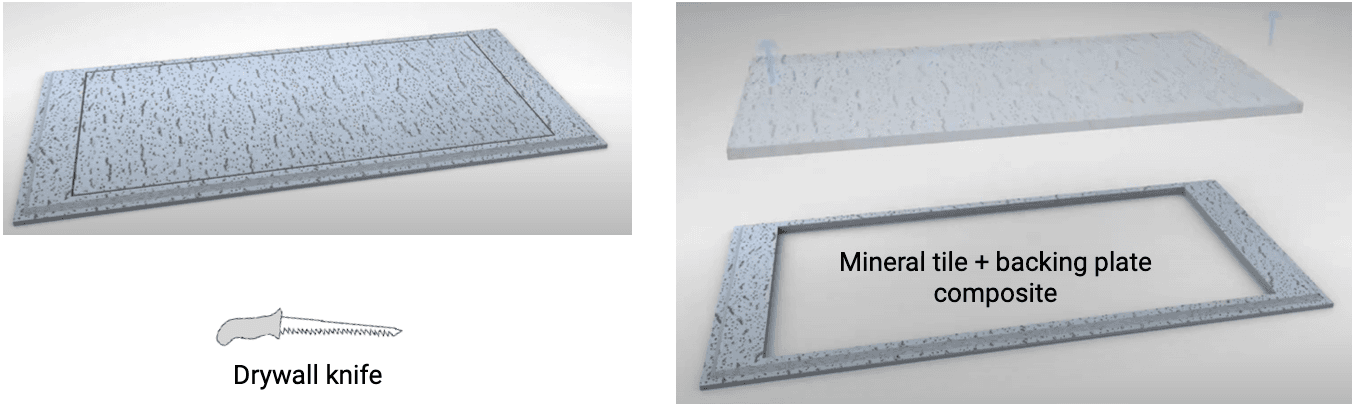
Spray contact adhesives to the coarse face of the backing plate as well as the back of the mineral tile. Wait several minutes (depending on contact adhesive’s manufacturer’s recommendations) for the contact adhesives to dry slightly.

Mineral Tile 2

Align the mineral tile with the backing plate. Apply uniform pressure on the two surfaces to adhere them. Start at the centre and work outwards. Allow time for the contact adhesive to cure. Using a drywall knife, cut the inside.

Mineral Tile 3

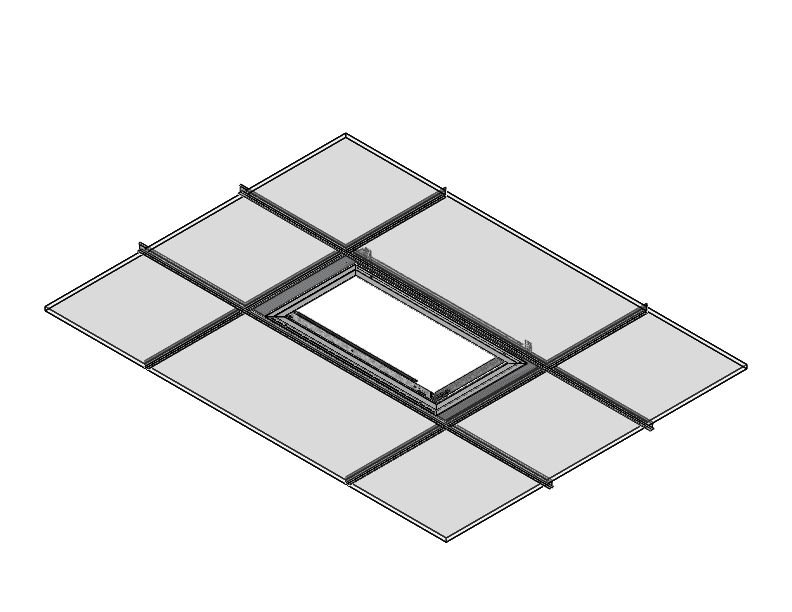
Lay in composite tile and NC Housing on Ceiling Grid

Ceiling Grid Composite

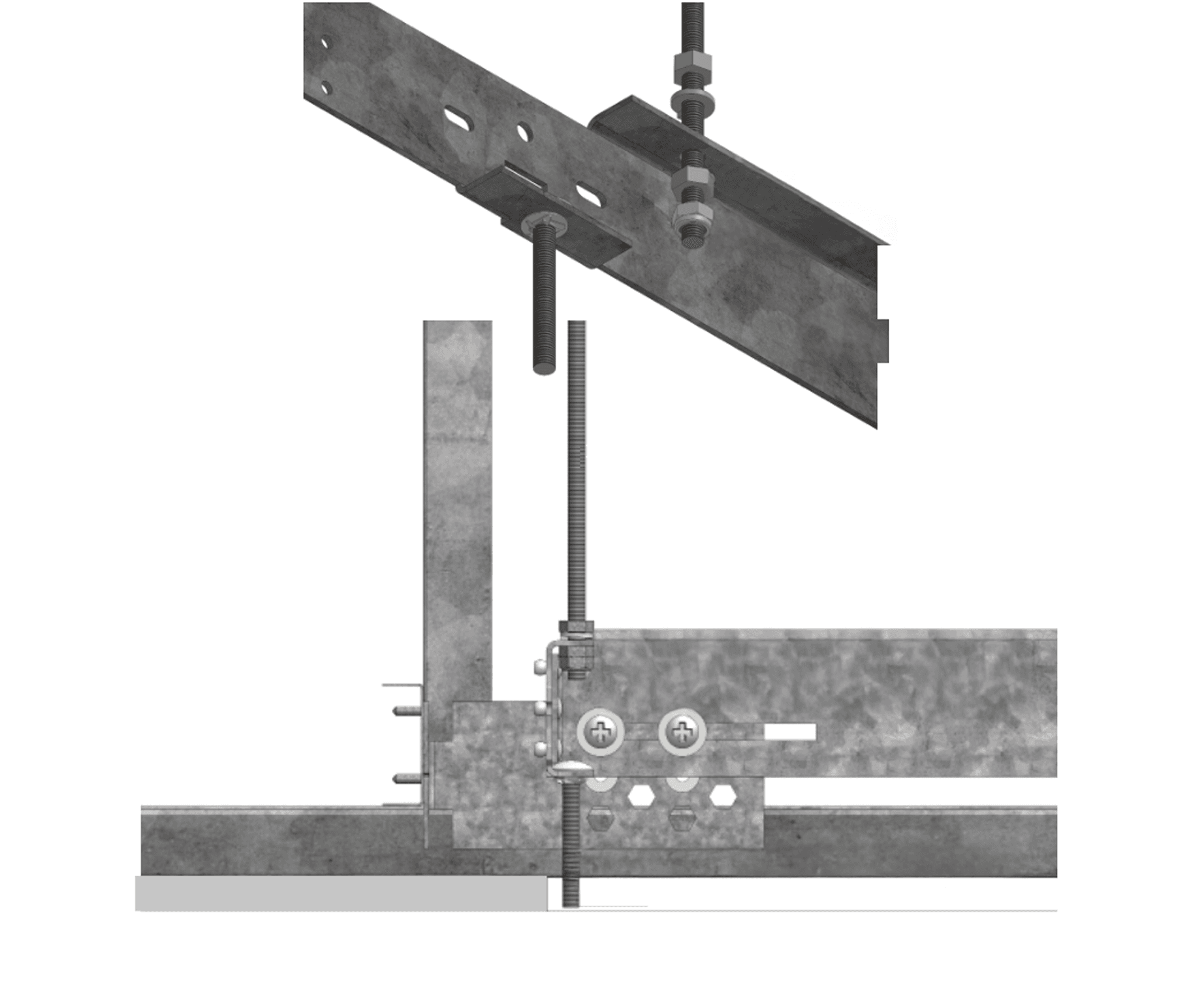
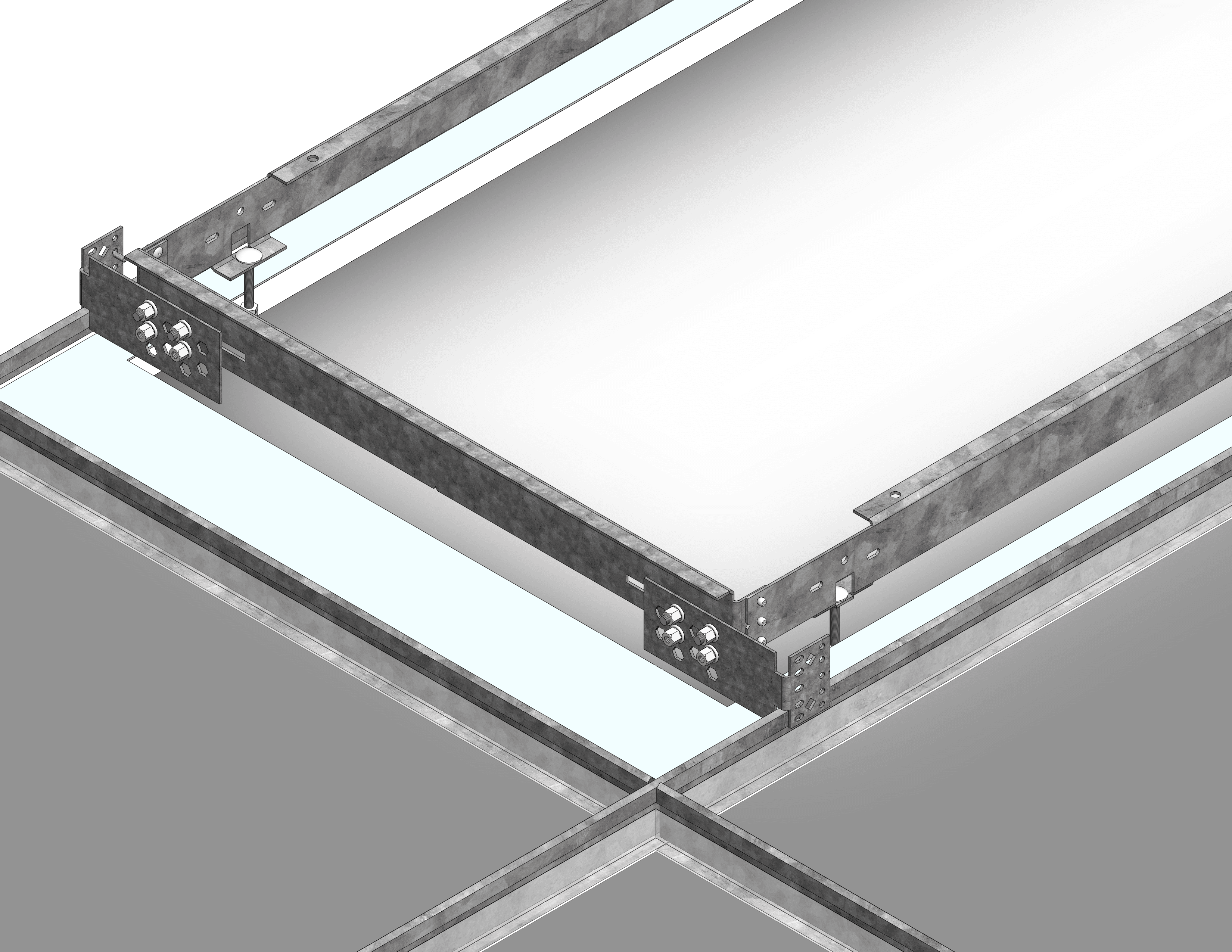
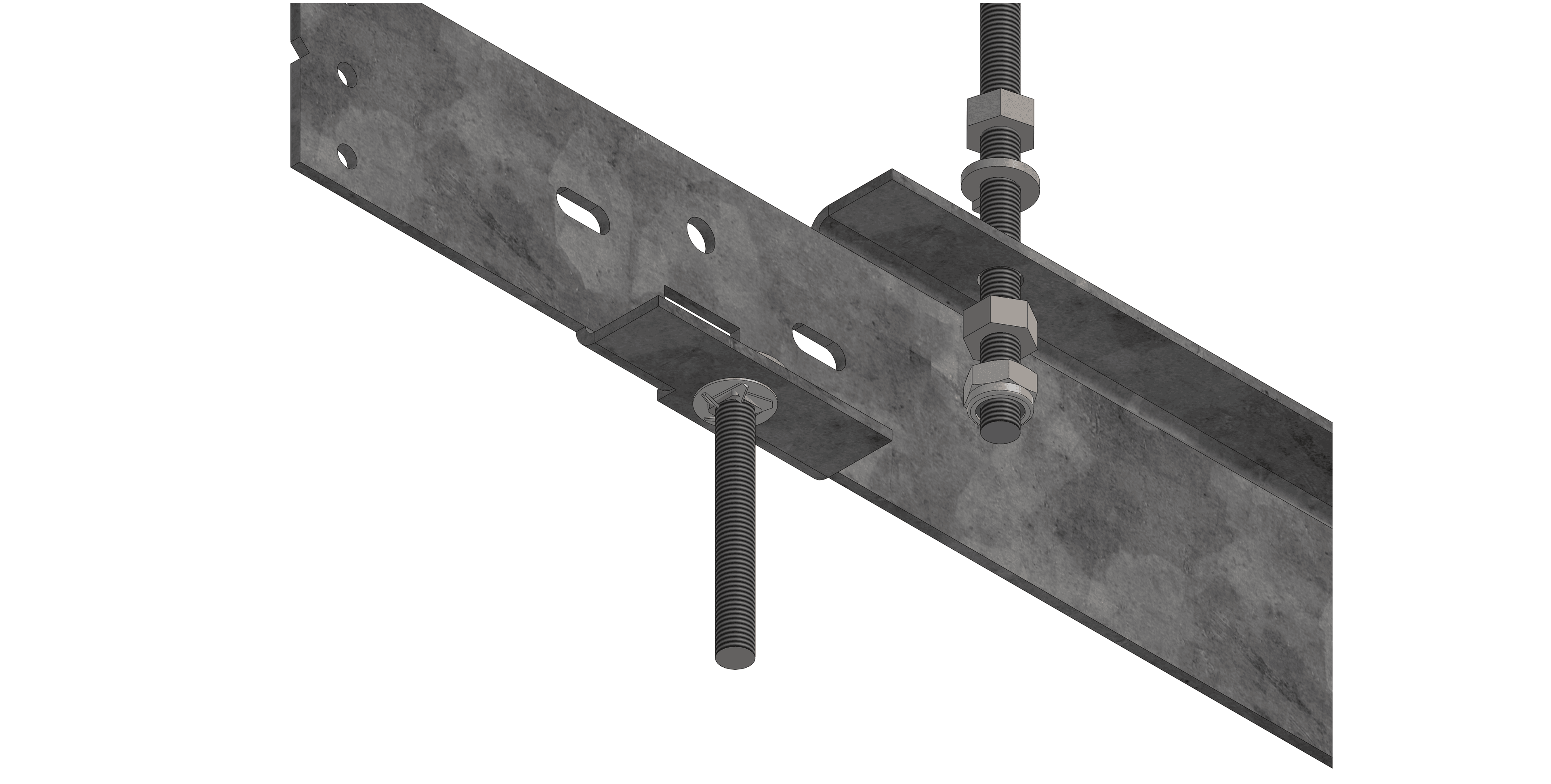
Extend the hanger bars over the bulb on the main beams

Hanger Bars

Secure threaded rods to New Construction (NC) Housing

Ceiling Grid Composite 2
NC Housing

Adjust drop of NC housing so the bottom of M6 coach bolts are between 1/16” and 1/4” from face of finished ceiling. Shorten or lengthen threaded rods as required.

Tighten M6 pan head screws to secure hanger bars.

Array Hanger

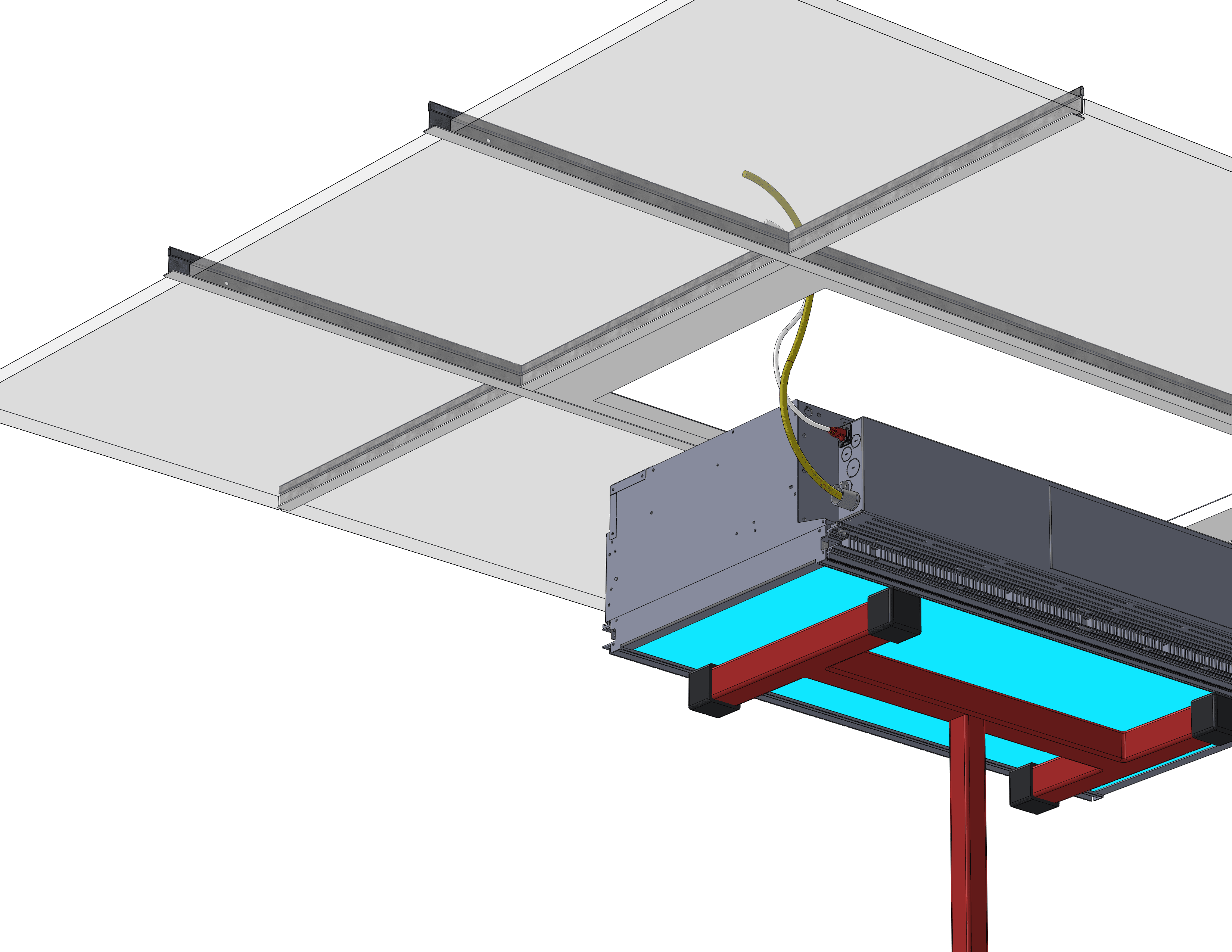
Make electrical and data connections before raising into the ceiling void.

A7 Hoist
Wiring Process

North American model: 12/2 or 12/4 or
14/2 or 14/4 WG NM-B Romex with 1/2” or 3/4” KO. Cat6 Ethernet cable

North American model: 12/2 or 12/4 or 14/4
or 14/4 WG MC or FMC or EMT with 1/2” or 3/4” KO. Cat6 Ethernet cable

International model: 3-core 2.5mm2 LSZH or CPR-rated,
cable OD 6.5-8.6mm, 6-pole socket. Cat6 Ethernet cable

Raise fixture until the bottom of the fixture is level with the finished ceiling surface

Fully Raised Joists 2
Fully Raised Joist 3

Use M6 thin hex nuts (provided) to adjust the level of
the fixture to the NC (New Construction) Housing.

Gradually lower the drywall hoist to load the fixture on the hex nuts.

Use the optional 10mm hex nut spinner (nut driver /
nut driver / nut screwdriver)

Fully Raised Joist Hex Nut 2

Use M6 nylon hex lock nuts (provided) to secure the fixture
to the NC Housing. Ensure the fixture is secured on the ceiling before
removing the drywall hoist.

Fully Raised Joist Lock Nut 2

Once the ceiling has been finished. Using a long nose (needle nose) plier. Grab one of the four aircraft wires hanging from the fixture and pull it down and slot into the slots on the Bezel Trim. The wires are spring loaded and will pull up the trim.

Aircraft Plier

Repeat on all four aircraft wires to complete

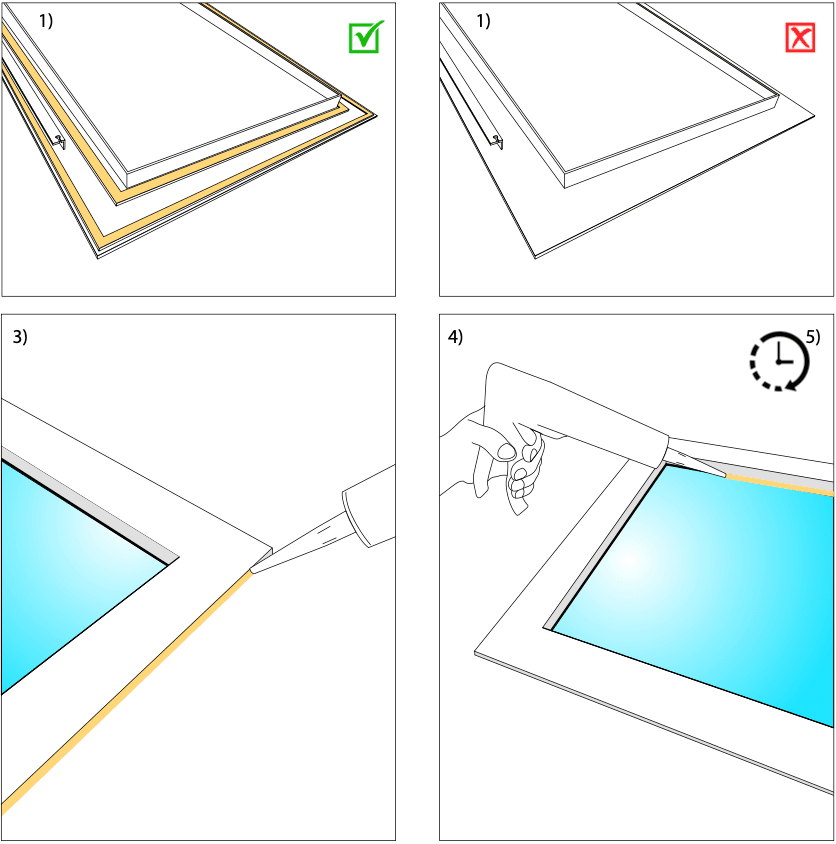
Caution - IP54 and Wet location ratings are only applicable when using dedicated trims and installed in horizontal orientation within recessed ceilings. Wall or Vertical applications does not maintain ratings.

  • 1. Ensure the trim is the dedicated IP54 or Wet location trim with additional dust and moisture protection gaskets.
  • 2. Install trim as per normal.
  • 3. Apply silicone caulk along the outer edges of the trim that meet the ceiling face.
  • 4. Apply silicone cault along the inner edges of the trim that meet the glass face.
  • 5. Wait for the silicone to cure fully according to the material’s guideline before subjecting the fixture to any.
Cleaning Process

A7 units outer surface is glass which has an anti-reflective optical coating typically found on camera lenses and eye glasses. This optical coating can be damaged if chemicals or abrasive cloths are used to clean the surface.

Do not use:
Glass or material cleaners Abrasive cloths
Do use:
Isopropyl alcohol (preferred) or soapy water Microfiber cloths
If in doubt, follow instructions for cleaning camera lenses and eyeglasses

Camera Lens Clean

Recommended Presets and Circadian Animations

Innerscene recommends several presets which would suit a majority of uses:

Summer Mediterranean blue sky

This preset presents a bright blue sky with bright sun beam.

DALI or Casambi CCT set to 6500K. Brightness set between 50% and 100% depending on the desired effect. Lower lighting levels may be more suitable in large array of light fixtures may be too bright.

Actual CCT is around 17,000K.

Sunrise or Sunset

DALI or Casambi CCT set to 2700K. Brightness set between 30% and 80%.

Actual CCT is around 3200K.

Moon

DALI or Casambi CCT 2700K. Brightness set between 1% and 7%. Actual CCT is around 3200K.

Seasonal circadian

The virtual sky colour and brightness approximates to real world with local sunrise and sunset cycles that varies throughout the year. Please note that during winter, the daylight hours will reflect the outside condition which may mean there is insufficient task lighting during typical working hours such as 9am to 5pm. This mode is not recommended for very high lattitudes such as North Finland or Canada where there may be pertpetual daylight or darkness. See below for comparison of between summer and winter days for projects located in London or in similar latitudes.

Summer vs Winter

Perennial circadian

The sky colour and brightness profile will be based on local time, regardless of seasonal changes. This mode is more suitable to rooms which may be used for work such as meeting rooms, offices, home offices etc. During typical working hours of 8am and 6pm, the sky will be fully blue. This may alleviate symptoms of Seasonal Affected Disorder (SAD) by increasing the exposure to light.

Summer Photo

Casambi User Guide

Thank you for purchasing the Innerscene Virtual Sky fixture with Casambi lighting control. Casambi ecosystem typically consist of a Casambi Dimming module which controls the fixtures, as well as a battery powered Casambi Xpress wall or handheld controller. For wiring or mounting instructions please refer to "Wiring Guide" and "Installation Guide", respectively.

A7 Fixture

Innerscene Virtual Sun
tunable sky light fixture

Casambi Module

Casambi CBU-A2D module
mains powered (inside Primary fixture except in North America)

xPress

Casambi Xpress
battery powered controller, optional wall mounting

Router

Wireless Router
Required to connect fixtures together.

Ethernet Switch

Ethernet Switch
Optional for installations with more than four fixtures. Multiples switches may be required for even larger installations.

Casambi App

Android or Apple Phone or Tablet
Required to set time or adjust scenes or preset buttons on Xpress controller

Casambi Xpress

Casambi Xpress controllers are battery powered and do not consume power during standby. Up to four preset scenes can be triggered with buttons numbered 1 to 4. The default settings are:

  • Button 1 - Blue Sky
  • Button 2 - Warm Sky
  • Button 3 - Circadian
  • Button 4 - Moon

+ button increase brightness
- button decrease brightness
button warmer sky
button bluer sky

QR Code 1

SCAN ME

Download Buttons
QR Code 2

SCAN ME

Screenshot 1

1) Ensure Bluetooth and Location Services is turned on in your device

Screenshot 2

2) Open the Casambi App

Screenshot 3

3) If the light fixtures are powered, the app should show My networks and Nearby devices

By default, Innerscene pre-programmed Casambi modules are assigned as a part of the network, which allows customers to select the homes and adjust colour and brightness.

If you require changes to the preset scenes, please contact [email protected] for the Network password.

If you are installing Innerscene fixtures with other Casambi enabled fixtures from other vendors, or other vendors fixtures, please inform Innerscene and we will not program the Casambi module. You will need to Create a Network first.

Screenshot 4

4) Select "My networks" to show your nearby networks. Active networks will show in Black instead of Gray

Select your network. Typically it will be named with the prefix "Virtual Sun"

Screenshot 5

1) Once a network has been selected. You can turn on and off indiviual devices. Each device represents a zone of Innerscene Virtual Sun fixtures.

Active zones are highlighted (#2). The lit length of the bar underneath the icon represents the dimming level of that zone. For example the above represents 50% dimming. Inactive but powered zones are dimmed and with a grey bar underneath the icon (#1). Unpowered zones are dimmed and without a bar underneath the icon (#3).

With Casambi, “off” is only by software and the fixture is still energised. For maintenance or servicing, please disconnect the system at the electrical box.

Screenshot 6

2) In the Luminaires screen, press on any fixture to turn it on and off.

Press and slide up and down to control the colour temperature. (Other vendor’s fixtures may not support this feature)

Press and slide left and right to control the brightness.

Screenshot 7

3) Press and Hold a zone will enable the tunable white menu. This will allow you to set the dimming percentage % and Colour temperature in Kelvin.

You can quickly adjust with the slider or make small increments with the + or - buttons.

This value will be kept until the fixtures are powered off or another scene preset is selected.

Screenshot 8

4) On the Scenes tab, you can see previously set scenes. With one Xpress controller, four of these scenes can be selected.

Circadian Scene - Sky colour slowly fades throughout the day, ranging from warm in the morning and late afternoon to cooler and bluer around noon.

Bright Blue Sky Scene - Bright blue sky.

Bright Sunrise/Sunset - Very warm sky similar to the an orange horizon at sunrise or sunset.

Moon Scene - A moon is visible and the sky is dimming to match low level moonlight.

Dimmed Blue Sky Scene - Dimmed down blue sky

Warm White Sky - A less saturated warm sky, similar to 2700K or 3000K warm white LEDs.

Neutral White Sky - An uncoloured white sky. Similar to 3500-4000K neutral white LEDs.

Cool White Sky - A pure white sky. Similar to 6500K cool white LEDs.

By default. Circadian, Blue Sky, Sunrise/Sunset, Neutral White Sky and Moon are pre- programmed.

Screenshot 9

1) “Configuration failure” most often result from the dimming control wires not being connected properly to the fixture.
Disconnect then Reconnect the fixture from mains power to reinitialise.

If the problem persist, disconect the fixture from mains power and check the wire connections between Casambi DALI output (labelled DALI+ and DALI-) and DALI input on the A7 Controller board (labelled DALI x and DALI y). It is possible that the wires may have become loose.

Screenshot 10

2) Each light fixture group or zone is controlled by a single Casambi module, often labelled as “DALI DT8 TW” or “Innerscene A7” in the nearby devices list.

The grey bar next to the bluetooth device represents the connection signal strength from your device to the Casambi module.

If the device have not been previously setup it will show as “unpaired”.

You will need to make a new network and add it.

Screenshot 11

3) The Casambi Xpress controller doesn’t work

If you see a flash of amber light when pressing the controller that means it has battery.

If not, then the battery may need to be replaced.

Casambi Xpress uses a CR 2430 Lithium battery.

Screenshot 12

4) Device requires firmware upgrade.

Occasionally Casambi will require you to update the firmware of the network. Without the latest firmware the network may stop functioning.

In some cases you may need to request the network password from Innerscene to update the firmware.

For more information contact [email protected]

To avoid this problem, you may wish to disable firmware update in Settings, Performance Security section of the app.